

Gyazo is a lightweight screenshot and screen recording tool developed by the Japanese company Helpfeel. It lets users capture their screens in various modes and automatically uploads the content to the cloud.
As a long-time user of Gyazo, I have occasionally encountered "502" error pages, and I have since discovered that many others have experienced the same issue. To address this, I have investigated the underlying causes and compiled a set of solutions.
What Is a Gyazo Error 502
A Gyazo 502 error means that users are unable to view or upload new content on Gyazo. According to the Gyazo Help, this issue is typically caused by one of the following reasons:
- Server issues: A 502 error may occur when there is a sudden surge in server traffic or when an invalid response is received from an upstream source.
- Network issues: Problems with DNS or VPN can also cause Gyazo to display a 502 error.
- Service maintenance: Gyazo or its service providers may undergo maintenance, which can result in a 502 error.
How to Fix Gyazo Error 502
After understanding the reasons mentioned above, and drawing on both official troubleshooting recommendations and my own research, I have identified several methods that can effectively resolve the Gyazo internet server error:
- Refresh the Gyazo page
- Restart the router or switch networks
- Disable VPN or proxy
- Clear browser cache and cookies
- Contact Gyazo support
- Try an alternative tool
Now, follow the detailed steps to fix the Gyazo 502 error.
Fix 1: Refresh the Gyazo Page
According to the official notice, the 502 error on Gyazo is a temporary issue caused by a surge in server traffic, which has led to an overload. The first step to resolve it is to try refreshing the page displaying the 502 error; this may re-establish the connection to the server and allow the original content to load. Instructions are as follows:
1. Go back to the page that displays the 502.
2. Click the Reload this page icon next to the address bar to refresh the page.
3. Wait for the interface to refresh and check whether the original content is displayed.
Fix 2: Restart Router or Switch Network
When I encountered a 502 error on Gyazo, I discovered that it was caused by an issue with my router, which led to a network interruption. In such cases, Gyazo may be unable to establish a proper connection to its servers, resulting in the page failing to load. Therefore, if you see a 502 error on a Gyazo page, try restarting the router or switching to a different, functional network.
Fix 3: Disable VPN or Proxy
Issues with a VPN or proxy server are another common reason why Gyazo might stop working. Technical problems on the part of the VPN or proxy provider can lead to service interruptions, preventing Gyazo from connecting to its servers. In short, the quickest solution is to simply disable the VPN or proxy service and then try accessing Gyazo again.
Fix 4: Clear Browser Cache and Cookies
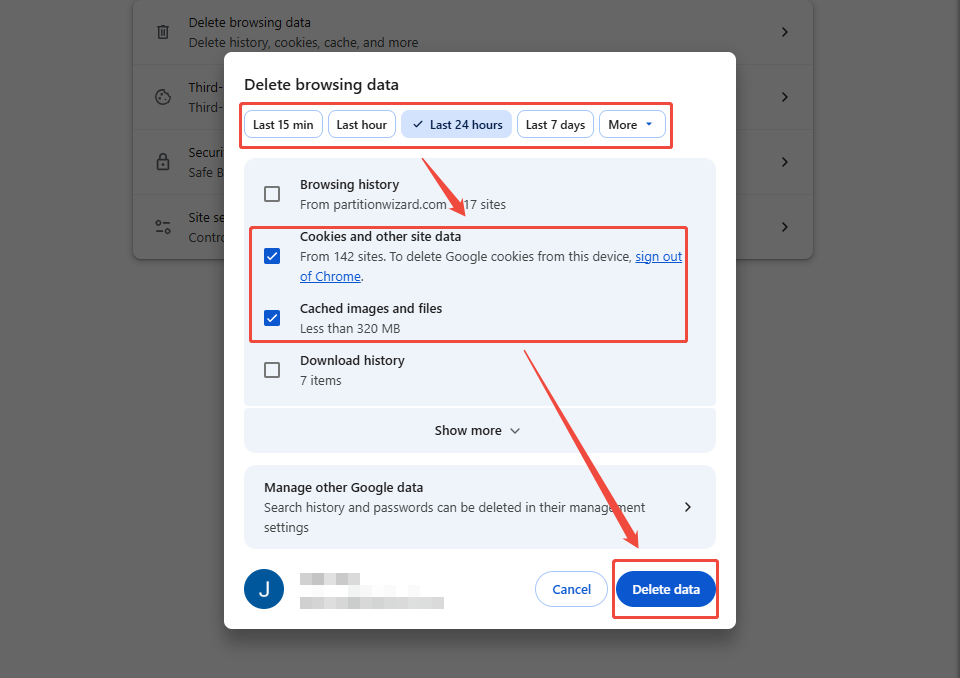
When the cache files stored in the browser become outdated or corrupted, the information displayed in the Gyazo interface may also be outdated or corrupted, which can lead to a Gyazo error. In short, clearing the browser's cookies and cache is an effective way to resolve this issue. The steps below outline the process, using the Chrome browser as an example.
1. Open Chrome on the computer.
2. Then, click the three-dot icon in the upper-right corner and choose the Delete browsing data option.
3. Select a specific time period, and then check the Cookies and other site data and the Cached images and files options.
4. Click the Delete data option to clear the cache and cookies.
Fix 5: Contact Gyazo Support
If the four methods mentioned above fail to resolve the 502 error in Gyazo, I recommend reaching out to the official support team for assistance. In fact, the Gyazo Help Center itself suggests that if a 502 error persists and cannot be fixed, the best course of action is to report it to them.
They advise including a screenshot of the page where the error occurs when sending your email, as this will help them resolve the issue more effectively.
Fix 6: Try a Gyazo Alternative Tool
In the meantime, while you wait for the Gyazo support team to resolve the issue, using an alternative tool is the most efficient way to continue with the screen recording tasks. I’ve found several screen recording tools on the market that are worth trying, for example:
- Clipchamp: A built-in Windows tool that combines screen recording and video editing features.
- MiniTool Screen Recorder: A free screen recording tool for Windows that offers various recording modes, including screen, audio, and webcam capture, and features built-in annotation tools for real-time marking while recording.
- ShareX: A lightweight tool for taking screenshots and recording the screen, which also supports editing and file sharing. Its automated workflows allow users to easily share their recordings with a single click.
These tools follow essentially the same operational workflow; the general steps are as follows:
- Launch the screen recorder
- Choose the recording area
- Manage the audio and webcam recording settings
- Start recording
- End recording
- Check the recorded video
The following outlines the detailed steps for recording video, using MiniTool Screen Recorder as an example:
MiniTool Screen RecorderClick to Download100%Clean & Safe
1. Click the button above to download and install MiniTool Screen Recorder. Then, launch it on the computer.
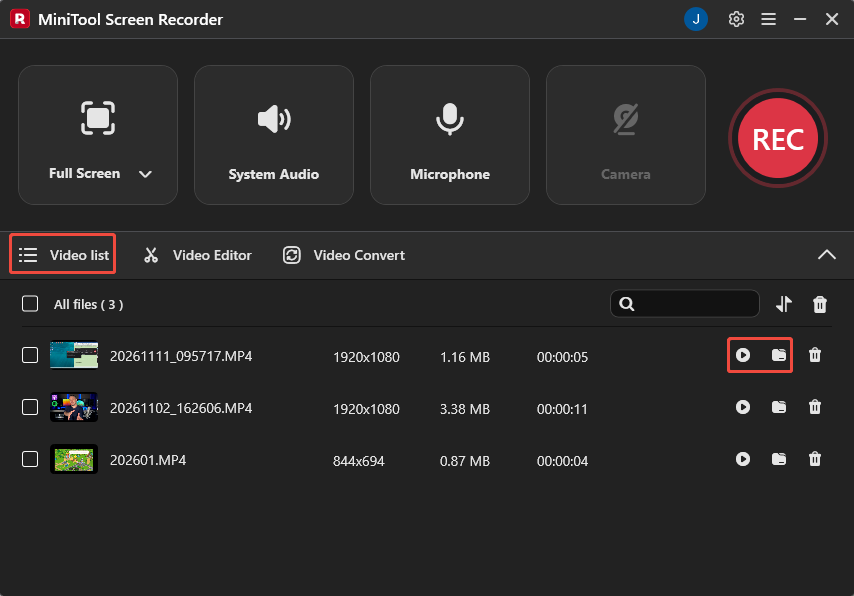
2. The tool records the full screen by default. To capture a specific area, window, or game, expand the Full Screen option, then choose the relevant options.
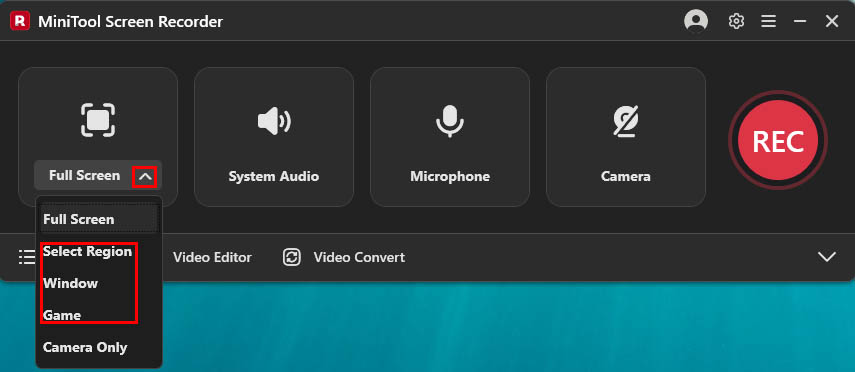
3. The system audio and microphone recording functions are enabled by default. To disable either of them, click their corresponding icons. Then, if there is a need to add the webcam overlay while screen recording, click the Camera icon on the right.
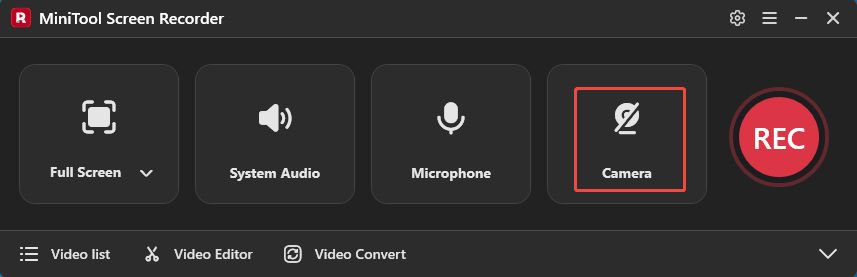
4. Next, click the REC button or press the F6 key, then begin recording the desired content after the 3-second countdown.
5. To finish recording, select the Stop recording icon on the floating toolbar or press F6. The program will automatically open the Video list section, where the Play icon can be used to preview the recording or the Folder icon to locate the video on the computer.
To Wrap Things Up
Resolving a Gyazo error 502 is not difficult. If the issue is only temporary, try refreshing the page, switching to a different network, disabling the VPN, or clearing the browser cache. However, if the problem persists, the best course of action is to seek assistance from Gyazo support or switch to an alternative tool, such as MiniTool Screen Recorder.
If you have any questions when using MiniTool Screen Recorder, send an email to support@minitool.com.
People Also Ask
1. Go to Gyazo and find the Video section.
2. Click the Share icon at the top, then find the target video that you want to save.
3. Next, click the Video option to begin the download process.