

If you are using ShadowPlay to record gameplay, you may encounter the ShadowPlay not working issue. This article provides 6 solutions, including restarting the NVIDIA Streaming Service, reinstalling GeForce Experience, using alternative screen recorders, such as MiniTool Screen Recorder, and more.
As a part of GeForce Experience 3.0, ShadowPlay allows users to instantly record gameplay at 60FPS for about 20 minutes. Besides, users can use it to stream videos on YouTube or Twitch at different resolutions. Sometimes, however, many users complain about NVidia ShadowPlay not working even when in fullscreen mode or activating the hotkeys.
To fix GeForce ShadowPlay not working, you can try the top 6 troubleshooting methods:
- Restart Nvidia Streamer Service
- Reinstall GeForce Experience
- Run Games in Fullscreen Mode
- Allow Desktop Capture
- Turn on Privacy Control
Fix 1. Restart NVidia Steamer Service
- Go to services.msc window
- Open the NVIDIA Streaming Service properties window
- Set Startup type to Automatic
This service is important to detect games in fullscreen mode. ShadowPlay not recording can result in Streamer service not running properly. To fix this issue, the first thing you should do is to make sure the Streamer service is running and restart it. Here’s how:
Step 1. Press the Win + R keys to open the Run dialog box, and then type services.msc and hit Enter.
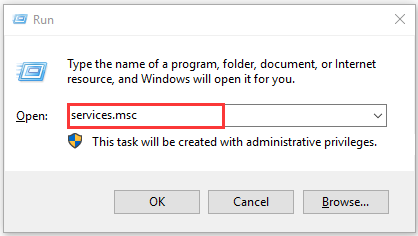
Step 2. In the Services window, double click the NVidia Streaming Service to open its properties.
Step 3. Change the Startup type to Automatic and then click on Start if it has been disabled. Alternatively, you can directly right click this service and select Restart.
Now, open the recording with GeForce Experience and see if ShadowPlay not working has been fixed.
Fix 2. Reinstall GeForce Experience
- Open the Run dialog box
- Uninstall NVIDIA GeForce Experience from the installed programs list.
- Download and install the latest NVIDIA app.
If you are using the Beta version of GeForce Experience or older version, you may be troubled by a faulty driver or NVidia apps. In order to resolve GeForce ShadowPlay not working, we recommend installing the latest versions of GeForce. For that:
Step 1. Press the Win + R keys to open the Run dialog box, and then type appwiz.cpl and hit Enter.
Step 2. Right-click the NVidia GeForce Experience app from the list of installed programs and select Uninstall. Then follow the on-screen prompts to complete this uninstallation.
Step 3. Download the latest GeForce Experience version and install it on your computer.
Now, run a game and try recording gameplay to see if NVidia ShadowPlay not working still persists.
Fix 3. Run Games in Fullscreen Mode
As you might know, most games are recorded in fullscreen mode. If you are running games in Windowed mode or borderless mode, you can try switching to the fullscreen mode from the game Settings or by pressing the F11 key for other apps. Also, you can launch games from the GeForce Experience app by itself because it launches games on actual fullscreen.
Fix 4. Allow Desktop Capture
If the ShadowPlay overlay not working issue still persists after switching to fullscreen mode, you can allow desktop capture. By doing so, the gameplay screen will be recorded regardless of any modes. Here’s how to do that:
Step 1. Open your ShadowPlay and select the Preferences.
Step 2. Navigate to the Overlay section and tick the checkbox next to Allow desktop capture under the desktop image.
Now, you can open a game and try activating the required hotkeys to record gameplay. At this time, the ShadowPlay not recording issue should be fixed.
Fix 5. Turn on Privacy Control
- Open ShadowPlay and go to Settings > General.
- Find the Share option and toggle it on.
- Try recording gameplay using the hotkeys.
In some cases, users found the privacy control settings for sharing the desktop was turned off after update. It can cause NVidia ShadowPlay not working when using the hotkeys to record gameplay. To fix this issue, you need to turn on the privacy control to allow desktop capture.
Step 1. Open your ShadowPlay and go to the Settings tab, and then click on General at the upper left corner.
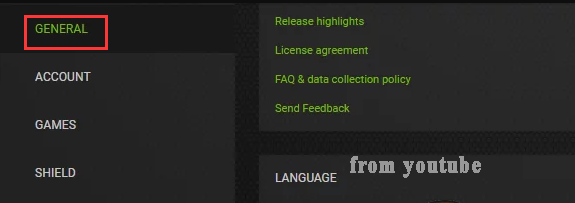
Step 2. Scroll down to reach the Share option and make sure its switch is toggled on.
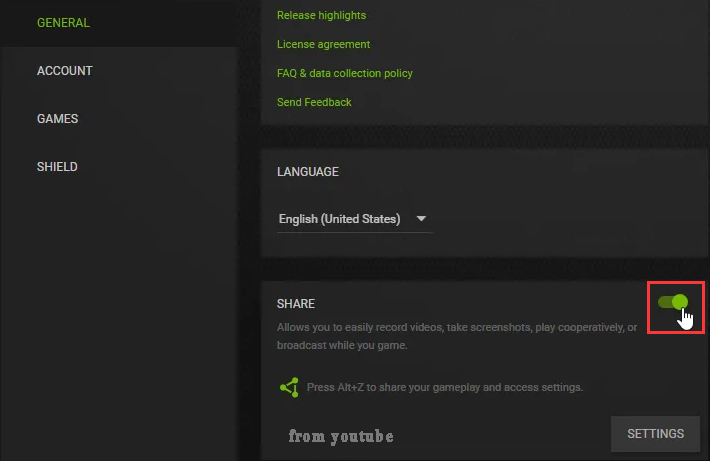
After that, you should record gameplay using the hotkeys without any problems.
Fix 6. Use an Alternative Tool
If the five methods above don't resolve the ShadowPlay issue, using an alternative tool is the most time-efficient solution. MiniTool Screen Recorder is the free recording tool I use most often; it is capable of capturing any activity on your screen.
Additionally, this tool supports various recording modes, including game windows, full screen, specific regions, and webcam feeds. Notably, MiniTool Screen Recorder imposes no time limits on recordings, and the output files are free of watermarks.
What’s more, this tool also provides annotation features that allow users to mark key information while recording the screen.
- Launch MiniTool Screen Recorder
- Select a recording area
- Manage audio and webcam recording settings
- Start recording
- Play the target game
- End recording and check the recorded video
MiniTool Screen RecorderClick to Download100%Clean & Safe
1. Click the button above to download and install MiniTool Screen Recorder. Then, launch it on the PC.
2. The tool records the entire screen by default. To capture the target game, expand the Full Screen option and choose the Game option.
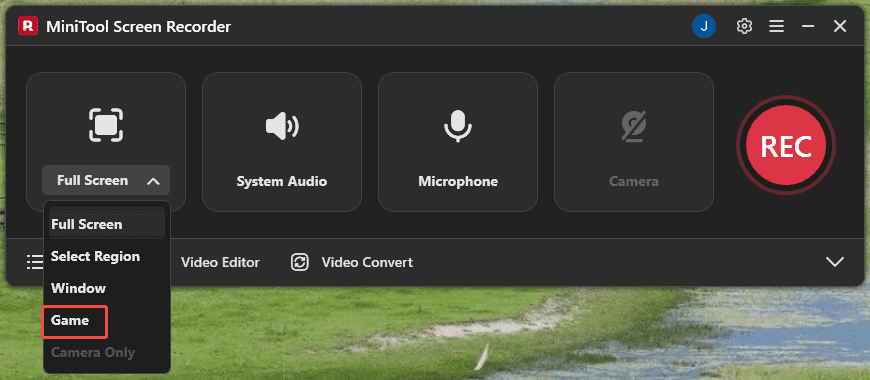
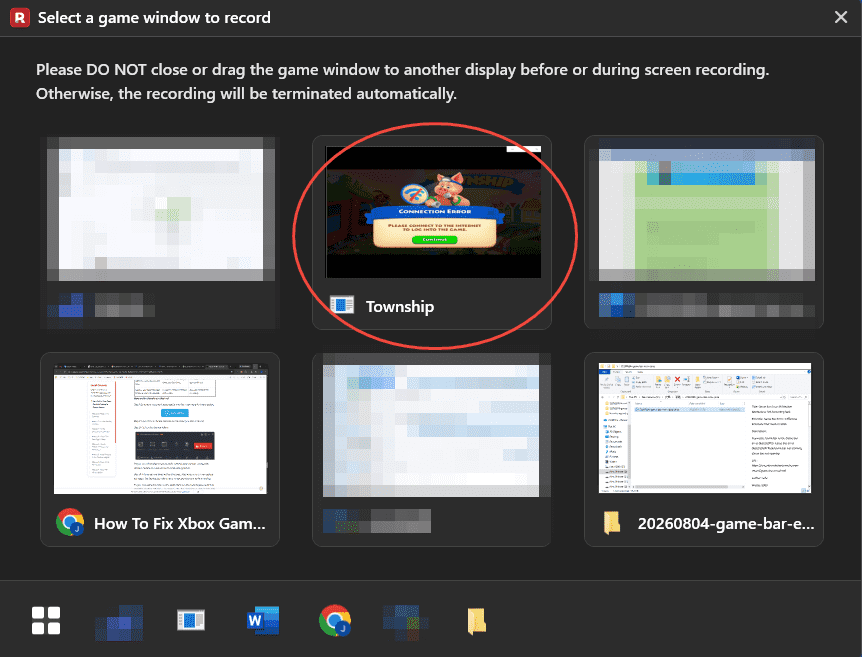
3. Then, in the new pop-up window, choose the target game window.
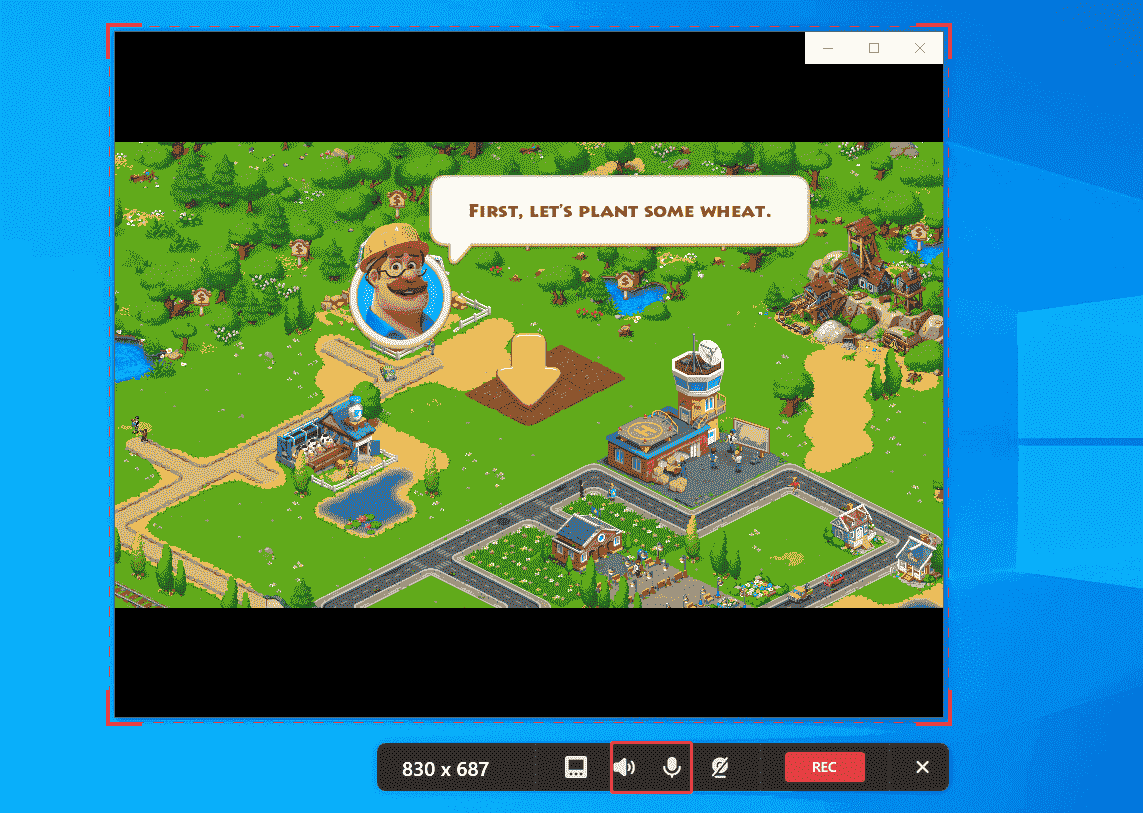
4. The system audio and microphone audio recording features are enabled by default. To disable one of them, click the relevant icon on the floating bar.
5. Click the Camera icon to enable the webcam recording feature if there is a need to capture webcam footage.
6. To begin the recording process, click the REC button. After a 3-second countdown, play the target game.
7. Then, press the F6 key to end the recording process. Finally, check the recorded game video under the Video list section.
Final Words
It is not difficult to solve the issue of ShadowPlay not working. By trying the six solutions, such as restarting the NVIDIA Streaming Service, reinstalling GeForce Experience, using alternative screen recorders, and more, can get ShadowPlay working again.
If you have any questions when using MiniTool Screen Recorder, send an email to support@minitool.com.