

Are you stuck in the “Recording stopped Snipping Tool” issue? Don’t worry. This post provides 8 simple methods to solve this issue, such as checking recording settings, updating Windows, repairing the app, using alternative screen recorders, and more.
Snipping Tool is Microsoft’s pre-loaded screenshot utility for Windows Vista and later. It’s very useful for capturing screenshots or creating screen recordings on your Windows PC. However, sometimes when you try to record something on your PC, you may fail and receive the “Recording stopped Snipping Tool” error.
Once the “Snipping Tool Recording stopped” issue happens, you will see a message that says: Something happened, and we’ve stopped recording. To help out, we summarize several feasible troubleshooting fixes for this issue.
- Disable screen projection
- Run the Windows app troubleshooter
- Run SFC and DISM scans
- Change the recordings save location
- Repair or reset Snipping Tool
- Update or reinstall Snipping Tool
- Perform an in-place upgrade
Fix 1: Disable Screen Projection
If you use multiple displays, you may experience the “Snipping Tool Recording stopped something happened” issue. Therefore, to solve it, you should make sure you disable display projection. You can do this easily by pressing Windows + P to open the Project panel and then selecting PC screen only.
Fix 2: Run the Windows Apps Troubleshooter
When facing the “Recording stopped Snipping Tool” issue, you can also try to fix it using the Windows Store Apps troubleshooter. It’s a Windows built-in tool that can help troubleshoot problems related to Windows Store apps.
- Go to the Update & Security section in Windows Settings interface.
- Open Troubleshoot and select Additional troubleshooters.
- Find Windows Store Apps and run the troubleshooter.
- Follow the on-screen instructions to fix any detected issues.
Step 1: Open Windows Settings by pressing Windows + I. Then select Update & Security.
Step 2: Go to Troubleshoot and then click Additional troubleshooters from the right side.
Step 3: In the next window, locate Windows Store Apps. Then click Run the troubleshooter.
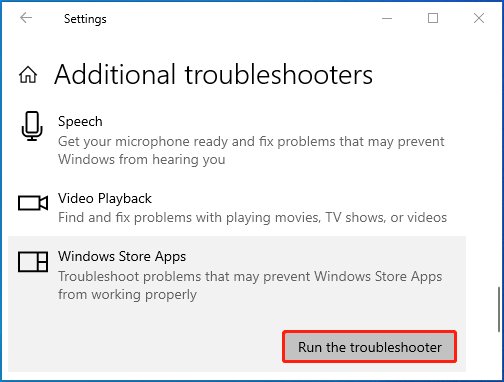
Step 4: After the process finishes, follow the on-screen instructions to fix problems if any are found.
Fix 3: Run SFC and DISM Scans
- Open Command Prompt as an administrator.
- Run sfc /scannow to scan and repair system files.
- Restart your computer and reopen Command Prompt as an administrator.
- Run the three DISM commands one by one to check and repair the Windows image.
- Restart your PC and check if the error is resolved.
The “Recording stopped Snipping Tool” issue may also result from corrupted or missing system files. To troubleshoot it, you can use the SFC and DISM utilities. Here’s how to do this.
Step 1: Type cmd in the search bar. Then right-click Command Prompt in Best match and select Run as administrator.
Step 2: In the elevated Command Prompt, type sfc /scannow and press Enter.
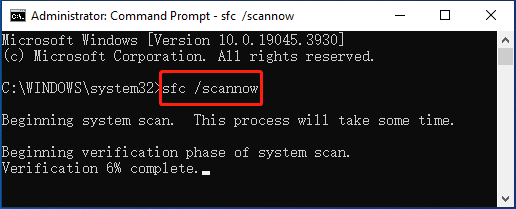
Step 3: Wait for the scan to complete. Then restart your computer and run Command Prompt as an administrator again.
Step 4: Type the following commands and press Enter after each.
- DISM /Online /Cleanup-Image /CheckHealth
- DISM /Online /Cleanup-Image /ScanHealth
- DISM /Online /Cleanup-Image /RestoreHealth
Step 5: Once the process ends, restart your PC to check if the error disappears.
Fix 4: Change the Recordings Save Location
- Open File Explorer and navigate to the Captures folder.
- Open the folder's Properties and go to the Location tab.
- Click Move to choose a new save location.
- Select the preferred folder and click Select Folder.
- Click Apply and OK to save the changes.
Changing the default save location of the screen recordings may also help solve the “Snipping Tool Recording stopped” issue. You can do this with the following guide.
Step 1: Press Windows + E to open File Explorer. Then go to This PC.
Step 2: Open Videos under Folders. Then right-click the Captures folder inside Videos and select Properties.
Step 3: Switch to the Location tab and then click the Move button.
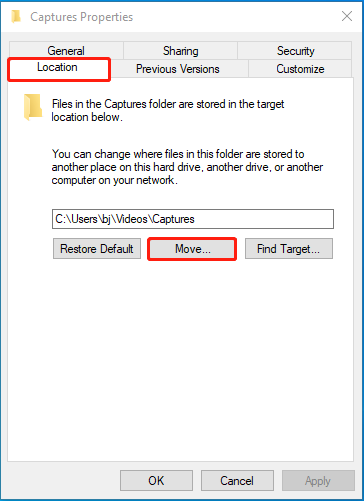
Step 4: After that, choose a preferred location and click Select Folder.
Step 5: Finally, click Apply > OK to save the change.
Fix 5: Repair/Reset Snipping Tool
- Open Apps in Windows Settings.
- Find Snipping Tool and open its Advanced options.
- Click Repair to fix the app, or click Reset if the error persists.
If the “Recording stopped Snipping Tool” issue occurs due to damaged local app data, you may need to repair or reset Snipping Tool. To do this, follow the steps below.
Step 1: Open Windows Settings and select Apps.
Step 2: In the Apps & features section, scroll down to find and click Snipping Tool. Then click Advanced options under the app.
Step 3: In the next window, click Repair to see if the error will be solved. If the error persists, you should then click Reset to reset the app.
Fix 6: Update/Reinstall Snipping Tool
The outdated or buggy app may also lead to the “Snipping Tool Recording stopped something happened” issue. As for this, you’d better try updating or reinstalling this app to fix the problem.
To update the Snipping Tool, you need to launch Microsoft Store, go to Library, and then click the Get updates button.
For the app uninstallation and reinstallation, access the Apps & features section, scroll down to locate Snipping Tool, click Uninstall, and then reinstall it from Microsoft Store.
Fix 7: Perform an In-place Upgrade
It’s also possible for you to fix the “Snipping Tool Recording stopped” issue by performing a Windows in-place upgrade. You can execute the operation via a Windows ISO file or bootable USB drive.
This post shows you how to fix the “Recording stopped Snipping Tool” issue in detail. When you suffer from this issue, you can try to fix it with the above methods.
Fix 8: Use an Alternative Screen Recorder
Alternatively, if you are in a rush to complete your recording, you can use an alternative screen recording tool, for instance, MiniTool Screen Recorder, which I use frequently. It is a safe, free tool that offers a wide range of recording features, such as capturing the full screen, specific areas, webcam feed, and audio from both the system and microphone.
Furthermore, the application allows you to set a scheduled recording time and adjust parameters like recording quality and frame rate to suit your needs. Best of all, the built-in annotation tools provided by MiniTool Screen Recorder make it an excellent choice for creating tutorial videos.
Fast Track Steps:
- Launch MiniTool Screen Recorder
- Choose the recording area
- Adjust audio and webcam recording settings
- Start recording
- Annotate the screen if necessary
- End recording
- Check the recorded video
Here are the detailed steps for capturing the screen with MiniTool Screen Recorder.
MiniTool Screen RecorderClick to Download100%Clean & Safe
Step 1. Click the button above to download and install MiniTool Screen Recorder. Then, launch it on the PC,
Step 2. Click the Settings icon in the upper-right corner on the main interface. In the Settings window, you can move to the different tabs to adjust the recording settings. Then, click on OK to save the changes.
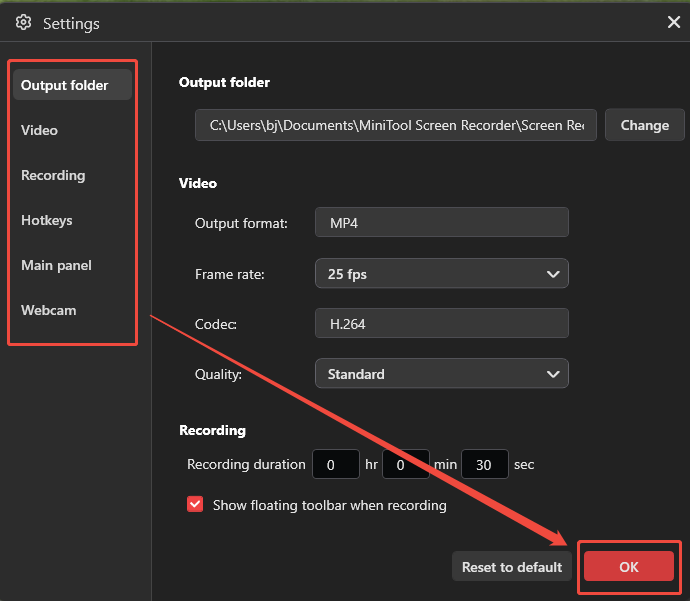
Step 3. The tool captures the full screen by default. If you want to capture a specific area, window, game, or monitor, expand the Full Screen option and choose the relevant options.
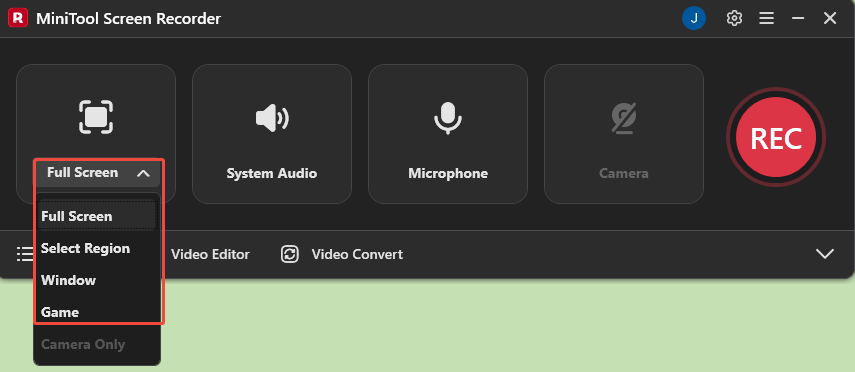
Step 4. The audio recording features are enabled by default. To disable one of them, click the System Audio icon or the Microphone icon.
Step 5. Then, click the Camera icon to enable the webcam recording feature if necessary.
Step 6. Next, click the REC button to begin the recording process. When the 3-second countdown ends, move to the target that needs to be recorded.
Step 7. If you need to annotate the screen while screen recording, you can choose some tools from the toolbar on the right of the screen.
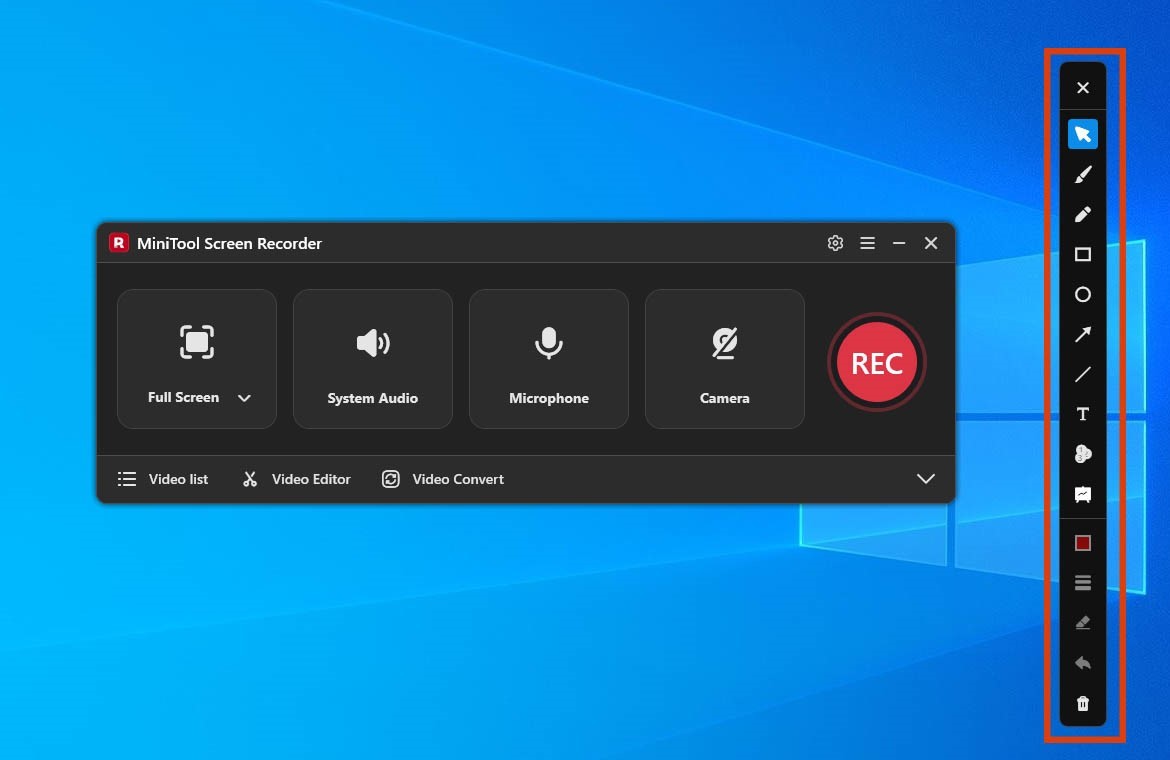
Step 8. To end the recording process, press the F6 key. Then, check the recorded video by clicking the Play icon under the Video list section.
Final Thoughts
If recording stopped Snipping Tool unexpectedly, several troubleshooting methods can help resolve the issue, such as repairing system files using SFC and DISM commands, changing the Captures folder location, repairing Snipping Tool, or using an alternative tool.
If you have any questions when using MiniTool Screen Recorder, send an email to support@minitool.com.