

Why is Google Meet recording unavailable? This article explains it from 4 aspects. It also gives 2 solutions by fixing the built-in tool and using 2 excellent third-party screen recorders, including MiniTool Screen Recorder and Movavi Screen Capture.
Understanding Google Meet Recording
Let’s first get a basic understanding of the information related to Google Meet recording.
What Is Google Meet Recording
Google Meet is a real-time conferencing tool developed by Google. It boasts exceptional security and provides high-quality video calls for everyone. Google Meet has a wide range of applications, helping users connect with family and friends, as well as collaborate with teams to complete various tasks.
Recording is one of the strong features of Google Meet. It enables users to capture conferences for saving, future reference, and sharing. Google Meet recording allows users to record presentations, share screen content, and add captions. It can also be a tool to record the heartwarming moments with family and friends.
Benefits of Recording a Google Meet
Why use Google Meet recording? The following shows 4 benefits that attract people.
1. Comprehensive Recording
Google Meet’s recording feature provides a verbatim transcript of the meeting, which can be kept as a basis for later review, examination, and clarification. This feature can also archive work discussions and decisions, which helps in adhering to company rules and regulations.
2. Training and Development
Google Meet recordings can be used as training materials for new employees, allowing them to learn workflows and job duties quickly. It can also be used for the ongoing professional development of experienced employees.
3. Extended Accessibility
Google Meet recording feature allows team members who didn’t attend the live meeting to view the recording, ensuring that everyone involved in the project is kept up-to-date with the latest details and decisions.
4. Strong Teamwork and High Work Efficiency
Every employee learns from the recorded video materials, helping them maintain a similar work pace, which contributes to enhanced collaboration and increased productivity for the whole team.
Why Is Google Meet Recording Unavailable
Why is recording unavailable on Google Meet? It may be due to the following reasons in most cases.
Google Meet Camera Issues
A webcam or browser malfunction can be one of the reasons affecting the meeting recording. If Google Meet doesn’t allow you to access the camera, it may lead to the recording stopping. Refreshing the page or restarting your browser can sometimes resolve this problem.
Account Permissions
If you are using a dedicated account belonging to a school, company, or organization, your recording permissions may be restricted by the administrator. Typically, only the meeting organizer or users with specific permissions can inactive or access the recording.
Subscription Limits
Many features of Google Meet require payment. The recording feature is primarily available to certain Google Workspace plan accounts. Those free or basic accounts can’t be allowed to use the recording feature. Therefore, if your plan doesn’t support the recording, it won’t work even if all other settings are correct.
Technical Issues
Typical system errors, outdated browser versions, or unstable network connections can also be common reasons why the recording function is unavailable. These problems can usually be resolved with basic troubleshooting steps.
How to Resolve Google Meet Recording Unavailable
If the Google Meet recording feature is unavailable, you can check and fix the built-in recording breakdown.
Fix 1. Upgrade Your Google Meet Workspace Plan
First, if you are using the free or basic Workspace plan, the Google Meet recording feature may not be available. You can upgrade to a plan that supports meeting recording and enable the recording feature.
Fix 2. Enable Recording Feature in Google Meet
In many cases, the recording option is unavailable because the account’s recording function isn’t enabled. The Google Meet recording option will only appear in the meeting after recording is enabled. After enabling it, the changes may take some time to work.
Fix 3. Break Permission Restrictions
Normally, Google Meet only allows meeting organizers or administrators to record meetings. If you join a meeting as a guest or by invitation, your account won't be able to use the recording feature. You can contact the organizer or administrator to apply for the recording permission. Also, you can create your own meeting and decide whether to record it.
Fix 4. Check Camera and Browser
Technical issues with your browser, camera, or microphone affect Google Meet recording. You need to ensure that the webcam is working properly and Google Meet has permission to access your camera and microphone.
Additionally, updating your browser or switching to a compatible browser may solve the issue of unavailable recording. Refreshing the page or restarting your browser can usually resolve this problem.
Fix 5. Ask for Customer Support
If you have tried all the solutions above, but the Google Meet recording still doesn’t work. Contact Google Workspace support for the most reliable assistance. They will help you solve any issues effectively with their professionalism.
Record Google Meet with Third-party Tools
Apart from fixing Google Meet recording issues, you can also use third-party recorders to save the meeting content. Here are an offline recorder and an online recorder worth trying.
1. MiniTool Screen Recorder
If your Google Meet recording is unavailable, MiniTool Screen Recorder could be an alternative recorder. MiniTool Screen Recorder enables you to record Google meetings as long as you want. It allows you to record a flexible screen, including full-screen and selected region recordings.
MiniTool Screen Recorder empowers you to record system audio and microphone sound, or both simultaneously. Moreover, it doesn’t have ads, watermarks, or bundles, which provide a clean and clear recorded video for you. MiniTool Screen Recorder allows you to customize recording hotkeys to adapt to your recording habits.
Key Features:
- Supports webcam recording, making a PiP (Picture-in-Picture) overlay.
- Allows recording various frame rates, including 15 fps, 20 fps, 30 fps, and 50 fps.
- Offers 3 quality models, including high, standard, and original quality, with the highest quality reaching 4K resolution recording.
- Supports adding real-time annotations during recording, enabling the use of cursors, different colored brushes, highlights, shapes, labels, and text.
- Allows the use of a whiteboard to add more content during screen recording.
- Supports presetting the recording duration for the recorded video, optimizing your workflow.
- Allows recording mouse movements, helping the audience focus on the core content on the screen.
Below is a tutorial on how to record a video for Google Meet using MiniTool Screen Recorder.
Step 1. Download and Install MiniTool Screen Recorder
Click on the download button below to download and install MiniTool Screen Recorder. Then, launch it.
MiniTool Screen RecorderClick to Download100%Clean & Safe
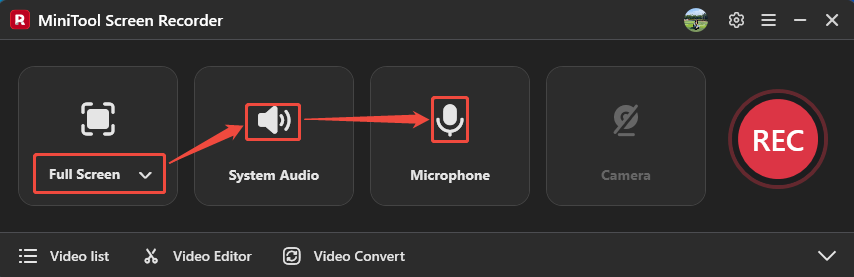
Step 2. Choose Recording Type and Control Audio
Expand the screen capture type option to choose a recording type. Here, I choose the Full Screen option. Then, click on the System Audio icon and the Microphone icon to decide whether to record the system sound and voiceover.
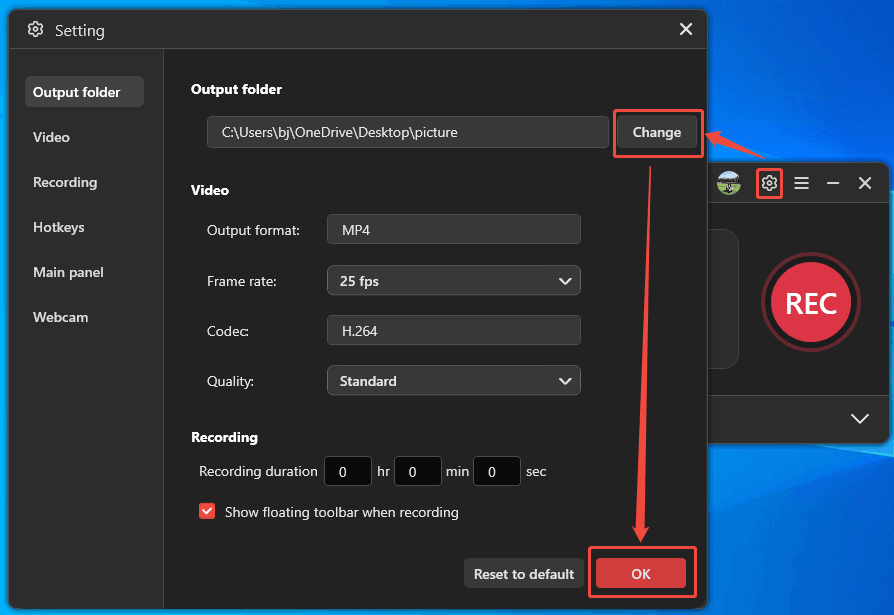
Step 3. Select a Storage Destination
Click on the Gear icon to trigger the Setting window. There, click on the Change button to pick a storage destination. Then, click on the OK button to apply these choices.
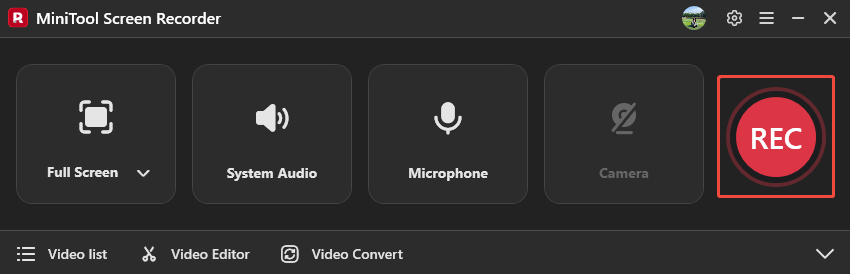
Step 4. Start the Recording
After saving the settings above, this video recorder will go back to the main interface. Next, open the meeting you need and click on the REC button to start the recording process. If you want to pause or resume this recording, press the F9 key. You can also click on the F6 key to stop it.
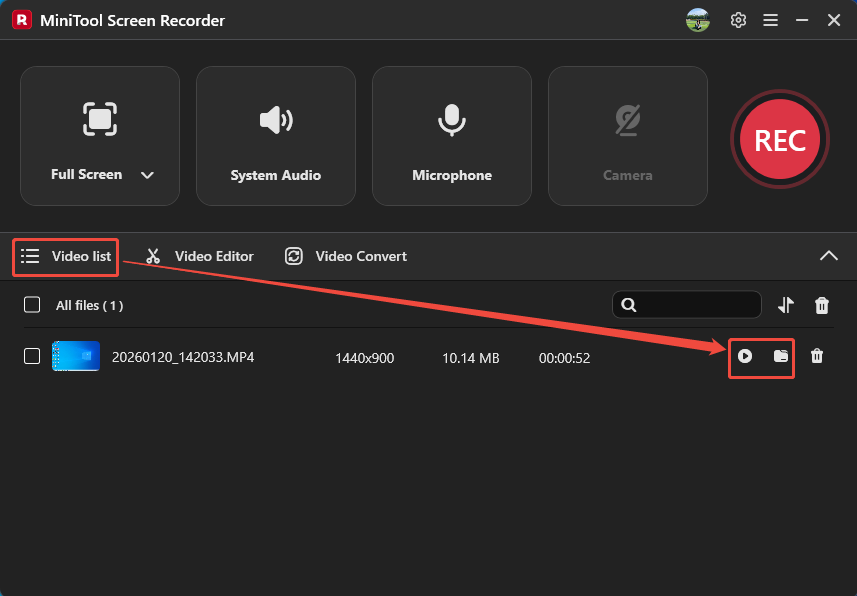
Step 5. Check and Locate the Recorded Video
Once the recording finishes, the recorded video will appear in the Video list tab. There, click on the Play icon or the Folder icon to view or locate it.
MiniTool Screen Recorder is an ideal tool as a Google Meet alternative recorder. It can record the meetings without any limitations.
2. Movavi Screen Capture
Movavi Screen Capture is an online screen recording tool that works in your browser. It enables you to record on Google Meet without any extra software. Movavi Screen Capture offers selectable screen recording areas. It also supports recording system audio and a microphone, or both simultaneously.
Movavi Screen Capture also offers the webcam recording feature, which means you can remotely chat face-to-face with colleagues or family members during the recording. In addition, it allows you to preview and download the recorded video.
Key Features:
- Compatible with Firefox and Google Chrome.
- Supports recording of the entire screen, browser tabs, and windows.
- No downloading and installing, saving storage space.
Step 1. Navigate to Movavi Screen Capture’s Webpage
Go to https://www.screencapture.com/ to Movavi Screen Capture’s webpage.
Step 2. Choose Whether to Record Sound and Start Recording
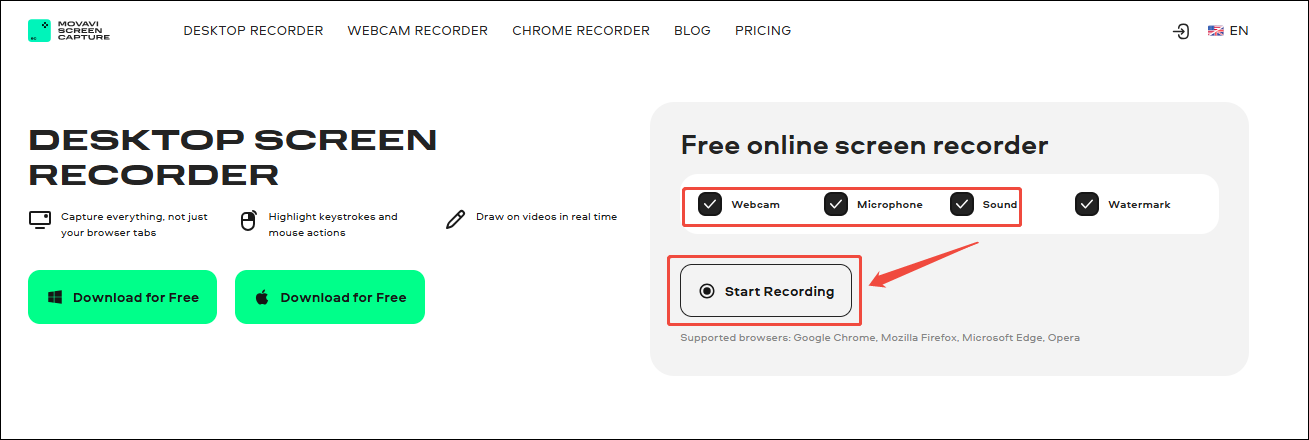
Check or uncheck the Webcam option, the Microphone option, and the Sound option. Then, click on the Start Recording option to open a window where you can choose the screen recording type.
Step 3. Choose Recording Type
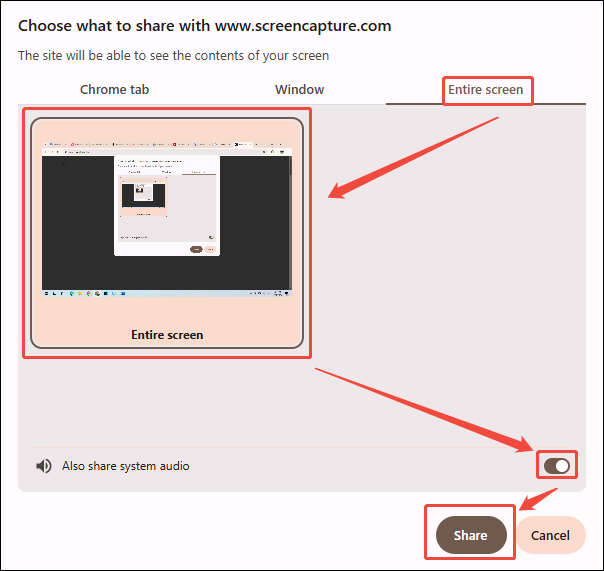
In this window, switch to the Entire screen tab. There, click on the Entire screen option and enable the Also share system audio button. Then, click on the Share button to enter the recording interface.
Step 4. Begin the Recording Process
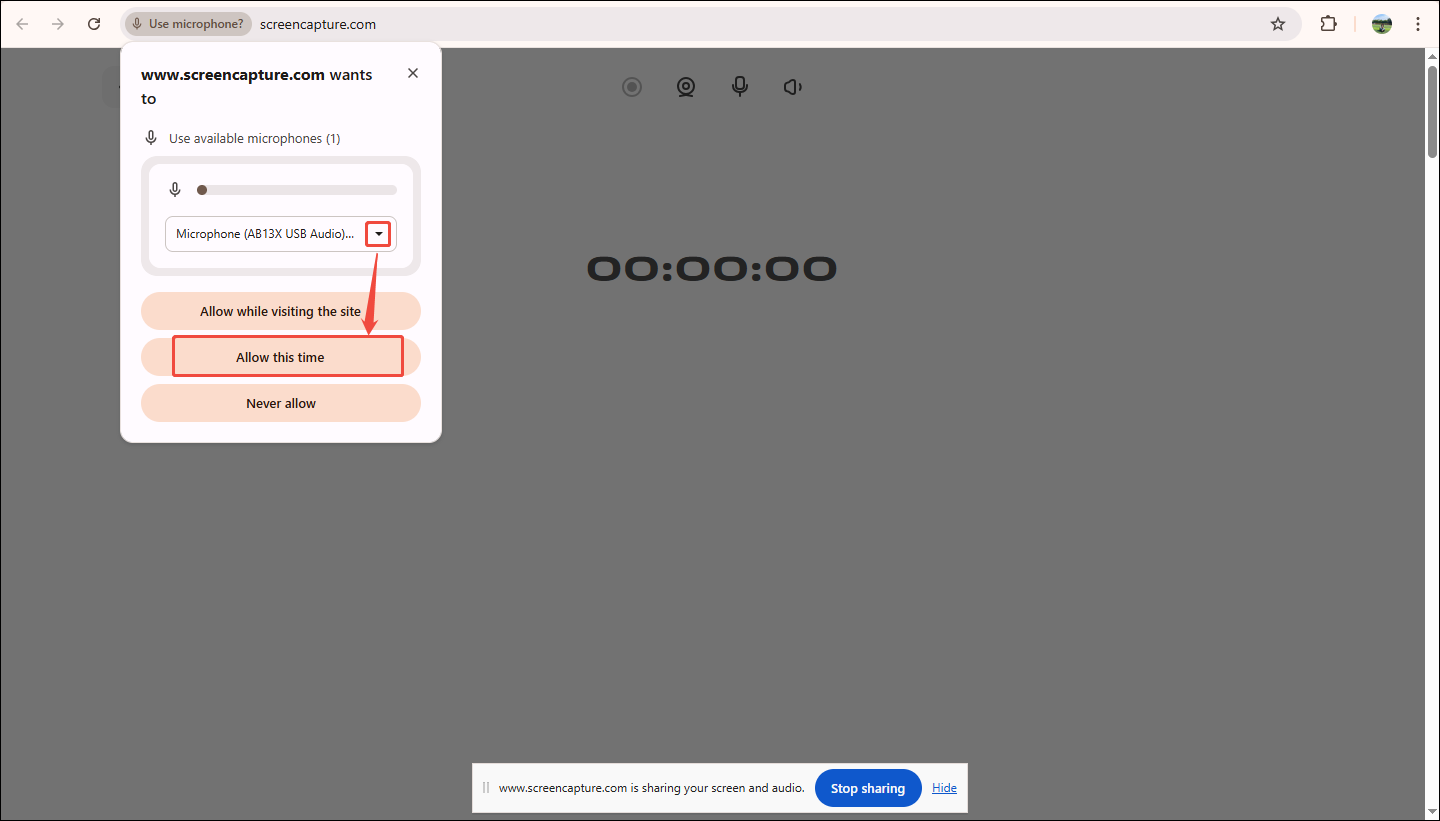
Expand the Use available microphones option to pick the microphone option you need. Then, click on the Allow this time option to allow microphone recording only this time.
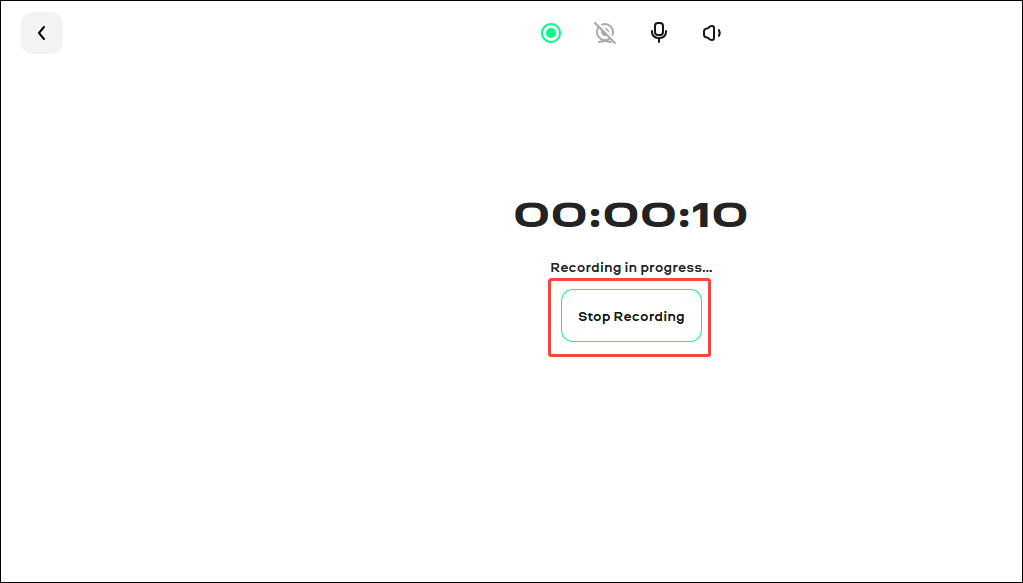
After setting the microphone, this screen recorder will automatically begin recording. Here, display the meeting you want to record on the screen. Then, you can click on the Stop Recording option to end this recording.
Step 5. Check and Download the Recorded Video
When this recording process ends, the recorded video will appear on the download page. There, you can play the recorded video. Also, you can click on the Download button to save it on your computer.
Movavi Screen Capture is a useful screen recorder. However, it has watermarks on the recorded video for non-subscribed users.
Extended: How to Edit Your Recorded Videos
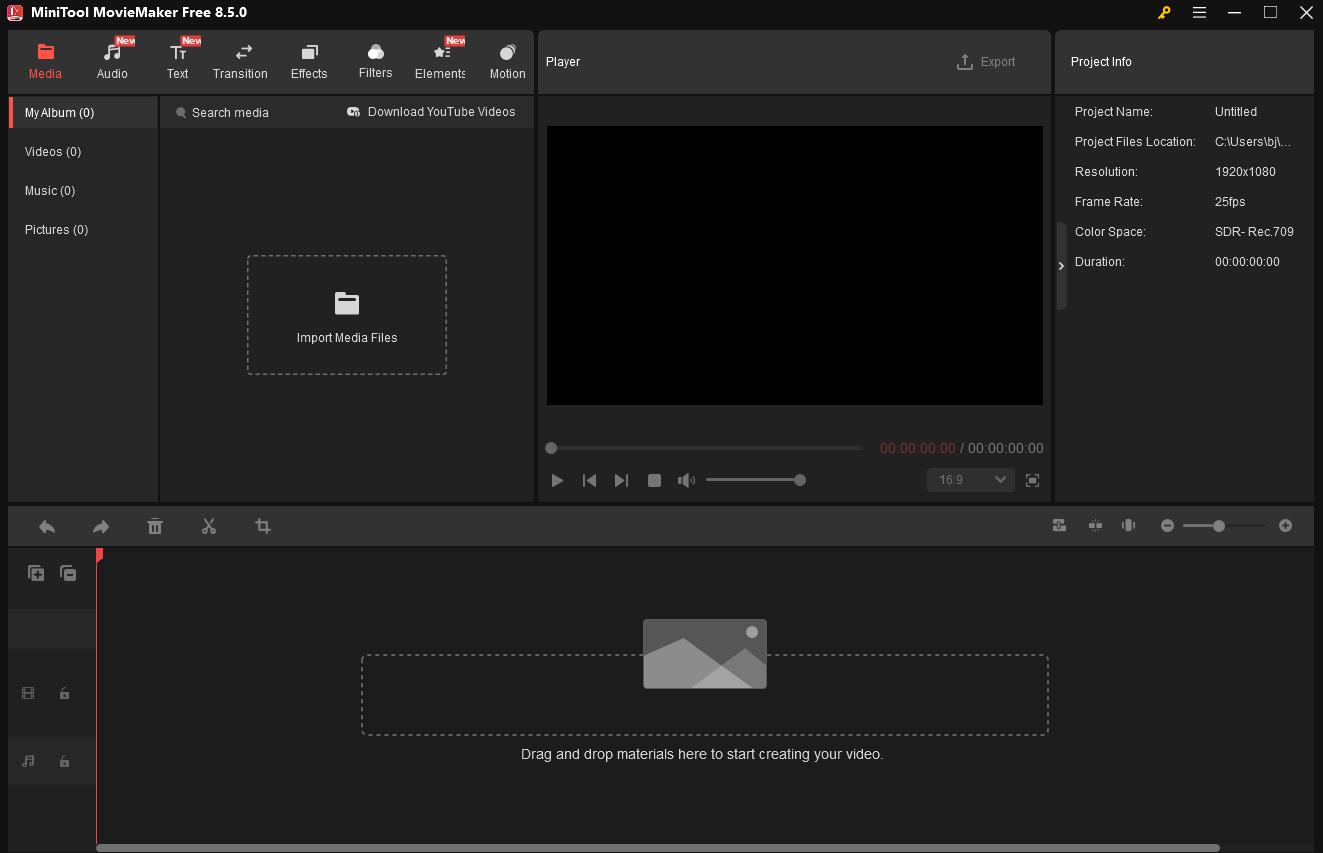
If you want to edit your recorded video, MiniTool MovieMaker is a great choice. MiniTool MovieMaker is a professional media file editor. It supports adding sound effects, texts, transitions, filters, video effects, elements, and motions. What’s more, MiniTool MovieMaker also enables you to trim, crop, split, merge, flip, rotate, and reverse the target video.
MiniTool MovieMaker allows you to change resolution, frame rate, and aspect ratio for the exported video. Moreover, it allows you to adjust the video properties, such as video speed and video color, including contrast, saturation, and brightness. Furthermore, MiniTool MovieMaker also empowers you to customize audio volume and fade in/out.
MiniTool MovieMakerClick to Download100%Clean & Safe
Final Words
Google Meet recording unavailable is a common problem. This article explains why it isn't available and how to fix it with Google Meet’s built-in settings. It also introduces how to record video using third-party screen recorders, including MiniTool Screen Recorder and Movavi Screen Capture.
Want to learn more about MiniTool Screen Recorder or MiniTool MovieMaker? Please contact us via email at support@minitool.com. Or you can also send me messages on X. I will reply to you as soon as possible.