

Can you record on Sling TV? Of course! This article shows the restrictions of its recording and recommends 3 different recording methods, including using the built-in Sling TV DVR and 2 third-party screen recorders: MiniTool Screen Recorder and Free Online Screen Recorder.
Sling TV is an affordable and practical television service that combines cable TV programming and live online streaming. It was launched to provide selective television viewing opportunities for users who have given up cable TV. Therefore, whether you want to watch the latest drama series or watch live sports online, Sling TV can meet your needs.
Sling TV supports streaming via smart TVs, digital media players, and apps. It boasts many features, such as Cloud DVR for recording programs on Sling TV and Sling Watch Party for simultaneous online viewing.
Can You Record on Sling TV
Could you record programs directly on Sling TV? Yes! Sling TV supports a built-in recording tool called Cloud DVR. It can offer a real-time recording of programs on Sling TV, especially the live sports broadcasts. Besides, Cloud DVR can also capture various TV shows or series. Furthermore, it offers cross-device access. Recorded content can be accessed on any Sling TV-compatible device. Cloud DVR offers great recording flexibility. Users can record single episodes or entire seasons.
Sling TV Recording Restrictions
Through my research, I find there are 2 main restrictions when recording on Sling TV.
#1 Subscription Restriction
The first restriction of Sling TV’s recording is the limited DVR storage time.
1. Freestream DVR (Free):
Storage limit: 10 hours
Restriction: Recordings will be deleted in 30 days
2. DVR Free (Included in Sling TV paid plans):
Storage limit: 50 hours
Restriction: The earliest recordings will be deleted in 9 months to save new recordings
3. Unlimited DVR (5 dollars/month):
Storage limit: No time limit
Restriction: The earliest recordings will be deleted in 9 months to save new recordings
#2 DRM Restriction
Sling TV adopts strict DRM (Digital Rights Management) technology to protect its copyrighted content. Therefore, a black screen or other issues may occur when I use other third-party screen recorders to record programs on Sling TV. Additionally, Sling TV’s cloud DVR uses DRM to encrypt recorded content, preventing its download and distribution outside of official Sling products.
#3 Location Restriction
Sling TV videos are unavailable in regions outside the United States. Therefore, Sling TV’s DVR feature is also unusable in those regions. Furthermore, some channels can’t even save videos using a cloud DVR.
How to Record on Sling TV
Need to record on Sling TV? The following are 3 methods I want to recommend to you.
1. Use Cloud DVR (Built-in Recorder)
Cloud DVR is the Sling TV built-in recording tool. This feature is available to all Sling TV users. Non-paying users get 10 hours of free storage, while subscribers get even more storage. Cloud DVR allows me to record live shows and on-demand programs. What’s more, I can use this feature to record multiple programs at the same time. It also supports cross-device access to recorded content.
Advantages of Cloud DVR:
- Supports fast-forward commercials in most recorded programs, improving viewing efficiency.
- Clear interface and easy to use.
- Supports automatic recording, scheduled recording, and deletion of files, making it easy to manage your media library.
Disadvantages of Cloud DVR:
- Has storage limitations, DRM restrictions, and location requirements.
- Includes strict copyright management.
The following is a step-by-step tutorial on how to record on Sling TV using Cloud DVR.
Step 1. Launch Your Sling TV
I run Sling TV and switch to the Guide section. There, choose the program I want to record. Then, click on the Record button next to the program listing to open the RECORDING OPTIONS page.
Step 2. Choose the Program and Start Recording
On this page, I choose a recording mode from Record This Only, Record New Episodes Only, or Record All Episodes. Then, I click on the Record option to start recording.
Step 3. Watch the Recorded Program
After finishing recording, I go to the My TV tab to watch the recorded video.
Using the in-app DVR feature can help me record programs instantly with simple steps.
2. Use MiniTool Screen Recorder (Third-party Recorder)
Apart from using Sling TV’s native recorder, we can also choose a third-party screen recorder. For stability and availability, I suggest you choose a desktop recorder. Here, I would like to recommend MiniTool Screen Recorder.
Advantages of MiniTool Screen Recorder:
- Supports recording full screen and selected region.
- Allows webcam recording to make a PiP (Picture-in-Picture) effect.
- Supports recording system audio and microphone sound separately or simultaneously.
- Supports unlimited recording time, enabling me to record long webinars, gameplay, and more.
- Allows recording high-quality video at up to 4K resolution and 50 fps frame rate.
- Support presetting the recording duration, allowing me to finish other tasks without having to wait in front of the screen.
- Provides screen annotation and whiteboard features. I can use brushes, highlighters, shapes, numbering, and text to add my ideas.
Disadvantages of MiniTool Screen Recorder:
- Only available on Windows 10 and Windows 11.
Below is a detailed guide on how to record on Sling TV using MiniTool Screen Recorder efficiently. To avoid DRM restrictions, I turned off my browser's hardware accelerator.
Step 1. Download and Install MiniTool Screen Recorder
I've embedded a download button for MiniTool Screen Recorder below. Click on it to quickly download and install it. Then, open it.
MiniTool Screen RecorderClick to Download100%Clean & Safe
Step 2. Perform a Series of Recording Settings
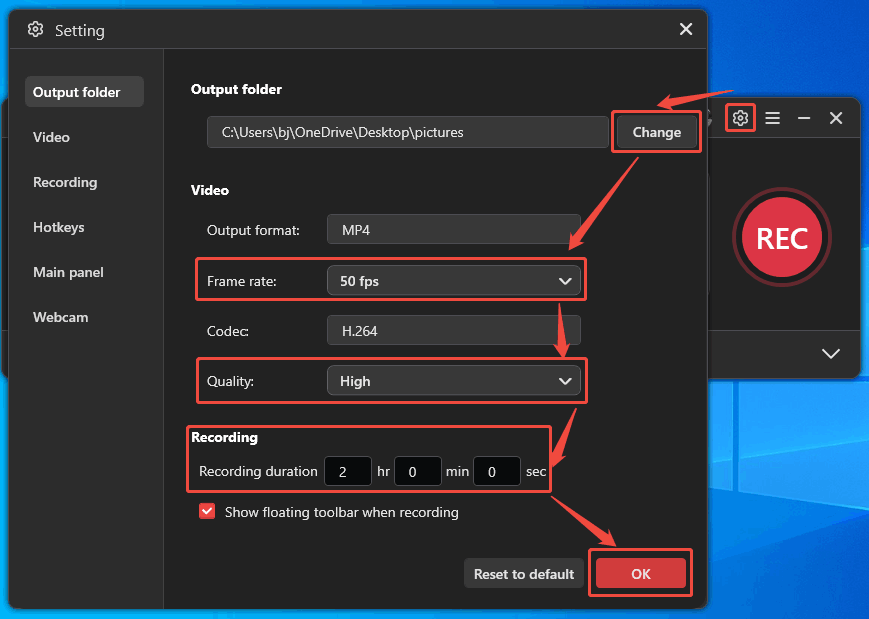
Log in to MiniTool Screen Recorder. In my experience, setting up a recording beforehand is very important. I usually start by clicking the Gear icon to enter the settings window. In this window, I will complete some settings to record better videos.
- Click on the Change button to pick a storage location according to my needs.
- Expand the Frame rate option to fine-tune the frame rate from 15 fps, 20 fps, 25 fps, 30 fps, or 50 fps.
- Expand the Quality option to choose a quality for the recorded Sling TV video. There, I select the High quality option.
- Enter the specific recording time you plan in the Recording section to precisely control recording duration.
After completing a series of settings, I click on the OK button to save these changes.
Step 3. Choose a Recording Mode
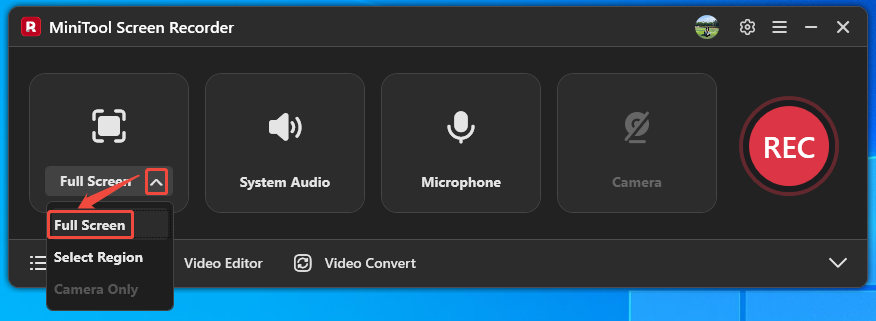
In the main interface, expand the recording region option to choose a record mode. I select Full Screen as an example.
Step 4. Control the Audio
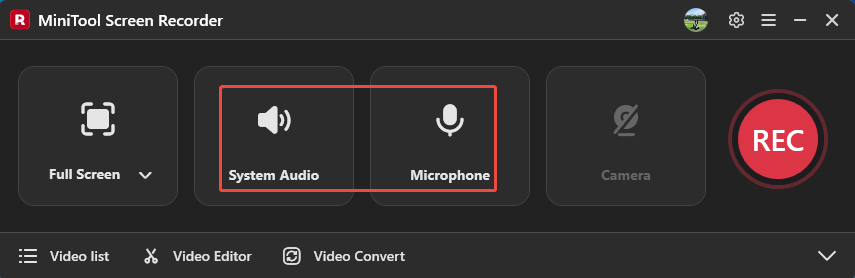
I click on the System Audio icon and the Microphone icon to decide whether to record computer sound and voiceover.
Step 5. Start and Stop the Recording Process
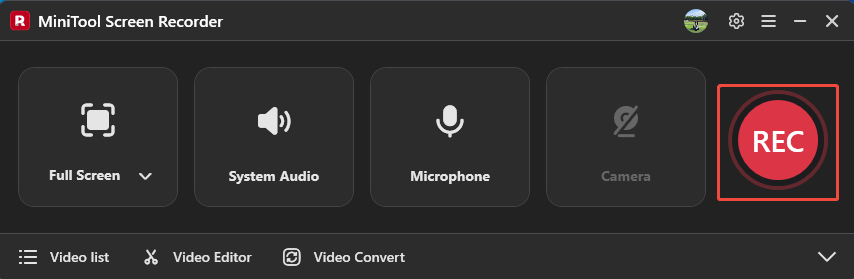
When I end the settings above, I click on the REC button and wait for a 3-second countdown to start the recording. Then, I put the content that I want to record on the screen. To pause or resume this recording, press the F9 key. To stop it, press the F6 key.
Step 6. Check the Recording Result
Once the recording process finishes, the recorded video will land on the Video list tab. There, I click on the Play icon to preview the recorded video. Or I can locate it on my computer by clicking on the Folder icon.
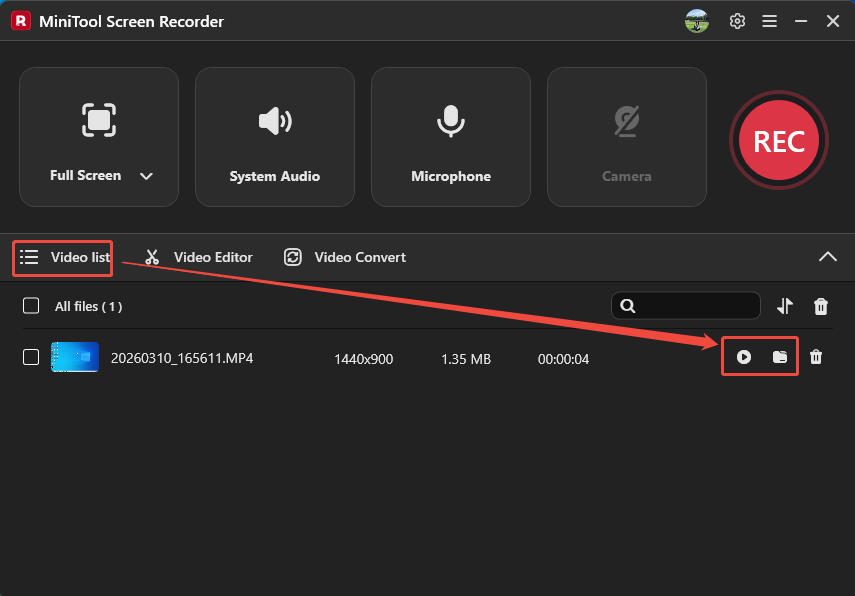
MiniTool Screen Recorder is a fully functional and easy-to-use recording tool.
How do you record on Sling TV? I highly recommend MiniTool Screen Recorder!Click to Tweet
3. Use Free Online Screen Recorder (Online Recorder)
Free Online Screen Recorder is a browser-based recorder that allows me to quickly and easily record high-quality videos. It doesn’t include watermarks, offering a clear recording experience. What’s more, Free Online Screen Recorder enables me to record on Windows, Mac, iPhone, and more devices.
Advantages of Free Online Screen Recorder:
- Compatible with Google Chrome, Firefox, and Edge.
- Supports screen, voice, and webcam recording.
- No recording time limitations.
Disadvantages of Free Online Screen Recorder:
- Depends on network speed heavily.
- Lacks advanced parameter settings.
Now, I will show you how to use Free Online Screen Recorder to capture on Sling TV.
Step 1. Navigate to Free Online Screen Recorder’s Webpage
Copy this URL: https://screen-recorder.com/ and paste it into the browser search bar to go to Free Online Screen Recorder’s webpage. Then, click on the Start Recorder option to enter the screen recording type selection window.
Step 2. Determine the Screen Recording Type
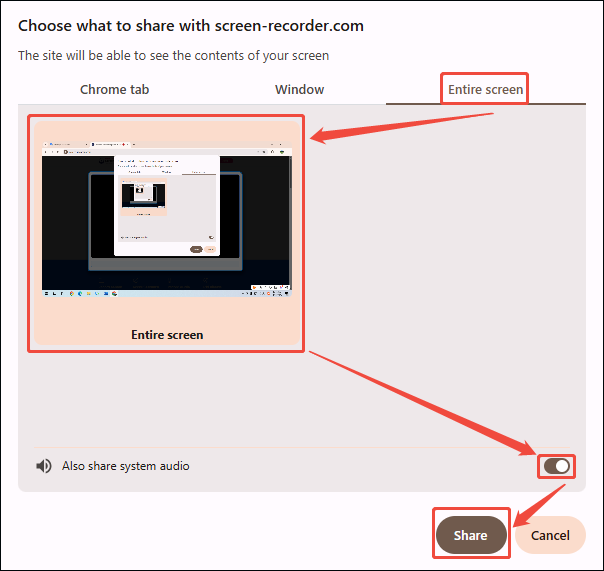
In the recording mode selection window. I want to capture my whole screen, so I switch to the Entire screen tab. From there, click on the Entire screen option and enable the Also share system audio button to allow recording the computer sound. Then, I click the Share button to enter the recording page.
Step 3. Begin Recording
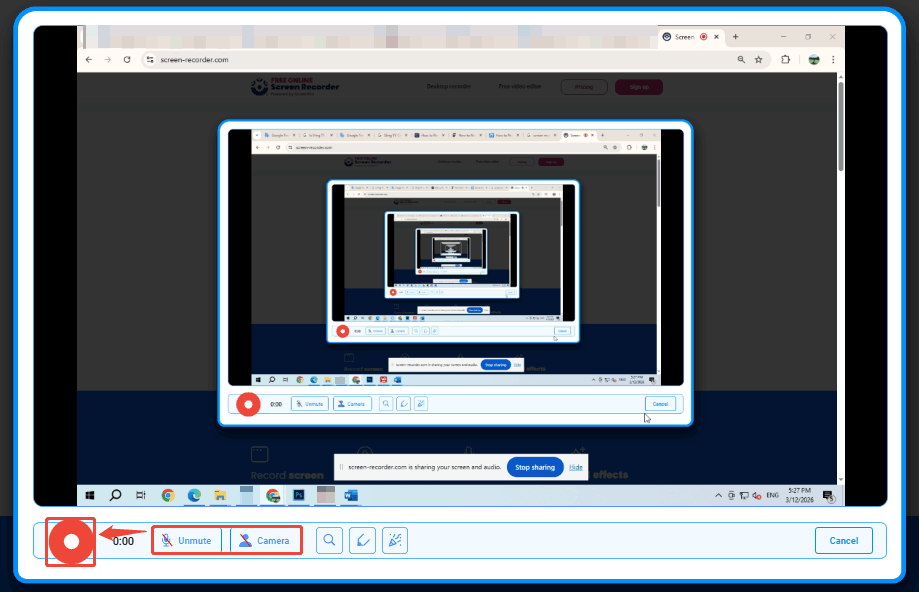
Before starting the recording, I click on the Microphone icon and the Camera icon to select whether to record voiceover and webcam footage. Then, I click on the Record button to begin the recording. There is a three-second countdown timer. After the countdown ends, I will play the Sling TV program I want to record.
Step 4. Stop the Recording
Once I have finished recording the content, I can click on the Done Recording button to end this recording. Then, the recorded video will appear on the download page. There, I click the Download button to save it.
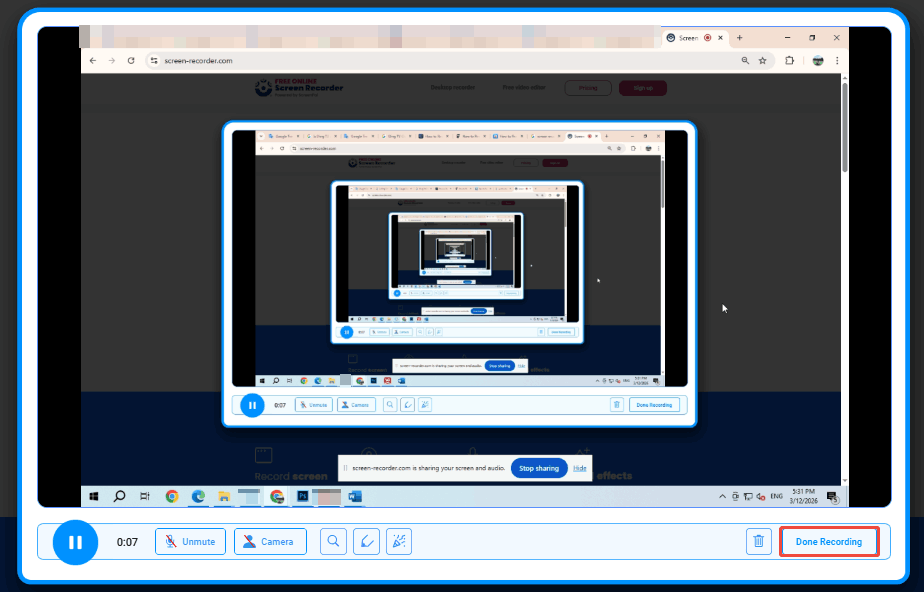
Free Online Screen Recorder is a user-friendly online screen recorder that allows me to record on Sling TV.
Frequent Problems and Optimal Suggestions for Recordings
When recording videos, we inevitably encounter some problems. Here are some problems I’ve encountered and how I solved them.
1. Video and Audio Out of Sync
The recorded video usually occurs with the video and audio out of sync. This issue is likely due to the audio sample rate to be recorded not matching that set in the screen recorder. Simply check the sample rate of the target file before recording. Then, synchronize the parameters of the recording software.
2. Recorded Video Is Incomplete
I found several times that the recorded videos were incomplete after recording. After troubleshooting, I discovered that it was caused by insufficient memory during the recording process, which caused the recording to pause automatically. Therefore, before recording, you should check your computer's storage space and plan your recording content accordingly to reduce unnecessary storage space usage.
Final Words
Can you record on Sling TV? Of course! This article shows how to do it with 3 different methods, including using the native Cloud DVR, MiniTool Screen Recorder, and Free Online Screen Recorder. It also offers an overview of common recording issues and solutions.
If you want to learn more about MiniTool Screen Recorder, please feel free to contact us via email at support@minitool.com. Additionally, you can also send me a message on X. I will reply to you as soon as possible.