

Can you record on Roku? Of course! However, Roku lacks a built-in recording tool. This article shows 2 effective solutions, including using cloud DVR services like YouTube TV and using a video screen recorder: MiniTool Screen Recorder.
What Is Roku
Roku is a smart TV platform integrated various streaming platforms. It supports thousands of streaming channels and applications, including Netflix, YouTube, Hulu, Sling TV, and more. Roku focuses on streaming playback but doesn’t save content on local disks, which means users can easily access online videos but can’t download or save them directly to their devices.
Can You Record on Roku
Many viewers enjoy watching live broadcasts on Roku TVs, such as sporting events, celebrations, and more. However, many users are unable to watch live broadcasts due to scheduling conflicts. In this case, recording the live stream is an effective solution.
Can you record on Roku? Actually, Roku doesn’t include a built-in screen recording tool. Therefore, you can’t record programs or live streams on Roku. However, if you want to save content for later viewing, you can use a streaming platform’s cloud DVR service or a third-party screen recorder to record Roku content.

Record on Roku with YouTube TV Cloud DVR
How do I record video on Roku using Cloud DVR? I'll use YouTube TV as an example.
What Is Cloud DVR
First, let’s have an overview of what cloud DVR stands for DVR (Digital Video Recorder) is a built-in recording feature of some streaming services. It allows users to save television programs to a cloud service platform on their streaming devices. The advantages of cloud DVR include large storage capacity and low memory usage. It also allows users to watch saved videos offline.
The common way to record Roku content is using a cloud DVR feature. Various streaming services on Roku offer built-in cloud DVR capabilities, such as YouTube TV, Hulu + Live TV, Sling TV, and FuboTV. These services allow you to record live shows and store them in the cloud for later playback.
How to Record on Roku with YouTube TV Cloud DVR
YouTube TV offers a cloud DVR service, so you can record programs and shows on it. It supports over 100 live channels, including major broadcast and movie channels, such as ABC, NBC, ESPN, CNN, and TNT. However, the YouTube TV cloud DVR is a feature included with a YouTube TV subscription, which costs $82.99 per month.
Key Features:
- Supports recording an unlimited number of videos simultaneously.
- Provides endless storage space.
- Allows being stored for up to 9 months.
Next, refer to how to record on Roku using YouTube TV’s cloud DVR service.
Step 1. Find Your Video on YouTube TV
Launch YouTube TV and click on the Search button to enter the program's name that you love.
Step 2. Record Your Shows
Click on the movie you want to record. Then, click on the Added to library option. The system will pop up a notification to inform you that YouTube TV’s cloud DVR will start recording the show.
Step 3. Check the Recorded Shows
If you want to access the shows you saved by the YouTube TV cloud DVR, go back to the main interface and switch to the Library tab. Here, you can check the shows.
The above steps show how to record video using YouTube TV with DVR. However, if the show can only be opened or recorded on a platform that doesn’t have cloud DVR, you can use a third-party application.
Record with MiniTool Screen Recorder
Need a third-party recorder to capture on Roku? I would like to recommend an excellent tool: MiniTool Screen Recorder.
What Is MiniTool Screen Recorder
MiniTool Screen Recorder is a professional Roku recorder. It allows you to record videos as long as you want. MiniTool Screen Recorder supports flexible recording types, including full-screen recording and selected region recording. Moreover, it also allows you to record a specific window you want.
MiniTool Screen Recorder enables you to record dual audio, where you can choose to record system audio and voiceover, or both simultaneously. It also allows you to record webcam and customize the webcam layout’s size, position, and shape.
Key Features:
- Supports recording up to 4K resolution, offering a fantastic visual experience.
- Supports adjusting frame rate from 15 fps, 20 fps, 25 fps, 30 fps, and 50 fps, helping make a customizable recorded video effect.
- Allows recording real-time annotations using brushes, highlighters, shapes, numbering, texts, and a whiteboard, enriching the recorded videos.
- Provides a preset recording duration feature, allowing you to avoid spending all your time in front of your screen.
How to Record on Roku with MiniTool Screen Recorder
Now, let’s try to record Roku using MiniTool Screen Recorder without any watermarks, ads, or bundles.
Step 1. Download and Install MiniTool Screen Recorder
Click on the download button below to download MiniTool Screen Recorder. Follow the installation instructions to set it up.
MiniTool Screen RecorderClick to Download100%Clean & Safe
After that, launch MiniTool Screen Recorder and log in to it.
Step 2. Customize Recording Type
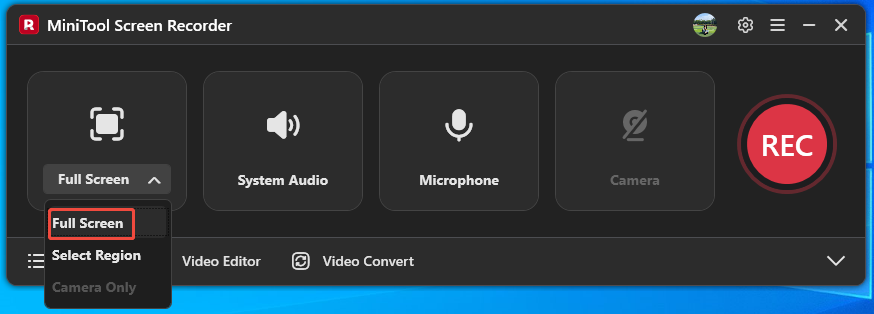
Expand the recording type option to choose a recording pattern. Here, I take Full Screen as an example.
Step 3. Control Dual Audio
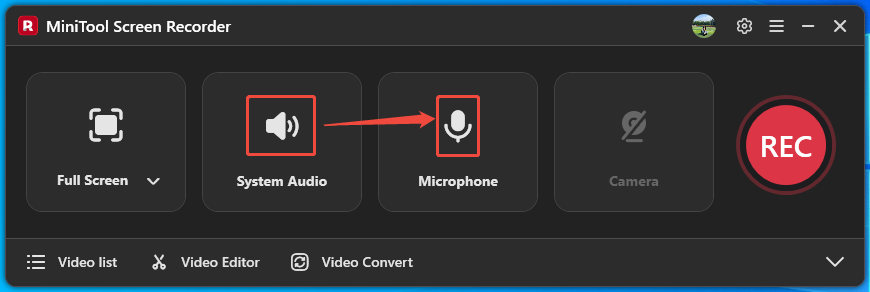
Click on the System Audio icon and the Microphone icon to decide whether to record the computer audio and the microphone sound.
Step 4. Choose a Storage Location
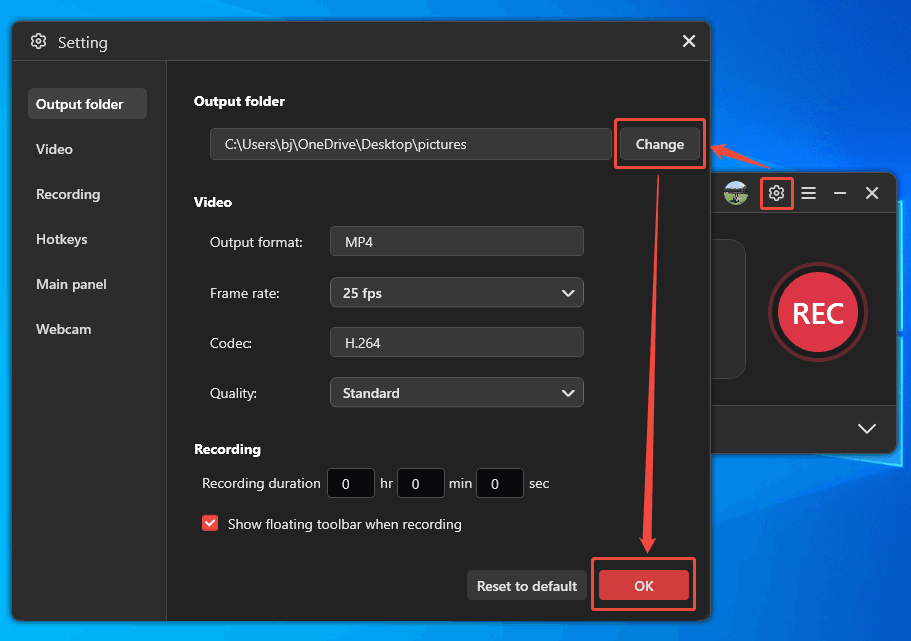
Click on the Gear icon to trigger the Setting window. There, click on the Change button to specify a save location. Then, click on the OK button to apply this choice.
Step 5. Start/Stop the Recording Process
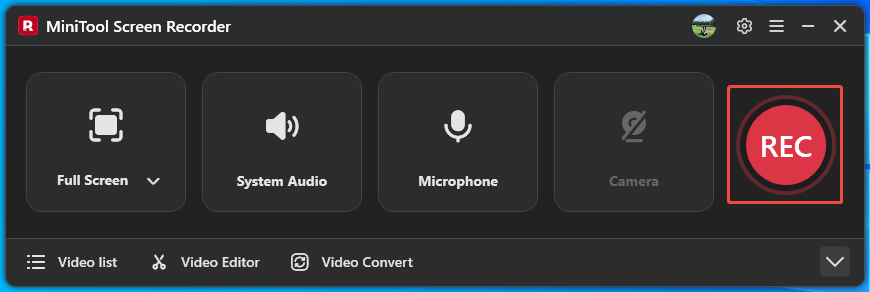
After setting the storage location, click on the REC button to start the recording process after a 3-second countdown. Next, play the shows you want to record on the screen. Then, you can press the F9 key to pause or resume this recording. Or press the F6 key to end it.
Step 6. View and Locate Your Recording
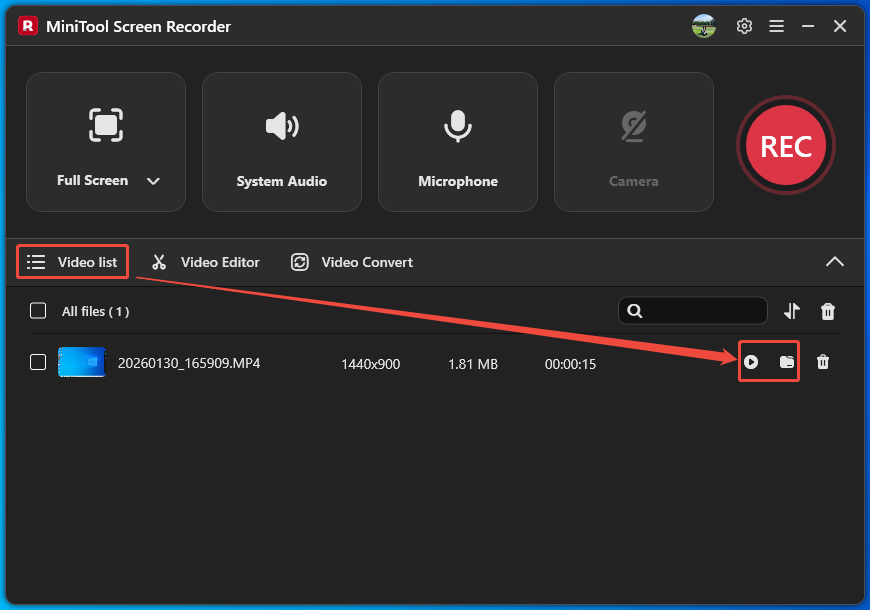
Once the recording finishes, the recorded video will land on the Video list tab automatically. Here, click on the Play icon to view your recording. Or click on the Folder icon to locate it on your computer.
MiniTool Screen Recorder makes it efficient to record on Roku. It doesn’t have ads, watermarks, or bundles.
Wrap Up
Can you record on Roku with a built-in tool? No. This article explains the reasons and shows how to record programs with 2 effective options, including using the YouTube TV cloud DVR service and MiniTool Screen Recorder.
If you have any questions about using MiniTool Screen Recorder, please contact us via email at support@minitool.com. Alternatively, leave a message on X. I will reply as soon as possible.