

This article explains how to record game sessions using MiniTool Screen Recorder. It covers the basic recording setup, including game window selection, audio and webcam settings, and then starting to capture gameplay.
How to Record a Game with MiniTool Screen Recorder
To get started, download and install MiniTool Screen Recorder by clicking the button below. Once installed, follow the instructions below to record your gameplay.
MiniTool Screen RecorderClick to Download100%Clean & Safe
1. Launch the Game
First, launch the game that you want to record.
2. Choose the Recording Area
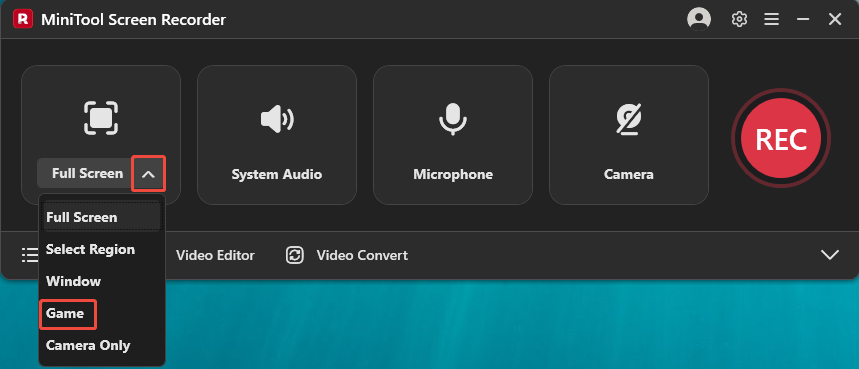
Open MiniTool Screen Recorder. On the main interface, click the Full Screen drop-down menu and select the Game option.
3. Select the Target Game Window
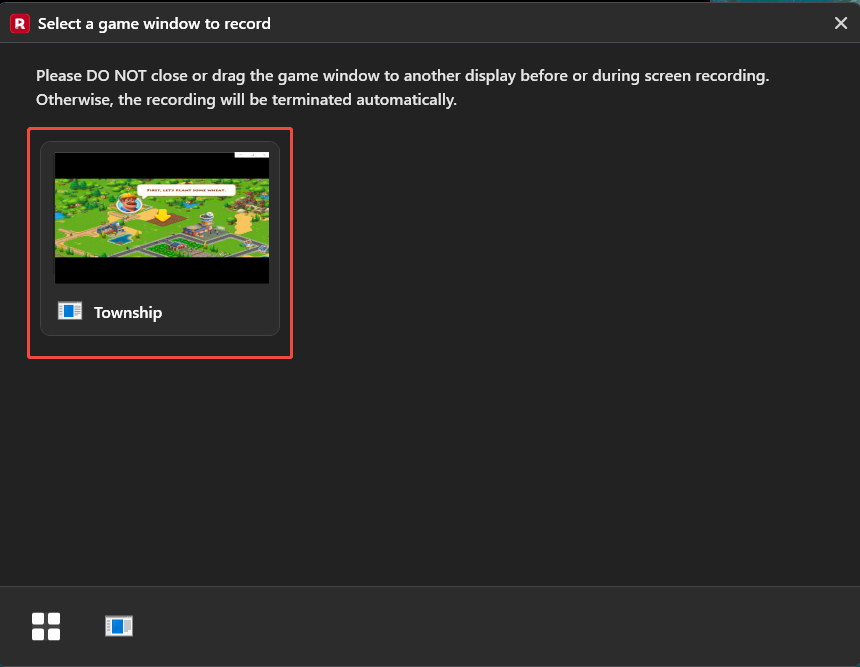
When a Select a game window to record dialog opens, select the target game window.
4. Manage the Audio and Webcam Recording Settings
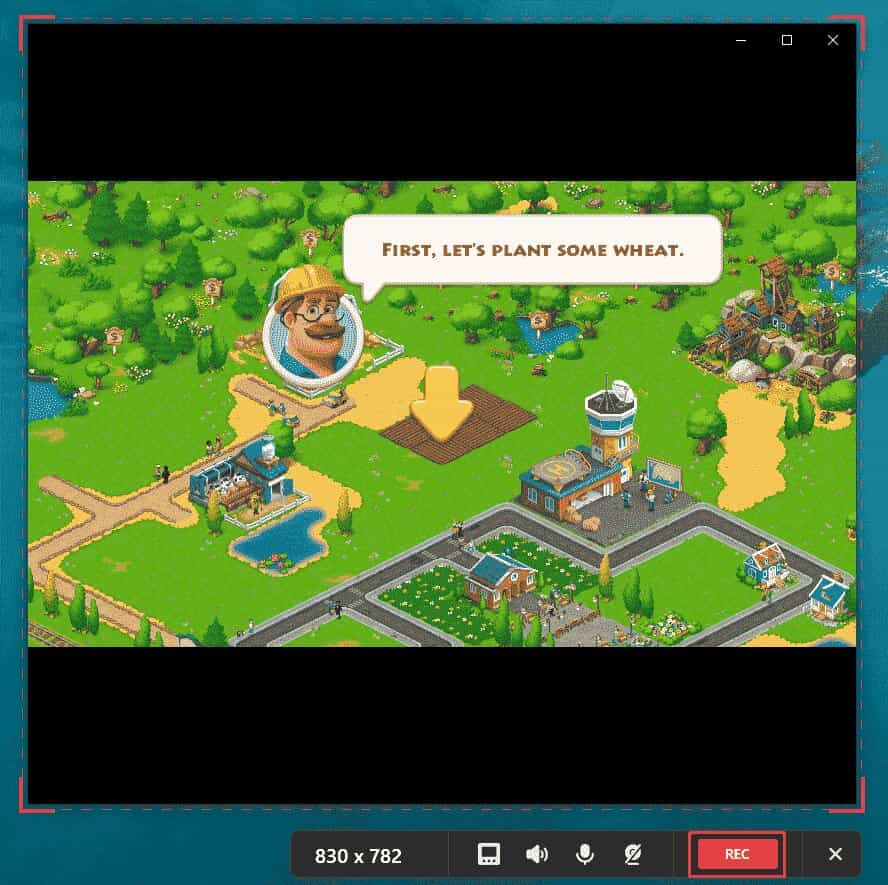
System audio and microphone recording are enabled by default. You can keep the default settings or click the corresponding icons on the floating toolbar to disable any audio source you don't need. If you also want to record yourself playing a game, click the Camera icon to enable webcam recording.

5. Start Recording Gameplay
Click the REC button on the floating toolbar or press the F6 key to begin the game recording process. After a 3-second countdown, play the target game.
6. End Recording
To end recording gameplay, press the F6 key again.
7. Check the Recorded Game Video
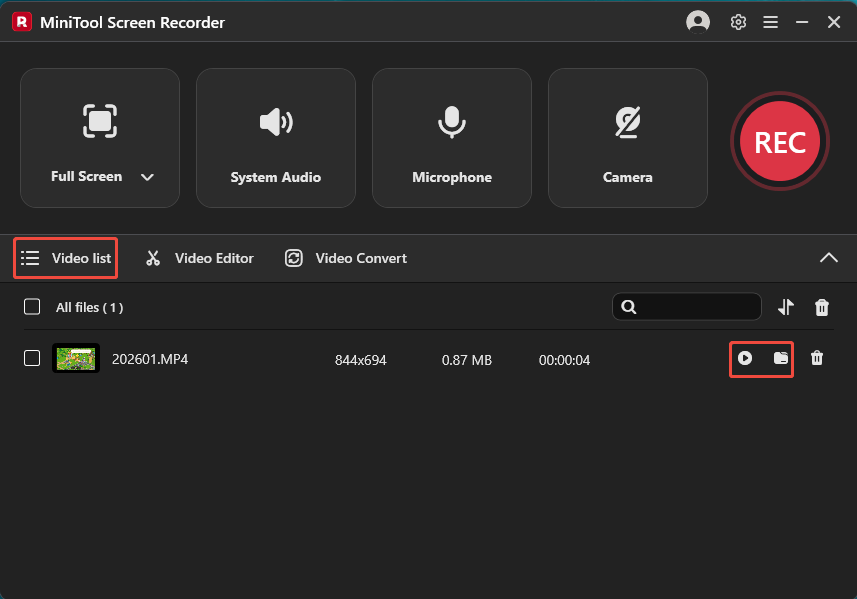
When the recording ends, MiniTool Screen Recorder will automatically switch to the Video list section. Then, you can click the Play icon to view the recorded video or click the Folder icon to locate it on your computer.
Conclusion
With MiniTool Screen Recorder, it’s easy to record game sessions on a computer. You can also use it to record other application windows efficiently.