

My laptop is years old, and here are the device specifications:
- Processor: AMD Ryzen 5 3400G with Radeon Vega Graphics
- Installed RAM: 4.0 GB
- Graphics Card: AMD Radeon(TM) RX Vega 11 Graphics (2GB)
- Storage: 500GB HDD
Whenever I want to record a gameplay moment, create a tutorial for work, or save a live stream, I'm always worried that the software might lag or freeze while recording. Therefore, I spent a lot of time testing multiple screen recording applications and curated a list of the best six screen recorders for low-end PCs.
- MiniTool Screen Recorder: A Powerful, Lightweight Screen Recorder.
- Xbox Game Bar: Built into Windows 10/11, No Installation Required.
- Fraps: Excellent for Gameplay Capture on Low-End PCs.
- ShareX: A Free, Open-Source Screen Recorder for Entry-Level Computers.
- ScreenRec: A No-Lag Screen Recorder for Low-Spec Systems.
- Bandicam: A Paid, Premium Screen/Game/Wecam Recording Tool for Older PCS.
If your computer has 8GB or less of RAM or a slower processor, these programs help you capture the screen smoothly without consuming many of your system resources.
1. MiniTool Screen Recorder
MiniTool Screen Recorder is my favorite software for recording screen activities due to its intuitive interface and simple setup, and it’s also on my list of screen recorders for low-end PCs. After seeing its minimum system requirements, I think this will convince you even further.
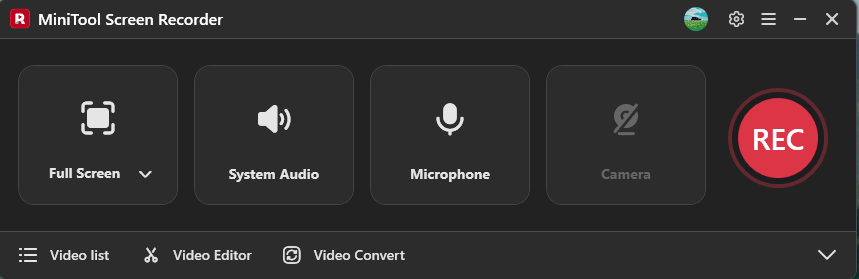
The software is compatible with Windows 10 and 11 and requires a system with 4 GB of RAM, 1 GB of free storage, and one of the following processors or graphics cards: Intel Core i5 or better, Intel HD Graphics 5000 or later, NVIDIA GeForce GTX700 or later, or AMD Radeon R5 or later. Undoubtedly, MiniTool Screen Recorder can work on a budget computer smoothly, without putting a burden on the system. This software is also quick to install.
MiniTool Screen RecorderClick to Download100%Clean & Safe
Whether you need to capture the entire screen, a specific area, an application window, or a web browser, MiniTool Screen Recorder has you covered. It also allows you to record a webcam with the screen. Along with its extensive screen annotation tools, it can be an ideal choice for creating tutorials, reaction videos, presentations, and demonstrations.
Furthermore, MiniTool Screen Recorder offers multiple adjustable settings, such as recording duration, frame rate, video quality, and the webcam’s position, shape, size, and resolution. Best of all, the software doesn’t have a recording time limit and won’t leave a watermark on the final videos.
Personally, MiniTool Screen Recorder is an excellent tool for capturing screen activity on low-end PCs. When I used the software to record a tutorial, the entire process was super smooth. I also really like its three-second countdown feature, which gives me time to prepare before the recording starts.
2. Xbox Game Bar
Xbox Game Bar comes with Windows 10 and 11, so there’s no need to download, and it uses very little RAM and CPU. I often record gameplay clips using the built-in tool by pressing Win + Alt + R. The software can also record other application windows except for the File Explorer and the desktop.
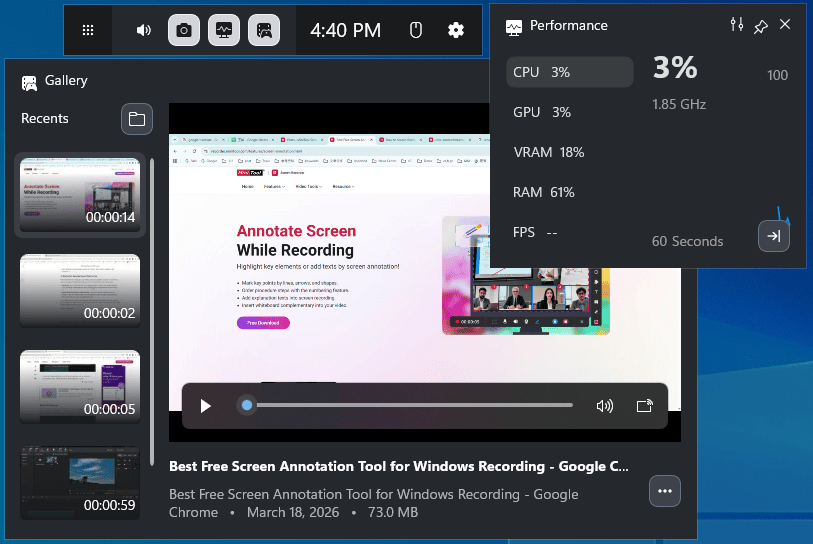
Therefore, don’t miss Game Bar when you’re looking for the best screen recorder for a low-end PC without watermarks. It can record up to 1080p resolution at 60FPS, ensuring high-quality videos.
What’s more, if you’d like to adjust the audio bitrate, the volume of the microphone and system audio, frame rate, or recording length (up to 4 hours), open the Settings app for these tasks.
Generally speaking, I think it’s quite easy to screen record on Windows using Xbox Game Bar, as it doesn’t have complex settings and allows me to start a recording by simply pressing Win + Alt + R.
3. Fraps
Fraps is widely considered a great screen recorder for low-end PC. It’s a lightweight program that can run on older hardware. While it’s considered outdated compared to modern alternatives, it still provides smooth recording on old machines.
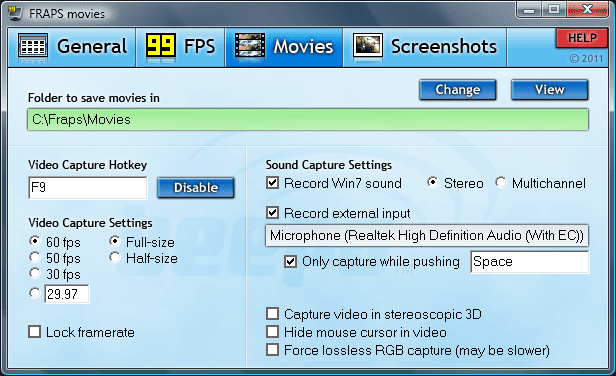
If you just want to record video games or the desktop without complex settings on a low-end PC, Fraps is a reliable choice. The software also allows you to select the frame rate and choose to record in full resolution or half resolution.
Fraps uses the AVI format to save videos. You can get a large AVI file after recording because the software does not have enough time to encode the video while the game is running. You can then compress AVI to reduce file size for easier sharing.
4. ShareX
ShareX is another excellent, lightweight, and free screen recorder for low-end PCs. It can run smoothly without consuming system resources, even on older PCs. Therefore, it won’t slow down your computer while recording, ensuring seamless recording effortlessly.
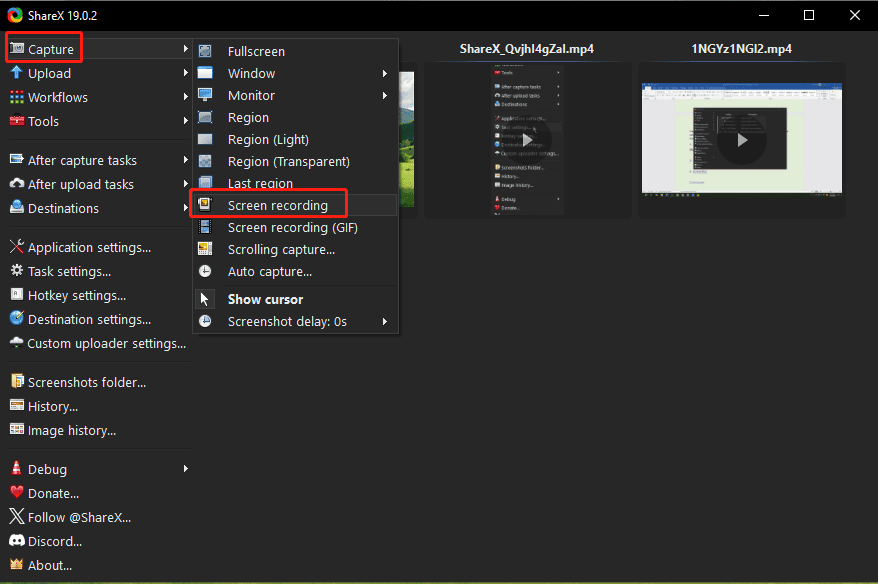
It’s very easy to record the screen using ShareX. Once you confirm the recording area, the recording starts automatically, with no countdown by default. When I tried to record a tutorial starting from my desktop, ShareX wouldn’t minimize automatically after the recording started. I had to do that manually. Personally, this is not convenient.
As for screen recording settings, ShareX lets users set the recording frame rate, choose whether to show the cursor during recording, set a countdown timer, etc. By the way, the software supports recording the screen in the GIF format.
5. ScreenRec
ScreenRec is a free, lightweight, and user-friendly screen recording and screenshot tool, which is known for having a minimal impact on system performance. Therefore, it naturally appeared on my list when I was testing a screen recorder for low-end PCs. Indeed, I enjoyed a smooth recording on my older PC.
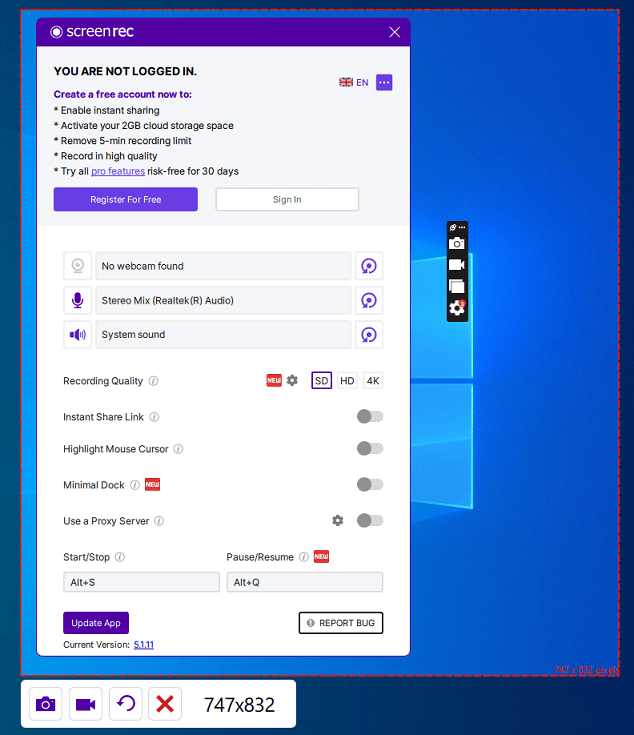
After registering a free account, I can unlock unlimited recordings without time limits and watermarks. Additionally, webcam recording, audio capture, and annotation are also accessible. However, the recording quality is limited to 720P. If you want to record at higher resolutions or use recording for commercial uses, select a paid plan.
6. Bandicam
As one of the best lightweight screen recording applications for Windows, Bandicam is a reliable tool for capturing screens on low-end PCs. It utilizes graphics card hardware encoders – H.264/HEVC/AV1 (NVIDIA, Intel, AMD) to effectively reduce system load, ensuring fast, smooth, and high-quality recordings.
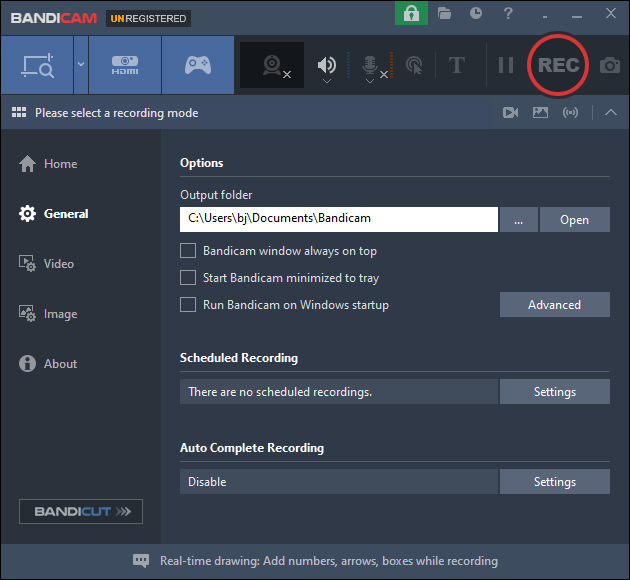
Besides, if your graphics card supports hardware acceleration, Bandicam can achieve smooth, high frame rate (up to 480FPS) recording, making it perfect for recording fast-motion games.
In addition to the screen and game recording modes, Bandicam also offers a dedicated device recording mode to capture video from external devices, such as a webcam, Xbox, smartphones, IPTV, and capture cards.
Bandciam offers a free version, but it has a 10-minute time limit per recording and adds a watermark to the recorded videos. Scheduled recording is not available in the free version.
I think a great part of Bandicam is that it offers preset recording area sizes, such as 1280 x 720 and 1920 x 1080. Therefore, there’s no need to manually drag and adjust the recording boundaries every time. However, when I first started a screen recording, I found that Bandicam wouldn’t be minimized to the system tray by default. I had to stop the recording, modify the settings in the software’s General tab, and start a recording again.
Conclusion
With these six screen recorders for low-end PCs, and if configured appropriately, smooth and high-quality recordings are ensured on older computers.
Finally, if you encounter any difficulties while using MiniTool Screen Recorder, please contact us at support@minitool.com for help.