

What Is Betamax
Before starting the Betamax to digital conversion, let’s quickly review this recording format and its significance.
Betamax, also known as Beta, is an analog video cassette recording (VCR) format developed by Sony. Known for its superior image quality, Betamax was once a popular home video recording format and a major competitor to VHS.
Betamax recorders were primarily used to record television programs for later viewing, capture family events, and watch taped movies. Initially, Betamax tapes could only record up to an hour of content, making them not ideal for recording movies, sports events, and other long videos. Sony then introduced β2 speed with up to 2-hour recording times, but with a low resolution.
While Betamax fell short in the format war between VHS, Sony kept producing Betamax recorders until August 2002 and sold blank Beta cassettes until March 2016.
Undoubtedly, Betamax held a generation's memories, especially for its early users and enthusiasts who utilized it from its launch in 1975 until the 1980s.
Why Is It Necessary to Convert Betamax to Digital
Magnetic tape deteriorates over time and often loses quality. That’s the primary reason people need to convert Betamax to digital – digital formats like MP4 can preserve their memories forever and won’t affect the image quality with the passage of time.
In addition to better preservation, digital formats can be played on modern TVs, computers, and mobile devices, allowing people to relive those precious memories easily.
What’s more, digital files enable you to easily share memories with family and friends via social media or cloud storage, and they’re also easier to store and back up.
How to Convert Betamax to Digital
If you have some Betamax tapes, it’s urgent to digitize them. In fact, there is no so-called Betamax to digital converter that allows you to directly turn magnetic and physical media into digital files like MP4 or MOV. This process requires more steps than a common MKV to MP4 conversion.
Method 1: Use Screen Recording Software for Real-Time Recording
How to convert Betamax to digital? If you want to do this at home, then DIY digitalization can be your choice. Connect the Betamax player to your computer and use desktop recording software to record content as MP4 in real-time while playing the video. Here are the detailed steps.
Step 1: Gather equipment
You need the following equipment to convert Betamax to digital.
- A working and clean Betamax player to play your Betamax tapes.
- A capture device to convert an analog signal to digital data. USB is easy to use, but the video quality may vary. A dedicated external video capture card offers better quality.
- Cables are also necessary to connect the Betamax player to the capture device.
- A modern computer with sufficient free storage.
Step 2: Setup & preparation
- Check your tape. If necessary, you can clean the tape by wiping the surface with a soft, dry, lint-free cloth.
- Use RCA cables to connect the Betamax player output to the capture device input.
- Then connect the capture device and the computer with a USB.
- Insert the Betamax tape. Ensure the player is set to output audio/video via the RCA cables.
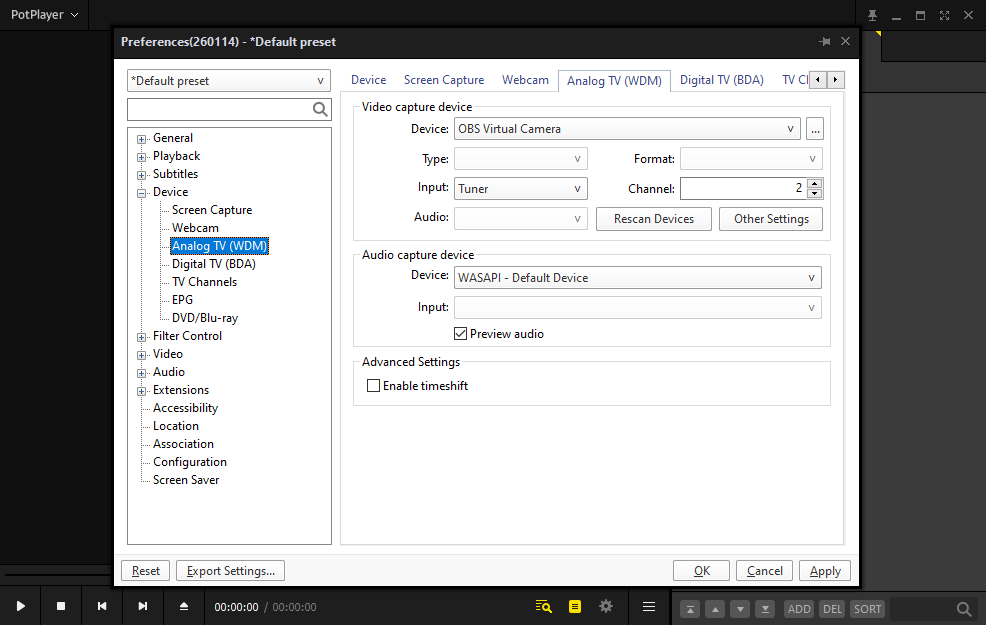
What’s more, you need to install an application that can display the video from the capture card, and PotPlayer is a great option. It has an Analog TV feature that allows users to connect and view live, non-digital video signals directly on a PC.
- After running PotPlayer, press F5 to open the Preferences Window.
- Click Device on the left sidebar and select Analog TV (WDM).
- Under Video capture device, expand the Device menu, and choose the right video capture device name.
- Click Apply and OK.
Step 3: Install the capture software
Professional screen recording software is crucial for capturing your Betamax videos in high quality. For this purpose, MiniTool Screen Recorder is a reliable choice for its robust features and user-friendly design. Best of all, it’s free to use, has no watermarks or time limit.
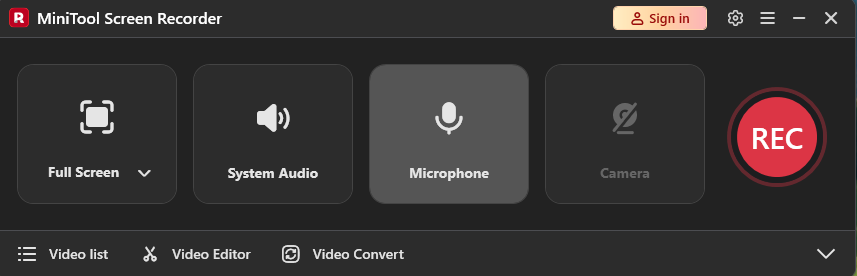
MiniTool Screen Recorder can record at up to 4K resolution and different frame rates, ensuring your Betamax recording is clear and smooth. With the ability to capture computer audio and microphone input and record webcam, it lets you add your commentary and record yourself in different overlay shapes while digitizing your tape.
Additionally, if you need to highlight something when recording your Betamax video, you can annotate the screen with various tools, such as a rectangle, an ellipse, arrows, and text.
Furthermore, you can set a recording duration based on your Betamax video, and the recording will then automatically stop when the time is up.
Step 4: Convert Betamax to digital
Here are the steps for the Betamax to digital conversion through a quick screen recording.
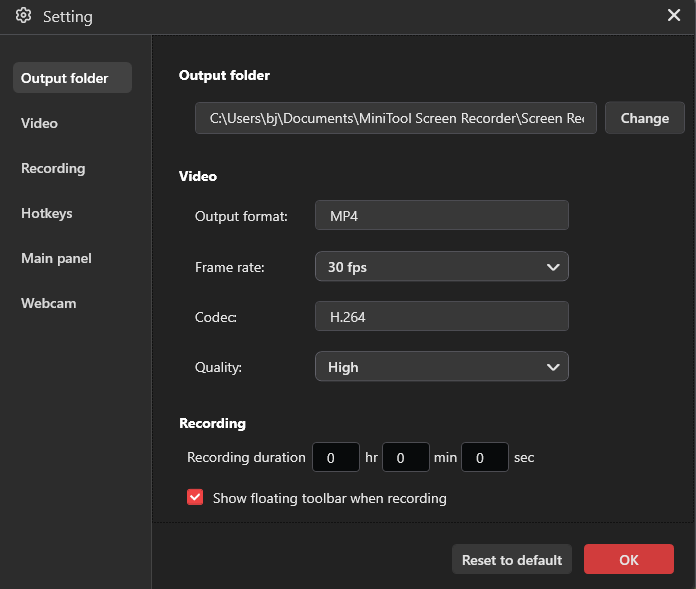
1. Configure recording settings: Click the Gear icon in the upper-right corner to open Settings, where you can change the recording frame rate, quality, output folder, set a recording duration, etc. Click OK to save changes.
2. Select recording area: Click the Full Screen option, click the Select Region option, and drag to select the recording region on PotPlayer.
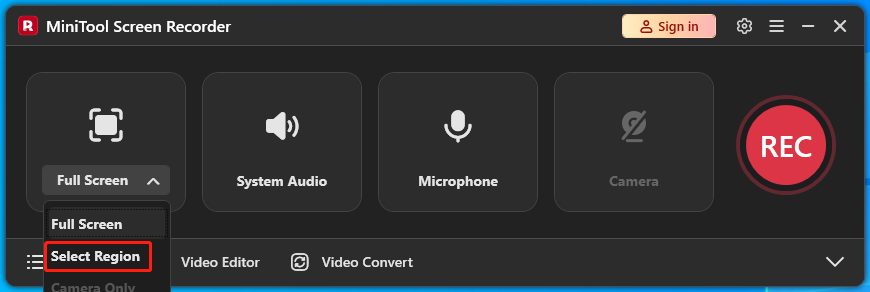
3. Capture footage: Click the red REC button, and the recording starts after a 3-second countdown. Then, press Play on the Betamax player.
Step 5: View and edit the footage
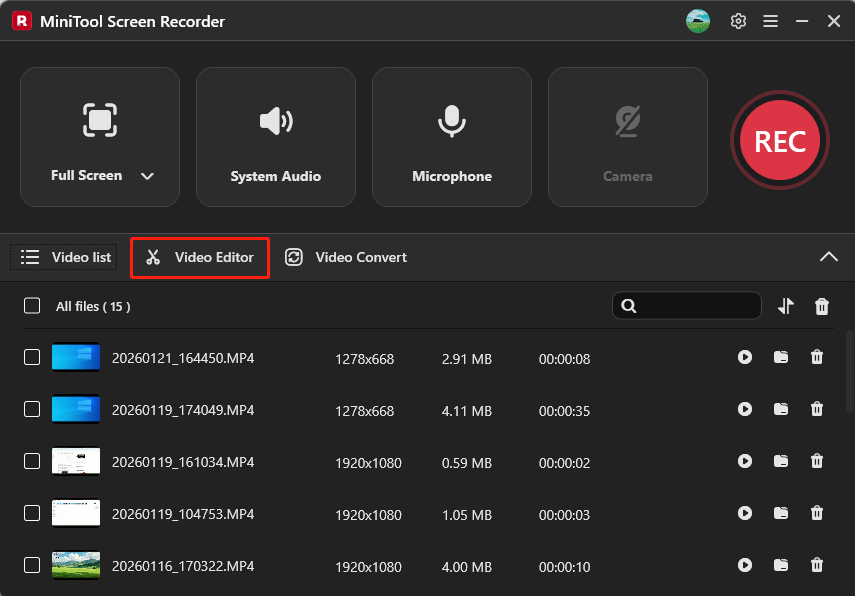
The recording will end automatically when the recording duration is up, or you can press F6 to stop it manually. Your video will appear at the top of the expanded video list, where you can then play, find, or remove it. If you want to edit the recorded Betamax video, click Video Editor to continue.
Method 2: Select a Professional Digitizing Service
Alternatively, you can use professional digitizing services to convert Betamax tapes to MP4 for better accessibility and convenience, especially if your tapes are damaged.
Conclusion
While you can’t directly convert Betamax to digital formats like MP4, there are still workarounds. You can use related equipment and a computer to complete this task at home by screen recording, or send them to professional companies to digitize precious memories.
Finally, if you have problems while using MiniTool Screen Recorder, email us at support@minitool.com or help.