

How to record on Hulu depends on your device. For TV, use the built-in Cloud DVR to record videos directly. For computer, use MiniTool Screen Recorder to capture Hulu streams. This article also recommends MiniTool MovieMaker for turning recorded videos into reaction content.
Hulu is a paid streaming platform owned by Disney. This platform offers a vast library of on-demand TV shows, movies, sports, entertainment, and more. Besides, it is available on smart TVs, desktop computers, tablets, smartphones, and game consoles.
Hulu offers two subscription plans. One plan includes ads ($11.99 per month). This plan allows access to the full streaming library but includes ad interruptions. The other plan is ad-free ($18.99 per month). This plan also allows you to watch any show without watching any ads. What’s more, the ad-free plan supports downloading videos on the mobile Hulu app for offline viewing.

Can You Record on Hulu?
Yes, I saw on the Hulu website that Hulu + Live TV subscribers can record Hulu videos with Cloud DVR. Plus, this feature offers unlimited storage space, which is enough to hold all the TV shows users want to record. Furthermore, Hulu Cloud DVR can save recordings for up to 9 months, which I've found quite handy.
From what I've seen, the Hulu built-in cloud DVR stores the recorded TV shows in the cloud, allowing users to watch them on any device. However, the recordings will be encrypted and locked in a user’s personal account, so users can't share them with friends, family, or on social media platforms. If you're like me and want to save Hulu TV shows permanently, I'd suggest trying a third-party screen recording software to record and save them locally.

How to Record on Hulu?
Below is a detailed guide on how to screen record Hulu on TV and PC.
1. How to Record on Hulu Live TV
If you are a Hulu + Live TV subscriber, just follow the steps below to record videos on Hulu TV using its built-in cloud DVR feature:
Step 1: Choose a Video to Record
Log in to the Hulu account. Then, select the Live TV option, and find the target TV show or movie.
Step 2: Start Recording
Click on the video to view more details and then select the RECORD option.
Step 3: Stop Recording
Once the target content was captured, go to the show’s details page and select Do Not Record or uncheck the recording option to stop recording.
How to find the recorded video on Hulu TV? Follow the instructions below:
Step 1: Go to the My Stuff Tab
Using your Roku, Fire TV, or Smart TV remote, open the left-hand navigation panel and select the My Stuff tab.
Step 2: Select Recordings
Choose the Recordings tab to view the recorded TV, movies, and shows.
While Hulu’s Cloud DVR is convenient, it's only available to Hulu + Live TV subscribers. Since I don't want to pay for an upgrade, using a free screen recorder like MiniTool Screen Recorder to capture shows on my computer is a more practical solution.
2. How to Record Hulu on PC
I personally prefer watching Hulu shows on my computer browser, which makes recording with screen recording software very convenient. If you're looking for reliable software, I'd recommend my top choice: MiniTool Screen Recorder, a free Windows screen recording tool.
I've been using MiniTool Screen Recorder for a long time, and I can honestly say it's a professional screen recorder. It lets me record the full screen or just a part of my computer screen, depending on what I need. Furthermore, I don't need to worry about the video quality because it supports 4K resolution recording. If I want the recording to be smoother, I can also select high frame rate in the settings beforehand.
Here is how I screen record Hulu videos with MiniTool Screen Recorder:
Step 1: Download and Install MiniTool Screen Recorder
Download and install MiniTool Screen Recorder on the computer. Then, launch this tool.
MiniTool Screen RecorderClick to Download100%Clean & Safe
Step 2: Choose Recording Area
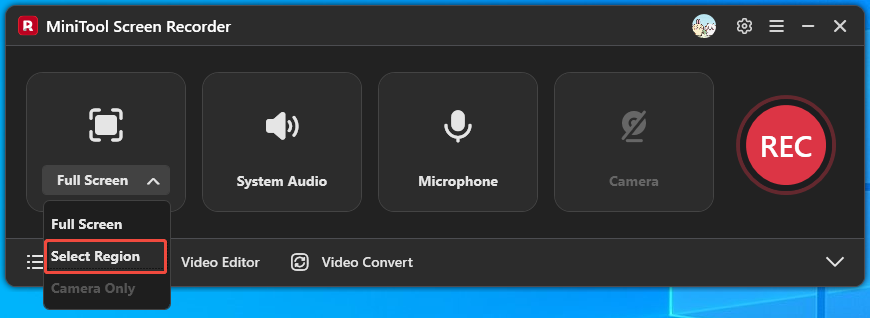
The software is set in Full Screen mode by default. I prefer recording just the player section, so I expand the first option on the left, click Select Region, and drag the frame around the video player window. You can easily adjust it to match whatever area you need.
Step 3: Disable Microphone Recording
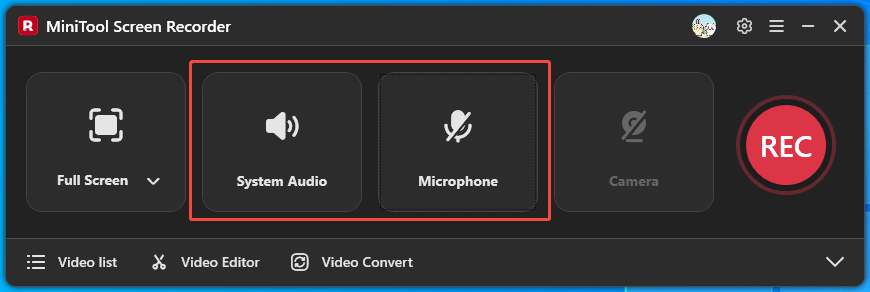
Before recording, I usually make sure the system audio is on, and then click the Microphone option to turn off microphone recording. This avoids picking up unnecessary noise from microphone into the recording. You can do the same thing for clearer audio.
Step 4: Choose the Save Location
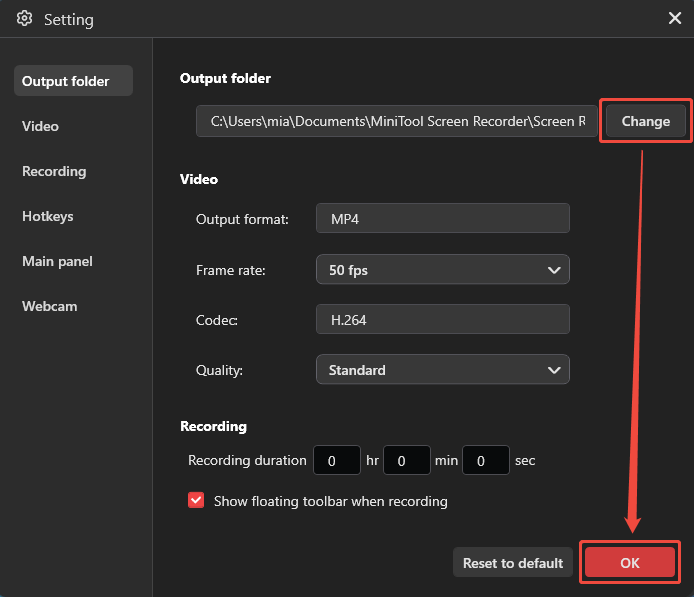
Next, I head to the gear icon in the top-right corner to open the Setting window. Under Output folder, I click Change to pick a save location, which has much free storage space. Then, choose OK to lock it in.
Step 5: Start/End Recording
Click the REC button and a three-second countdown will appear. I personally prefer to wait until the timer finishes before playing the video, which ensures the beginning of the video was recorded successfully. After the video finishes playing, I press F6 to stop recording.
Step 6: Locate the Recorded Video
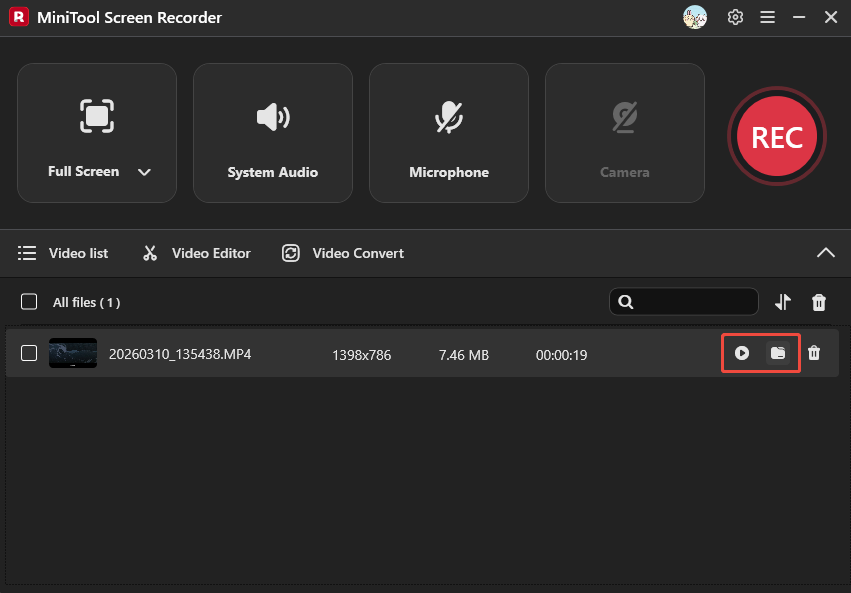
Once recording is complete, the main interface will appear. The video will be automatically saved to the save location I set. I personally prefer to click the play icon to view the video first, and then click the folder icon to find the file.
Besides screen recording, I found this tool can record webcam footage and add annotations to the screen, features that are perfect for recording tutorial videos.
How to Edit Hulu Recordings?
I've noticed many creators record Hulu episodes and then edit them into commentary or reaction videos. However, I understand that unauthorized use of copyrighted video content may constitute copyright infringement.
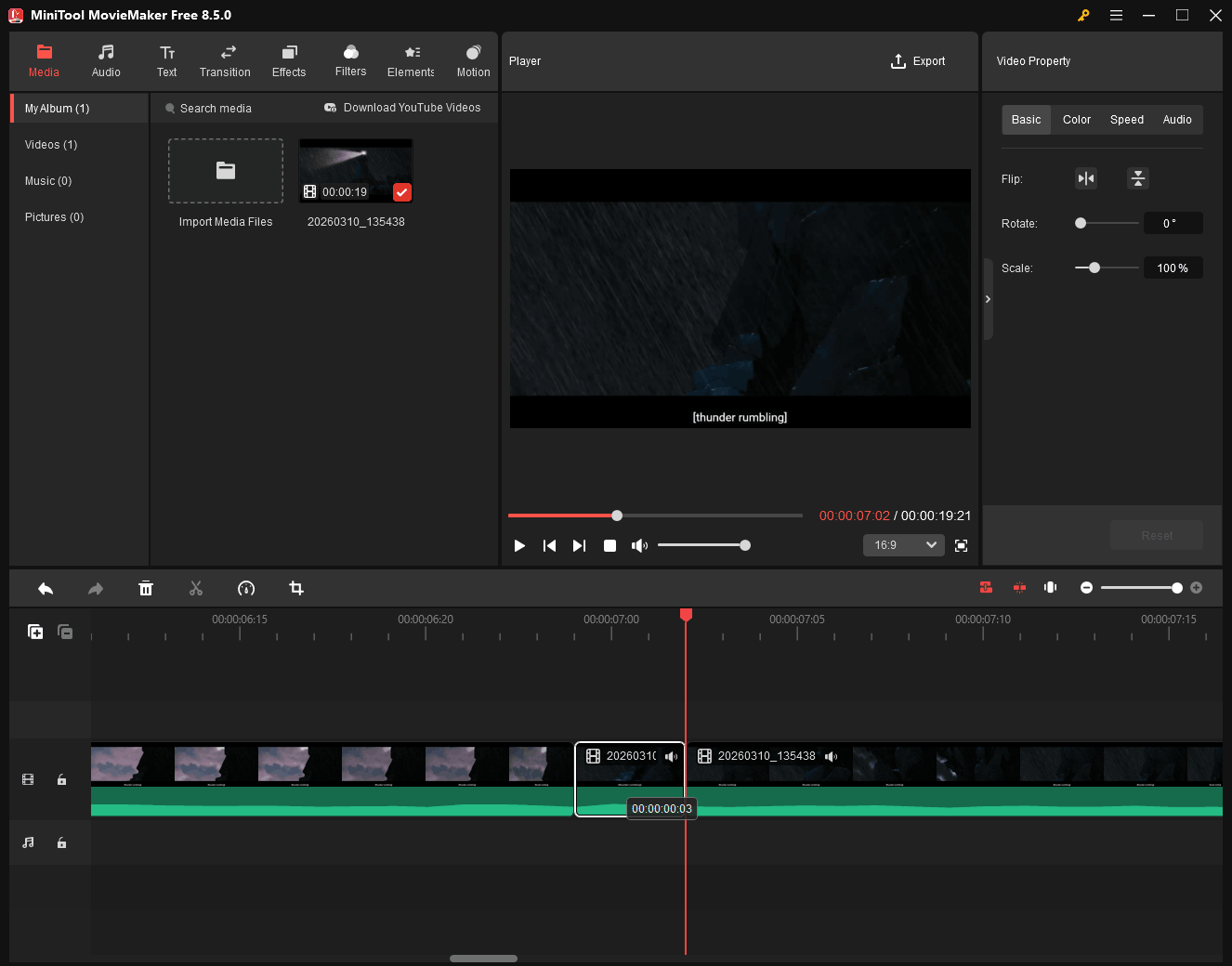
Some argue that as long as your video contains substantial commentary and only uses short clips from Hulu rather than full episodes, you might fall under fair use. Therefore, if you'd like to create such videos, I recommend using a video editor like MiniTool MovieMaker to trim and adjust video clips to the correct length.
With MiniTool MovieMaker, you can precisely cut Hulu video clips into 0.3 second short videos using its trimming and splitting features. Additionally, you can apply professional effects, filters, and transitions to enhance the visual appeal of these clips.
MiniTool MovieMakerClick to Download100%Clean & Safe
Bottom Line
This article presents two feasible methods for how to record on Hulu, based on my own experience. While using Cloud DVR is convenient, I prefer using MiniTool Screen Recorder to record Hulu shows because I don't want to spend more money upgrading to Hulu + Live TV.
If you encounter any issues when trying out MiniTool Screen Recorder or MiniTool MovieMaker, email at support@minitool.com.