

Recording on FuboTV is an excellent way to watch your favorite programs at your convenience. Wondering how to record on FuboTV on Windows? This post explains what Fubo is and presents three quick and effective ways to record on FuboTV. Let’s go through them one by one.
What Is Fubo
Fubo, formerly known as FuboTV, is a popular streaming service that offers live TV, on-demand content, and Cloud DVR. It is particularly well-known for its extensive sports coverage, including major leagues such as the NFL, MLB, NBA, NHL, MLS, and more. In addition to sports, Fubo also offers a wide variety of channels covering music, movies, and entertainment.
Fubo is available on various devices, such as smart TVs like Apple TV, smartphones, tablets, and computers, allowing you to enjoy your favorite shows anytime and anywhere. With its diverse content and user-friendly features, Fubo provides a strong alternative to traditional cable TV.
Can You Record on Fubo
Yes, you can record on Fubo.
For paid subscribers, Fubo provides a Cloud Digital Video Recorder (Cloud DVR) feature, allowing users to record live programs on most channels and access them across their supported devices. It also supports schedule recording before or during the live program. The unlimited Cloud DVR can record multiple programs simultaneously and save recordings for up to 9 months.
Users with a free trial plan can also access the same features as paid users. Additionally, Fubo offers a Fubo Free tier for former subscribers or users after a free trial ends. However, Cloud DVR on Fubo Free is only available on connected TV devices and smart TVs. Web browsers and mobile devices are not currently supported.
For free users who cannot access Cloud DVR, third-party or Windows screen recorders can be a useful alternative.
Now that we have a basic understanding of Fubo and its Cloud DVR feature, let's explore how to record on Fubo on Windows. Depending on whether you have access to Cloud DVR, this post shares three reliable ways to record on Fubo.
![How to Record on YouTube TV with Ease [Step-by-Step Guide]](https://images.minitool.com/recorder.minitool.com/images/uploads/2026/02/how-to-record-on-youtube-tv-thumbnail.png)
How to Record on Fubo with Cloud DVR
Fubo's Cloud DVR feature for paid subscribers is available on web browsers, connected devices, smart TVs, and mobile devices. This section will focus on how to record on FuboTV using Cloud DVR on browsers.
Option 1: Record a Live Program
Step 1: Open Fubo TV
Go to the official FuboTV website and log in to your account. Then, open the live program you want to record.
Step 2: Start Recording
Hover your mouse over the video player to bring up the controls. Click the Record button in the lower corner of the screen to start recording.
Step 3: End and Check Recording
The recording will automatically stop when the program ends. To view your recording, click My Stuff in the top menu and select Recordings. The most recent recording will be listed first.
Option 2: Record an Upcoming Program
Step 1: Open FuboTV
After logging in to your FuboTV account, find a show that is yet to air using the search bar, home, entertainment tab, or other options.
Step 2: Start Recording
Hover your mouse over the program you want to record, then select the Record/Recording Options icon. Then, you can see a confirmation that your recording has been scheduled.
Step 3: Find the Recording
Navigate to the My Stuff tab and select Scheduled Recordings to view all your upcoming Cloud DVR recordings.
How to Record on Fubo Without Cloud DVR
If Cloud DVR is unavailable or not functioning, you can use third-party screen recorders or the built-in Windows tool as an alternative.
In fact, compared to the native Cloud DVR, these screen recorders offer several advantages, such as no time limits for saving and the ability to record up to 4K quality, which the Cloud DVR does not support. This section highlights two easy and powerful options, including MiniTool Screen Recorder and Xbox Game Bar.
Before we begin, make sure that hardware acceleration is disabled in your browser settings to prevent black screen issues when recording. FuboTV content is protected by Digital Rights Management (DRM), and attempting to record it may sometimes lead to a black screen. Disabling hardware acceleration can help resolve this issue.
How to disable hardware acceleration on your browser? Take Chrome as an example. Open Chrome and click Customize and control Google Chrome (the three-dot icon) in the upper-right corner. Choose Settings and switch to the System tab. Then, click Use graphics acceleration when available and click the Relaunch option to restart the browser.
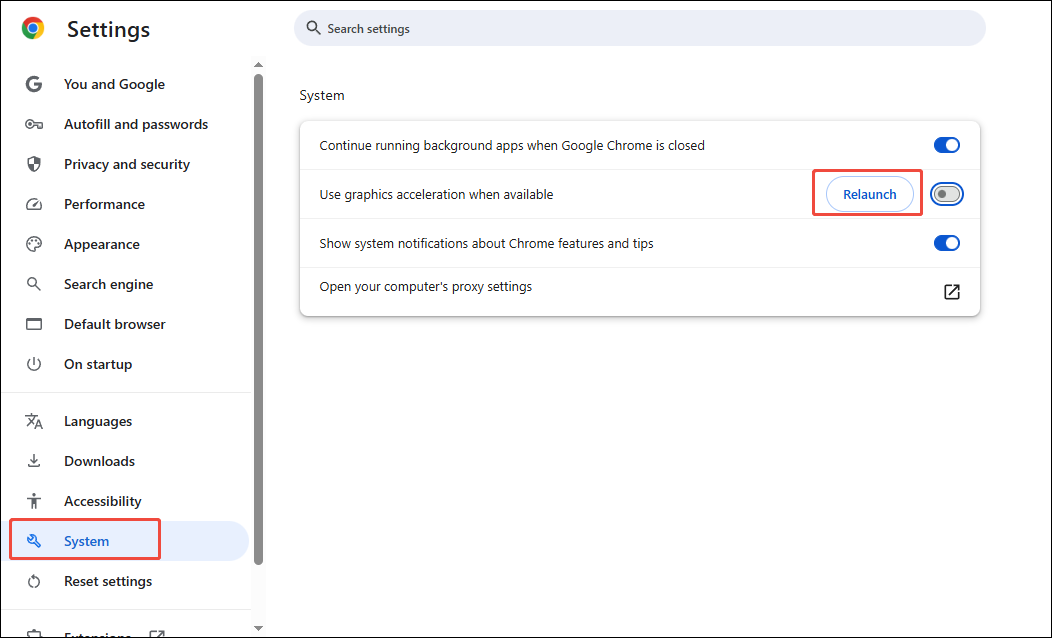
Once hardware acceleration is disabled, you can proceed with recording Fubo.
Method 1: Use MiniTool Screen Recorder
MiniTool Screen Recorder is a powerful tool worth recommending. This software strikes a balance between an intuitive interface and advanced features, making it suitable for both beginners and experienced users.
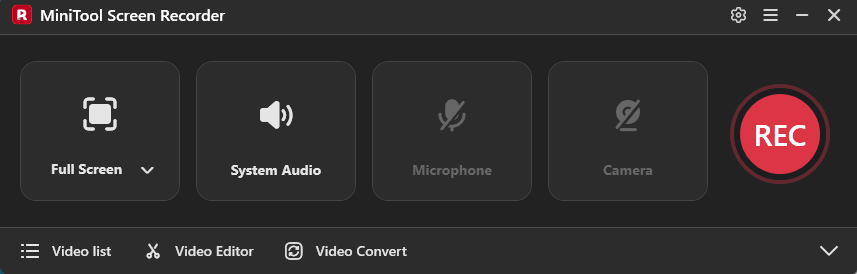
MiniTool Screen Recorder supports recording the entire screen, a specific screen area, webcam only, and both screen and webcam to create an overlay. Moreover, it allows you to record system audio and microphone input simultaneously or separately. The flexible visual and audio recording options are perfect for capturing videos from websites like FuboTV or creating commentary videos.
What sets MiniTool Screen Recorder apart is its customizable recording options. You can adjust the recording frame rate, video quality, and even preset a recording duration for scheduled sessions. This screen recorder can record 4K video without time limits or watermarks, making it an excellent choice for high-quality captures.
Additionally, MiniTool Screen Recorder includes a screen annotation feature, allowing you to add drawings, step numbers, shapes, text, arrows, and whiteboards during recording. It is a reliable tool for taking notes and highlighting key information during online meetings or educational courses.
MiniTool Screen Recorder supports saving recordings in MP4 format on your computer, making them easy to edit or share with others. All in all, the robust recording features and versatile options make MiniTool Screen Recorder a dependable choice for capturing high-quality recordings on FuboTV with ease.
How to record on FuboTV using MiniTool Screen Recorder? Follow the steps below.
Step 1: Download and Install
Click the download button below and follow the on-screen prompts to install MiniTool Screen Recorder on your computer. Then, launch this free recorder.
MiniTool Screen RecorderClick to Download100%Clean & Safe
Step 2: Set the Recording Area
Go to the official Fubo website on your web browser and open the program you want to record. Choose whether to record the full screen or select a custom recording area. For full-screen recording, simply keep the default full-screen mode. To record a specific region, click Full Screen in the MiniTool Screen Recorder interface and choose Select Region. Then, drag your mouse to define the desired recording area.
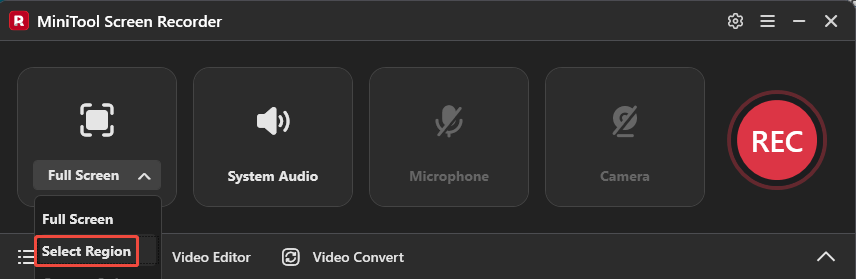
Step 3: Control Dule Audio
The system audio and microphone sound are activated by default. To record only the video sound from Fubo without other distractions, click the Microphone option to turn it off.
Step 4: Adjust Additional Settings
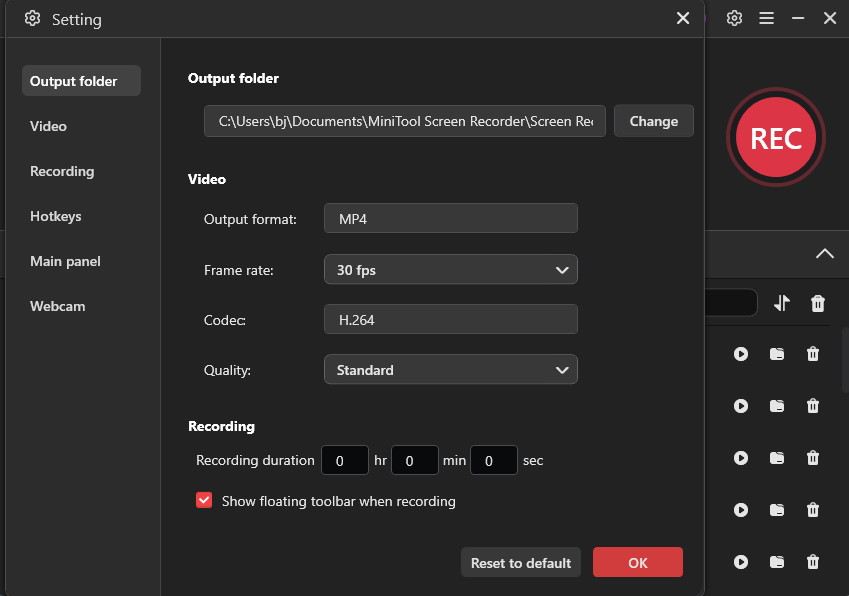
To enter the Settings window, click the Gear icon in the upper-right corner of the interface. Here, you can adjust the video frame rate, select an appropriate video quality from original, standard, and high options, and customize the hotkeys. If you set a recording duration, the recording will automatically stop and save to your computer when it reaches the time limit.
After everything is set up, click OK to save the adjustments.
Step 5: Start Recording
Click the red REC button or press the default F6 (or your assigned start recording key) on the keyboard. After a three-second countdown, the recording will begin. Make sure to play the program on Fubo from the beginning.
To skip advertisements or other irrelevant segments, press F9 to pause and resume recording.
Step 6: End and Check the Recording
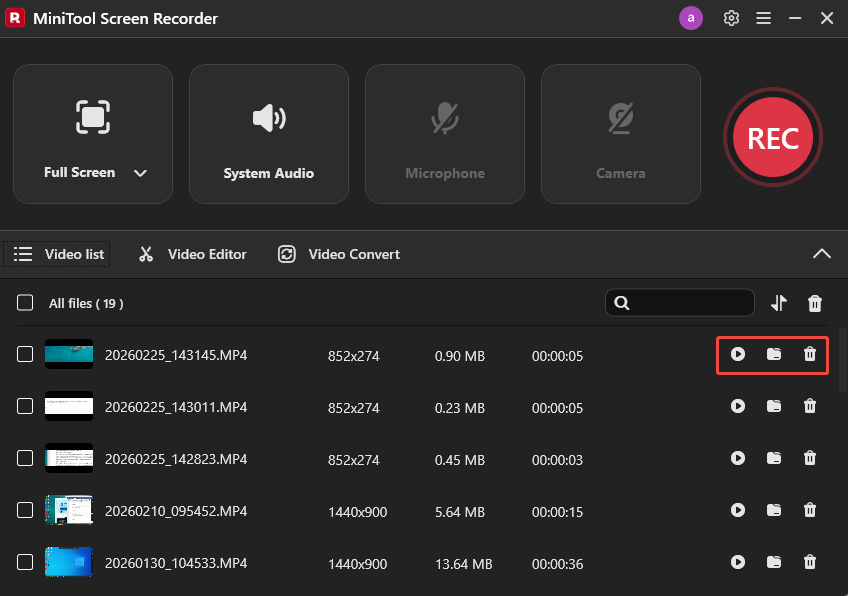
When the program ends, press the F6 key again to stop recording. Then, the latest recording will appear at the top of the Video list module in the main interface. You can click the Play icon to preview the recording or click the Folder icon to locate the video file on your computer. If you are not satisfied with the recording, click the Delete icon to remove it from the computer.
Step 7: Edit the Recording (Optional)
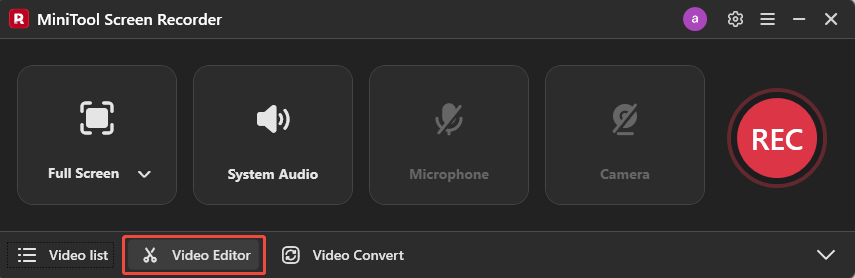
To trim your recording for seamless and professional playback, MiniTool Screen Recorder provides a convenient shortcut to its companion editing tool, MiniTool MovieMaker. Simply click the Video Editor option next to Video list to open or download this video editor.
In addition to trimming videos, MiniTool MovieMaker offers a variety of editing features like cropping, rotating, adding filters, text, and stickers. You can use these tools to refine and enhance your recording.
Method 2: Use Xbox Game Bar
Xbox Game Bar is another useful screen recorder. As a built-in Windows tool, it saves both time and storage by eliminating the need for installation. Although originally designed for gameplay, its convenient shortcuts and ease of use make Xbox Game Bar a popular choice for recording videos and other screen activities.
Xbox Game Bar also offers flexible controls for system sound and microphone audio. What makes Xbox Game Bar special is that it can automatically detect and record the active window, so you don’t need to select a recording area manually. Additionally, its adjustable settings let you modify the video frame rate and quality.
However, Xbox Game Bar has a maximum recording duration of 4 hours. If you need to record longer programs, be sure to keep an eye on the time and restart the recording when necessary.
How to record on FuboTV using Xbox Game Bar? Here is the detailed guide.
Step 1: Activate and Customize Xbox Game Bar Recording Settings
Click the Start icon in the lower-left corner of the screen and select Settings. Click Gaming and enable the Allow your controller to open Game Bar option.
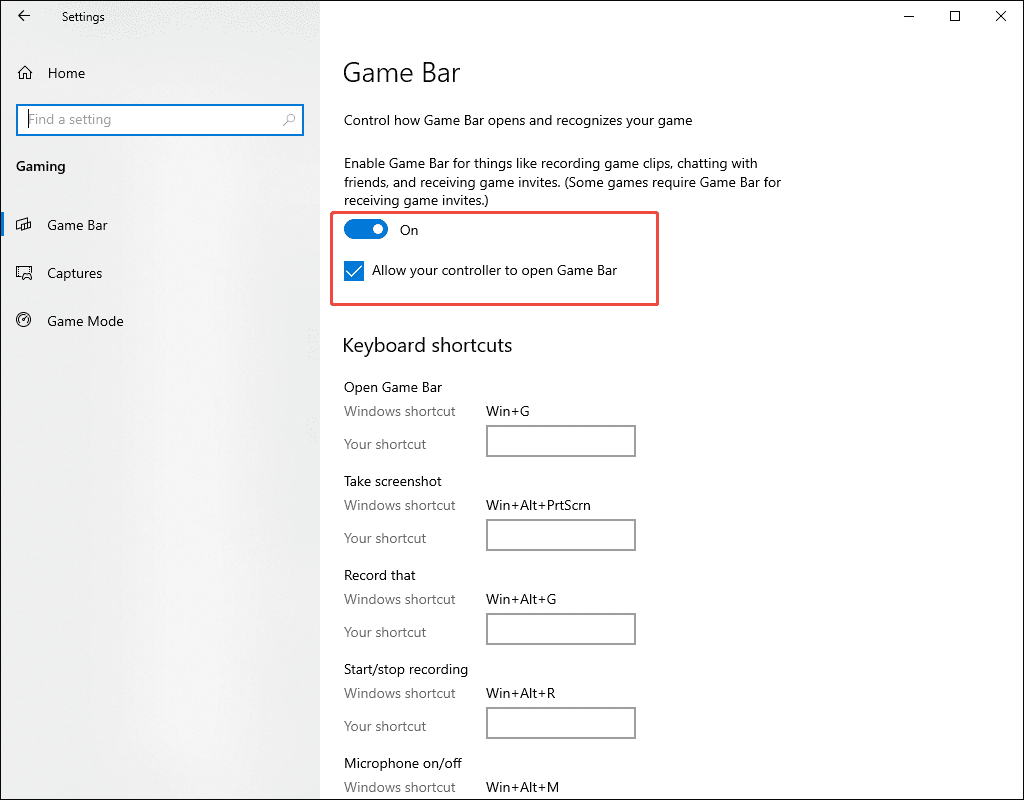
Then, switch to the Captures tab in the left panel to customize your recording settings. Here, you can change the save location, set the maximum recording length, specify the audio quality, video frame rate, and video quality. The recommended 30 fps is smooth enough for recording FuboTV videos.
Step 2: Start Recording
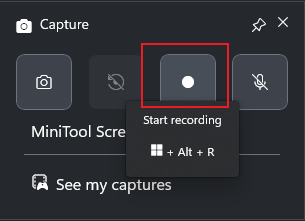
Press the default Windows + G to open Xbox Game Bar. The microphone audio is disabled by default. If you want to turn it on, click the Microphone icon in the Capture panel.
Next, open the FuboTV program you want to record in your browser. Then, click the Start recording option to begin capturing.
Step 3: Stop and Check Recording
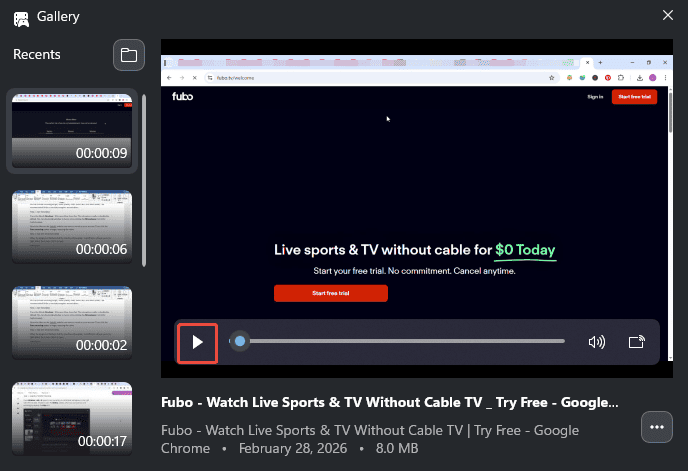
When the program finishes, click the Stop Recording button. A notification will pop up on the right side of the screen. Click it, and you can find your latest recording at the top of the Gallery panel. Click the Play icon to preview the recording.
Conclusion
How to record on FuboTV on Windows? Fubo offers the Cloud DVR feature, allowing users to record live or upcoming programs for offline viewing. For users who don't have access to Cloud DVR, third-party screen recorders like MiniTool Screen Recorder and Windows built-in tools like Xbox Game Bar provide reliable alternatives for recording favorite shows.
Based on your preferences, choose the recording method that works best for you. Whether using Cloud DVR or the alternative screen recorder, following the steps outlined in this guide will help you easily record FuboTV and enjoy your content anytime.
If you have any suggestions or encounter any problems when using MiniTool Screen Recorder and MiniTool MovieMaker, please don’t hesitate to contact us via support@minitool.com. Also, you can directly share your problems with me on X. I will help you as quickly as possible.