

What is the best software to record gameplay on PC? This guide covers 6 robust screen recorders for smooth gameplay capture: Game DVR, GeForce Experience, MiniTool Screen Recorder, OBS, XSplit Gamecaster, and Elgato Game Capture.
Gameplay recording tools need to balance ease of use with functionality. In this article, we have selected the following six tools to help you capture your gaming footage more smoothly:
- Game BVR
- NVIDIA GeForce Experience
- MiniTool Screen Recorder
- OBS Studio
- XSplit Gamecaster
- Elgato Game Capture Software
#1 Windows Game DVR to Record Gameplay for Xbox
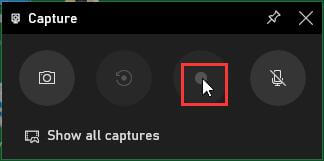
Game DVR is the official game recording application offered by Microsoft for Windows 10/11 users. Simply by using the “Win + Alt + R” hotkey, you can start recording the Xbox game you are playing. Pressing the shortcut again, you are able to stop the recording process.
With the shortcut, you can easily start or stop recording anytime you want. Besides the Xbox games, you can record any action you carry out on your PC, like operating a program, online chatting with others, and painting a picture. Also, you can change the hotkey for recording in Windows Gaming Settings.
Or, you can just open the Game Bar of Windows with “Win + G”. Then, record what you want using the little circle icon. To stop recording, just click on the little square icon, which comes from the little circle icon immediately after the recording starts.
Pros:
- Easy and convenient to use.
- Quality and safety guarantee.
- No need to download and install.
- Free of charge.
Cons:
- Fewer features.
- Only basic features.
#2 NVIDIA GeForce Experience for NVIDIA GPU Users
If your graphics card is NVIDIA and it is not a very old one, you probably already have the GeForce Experience software on your computer. GeForce Experience is the self-contained game recording tool of Nvidia GPU.
- Right-click on Desktop and select NVIDIA GeForce Experience.
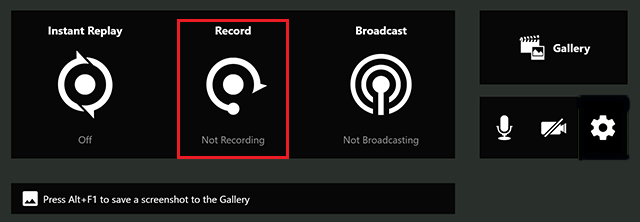
- In the main UI of GeForce Experience, click the triangle icon on the top left to trigger the NVIDIA ShadowPlay overlay. Or you can directly open the overlay by pressing the “Alt +Z” keys without launching GeForce Experience.
- Within ShadowPlay, there is a Record option. With it, you can start or stop recording your gameplay.
Pros:
- Free.
- Simple to operate.
Cons:
- Only works with an NVIDIA graphics card.
- Limited features.
#3 MiniTool Screen Recorder
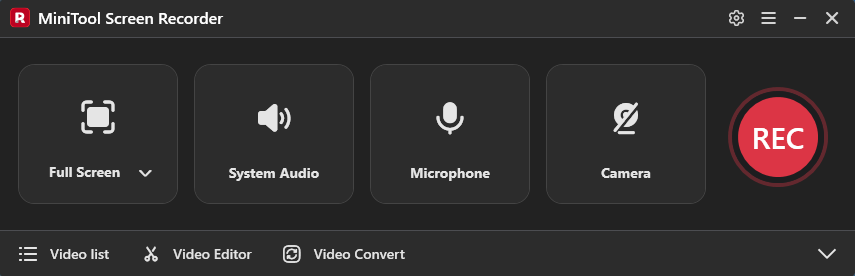
MiniTool Screen Recorder is a completely free recording tool. Beyond recording gameplay, it offers the ability to capture the full screen, a custom area, a specific window, a webcam feed, or the display of an additional monitor.
Furthermore, MiniTool Screen Recorder is an excellent choice for creating instructional videos; it includes convenient built-in annotation tools, allowing users to highlight key information while recording.
Additionally, the software features a preset recording duration function. This means you don’t need to stay at your computer the entire time when recording long gaming sessions, freeing you up to attend to other tasks. Once the recording is complete, the program will automatically stop and save the video to a designated location (the save path can be changed at any time).
MiniTool Screen RecorderClick to Download100%Clean & Safe
Pros:
- Completely free and easy to use.
- More detailed recording settings are supported.
- No ad, no bundle, no watermark.
Cons:
- Only supports Windows OSes like Windows 11/10/8/7.
- Need to download and install on PC in advance.
#4 OBS (Open Broadcaster Software)
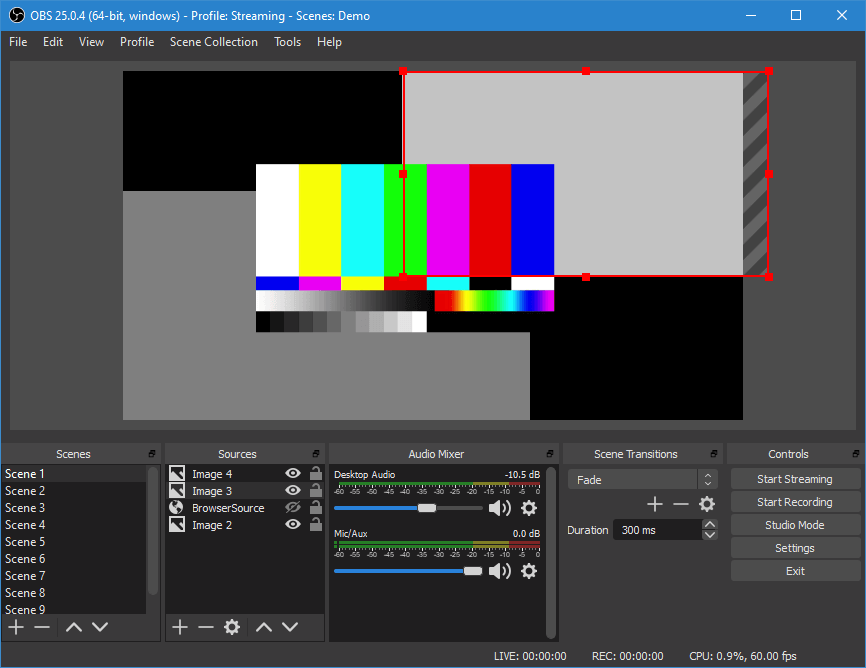
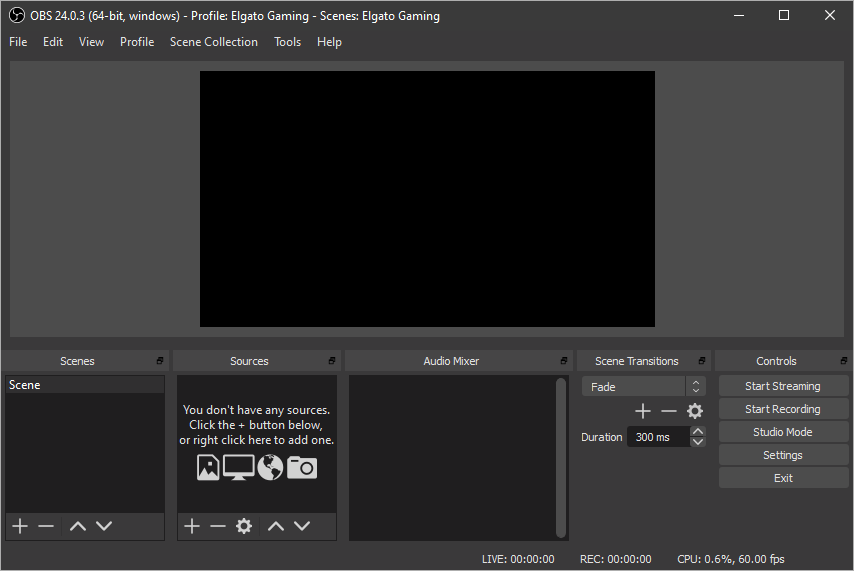
Open Broadcaster Software is an open-source and free cross-platform recording and live-streaming tool. It is funded by an open collective and is now referred to as OBS Studio.
OBS stands out for its high performance and real-time video/audio capturing and mixing. It can create scenes made up of multiple sources like window captures, images, text, webcam, etc.
Pros:
- Supports cross-platform.
- Enhances experience with plugins.
- Supports a huge community.
Cons:
- Complex to set up.
- Complex UI.
#5 XSplit Gamecaster
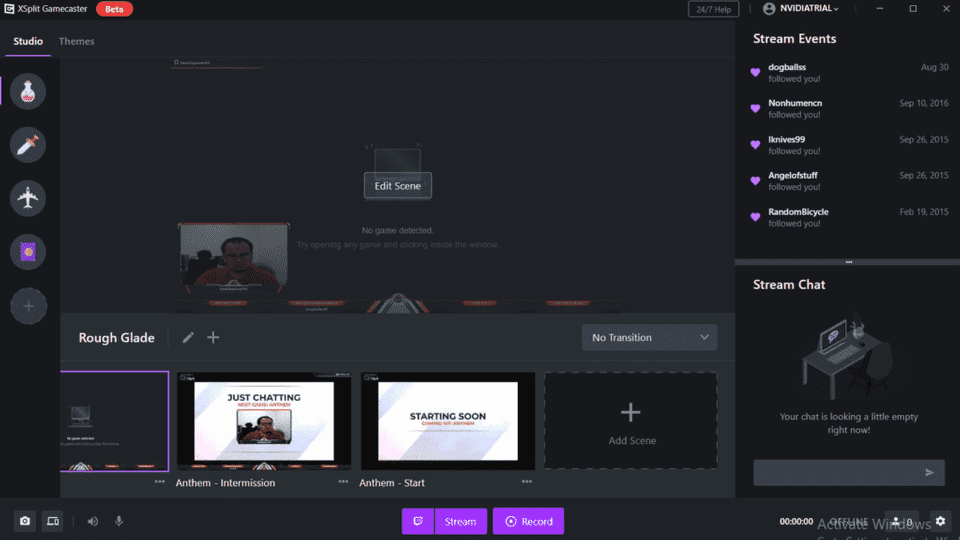
XSplit Gamecaster is an easy and free streaming program for gamers. It can live stream and record your PC or console gameplay in seconds with just a few clicks. XSplit Gamecaster will adjust all the necessary encoding settings automatically.
XSplit Gamecaster enables you can control your stream from one screen. With hundreds of fully customized themes to choose from, you can switch among Minecraft, CS: GO, Fortnite, Apex Legends, and so on.
Pros:
- One-click record locally or stream to popular platforms.
- Supports Extensive scene, transition, and source options.
- Excellent support forums.
Cons:
- Charges for advanced features.
- Expensive monthly subscription of Premium edition.
#6 Elgato Game Capture Software
Elgato Game Capture is a professional third-party gameplay recording software. It mainly focuses on inspiring your creativity by providing you with a complete set of features for recording and editing game videos.
Elgato Game Capture is equipped with many powerful functions that enable you to create a more outstanding video after recording, such as capture settings, live streaming, game audio, live commentary, and flashback recording.
Pros:
- Free.
- Easy to set up.
- More features for editing recorded videos.
Cons:
- Not robust enough.
- Only works with its game capture card. (e.g. Elgato Game Capture HD60)
Also Read:Elgato Audio Delay Fix: 8 Workable Ways Worth Trying
What Is the Best Software to Record Gameplay on PC?
Next, it will compare some basic information of the above 6 gameplay recording software. Referring to the below table, you can find which one suits you the most.
| Software | Supported OS | Price |
| Windows Game DVR | Windows 11/10 | Free |
| NVIDIA GeForce Experience | Windows 11/10/8.1/8/7 | Free |
| MiniTool Screen Recorder | Windows 11/10 | Free |
| OBS Studio | · Windows 11/10/8.1/8/7 · MacOS 10.11 or later · Linux Ubuntu 14.04 or later | Free |
| XSplit Gamecaster | Windows 11/10/8.1/8/7 | · Free · $8.32/month for Premium (when this article was written) |
| Elago Game Capture | · Windows 11/10 (64 bit) · MacOS 10.11 or later | Free |
Conclusion
What Is the Best Software to Record Gameplay on PC? This article introduces 6 excellent game recorders: Game DVR, GeForce Experience, MiniTool Screen Recorder, OBS, XSplit Gamecaster, and Elgato Game Capture. However, choosing the right gameplay recording tool depends on individual needs, system performance, and desired features.
If you have any questions when using MiniTool Screen Recorder, send an email to support@minitool.com.