

Skype is one of the most popular communication tools for free calls and chat. Many people are using this tool to keep in contact with their friends and deal with work tasks.
Skype allows users to record calls with its built-in feature. If you need to record your voice or video call in Skype, you can refer to the following content.
Tips for Skype Recording
Before recording Skype calls, here are some tips from Skype that you need to keep in mind:
- Tip 1: Recording Skype calls feature is only available for Skype-to-Skype calls.
- Tip 2: When you start recording Skype calls, everyone who enjoys the call will be reminded that the calls are being recorded.
- Tip 3: Skype sharing screen would be included in the Skype recording.
- Tip 4: The maximum duration for a call recording is 24 hours. Longer calls might be divided into multiple files.
How to Record a Skype Call on PC
As shown above, the most straightforward way to record a Skype call is by using its built-in recording feature; however, this comes with a time limit. To record without duration restrictions, you need to use a third-party tool, such as MiniTool Screen Recorder, which is introduced in this article.
#1 Use Skype’s Built-in Recording Feature
Fast Track Steps:
- Open Skype
- Start a call
- Expand the More option to start recording
- Click the Stop Recording button to end the recording
Now, you can begin recording Skype calls with the following steps.
1. Open Skype and call your friend.
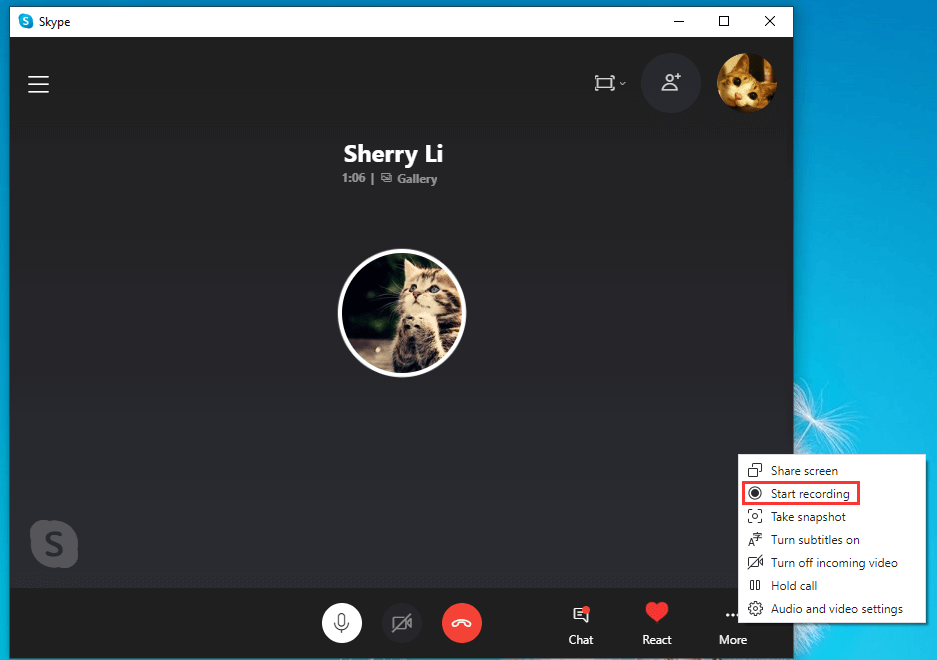
2. During the call, click the three-dot icon in the bottom-right corner to view more options and then select Start recording.
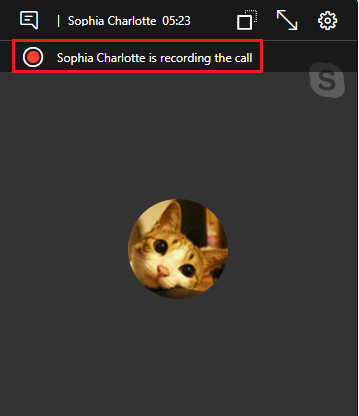
3. After a while, the Skype recording will be started, and others in the call will be noticed that you are recording the call.
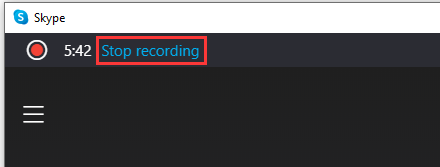
4. If you need to stop the recording, you just need to click the Stop recording button, which is on the upper left corner of the Skype client.
When you stop recording or end the call, the Skype recording will be posted on your behalf in the Skype chat where the call took place. Then you can watch the recording in the chat window later.
#2 Use MiniTool Screen Recorder
If you want to avoid the recording time limits associated with Skype, consider using a third-party Skype recording software. MiniTool Screen Recorder is a free tool that imposes no restrictions on recording duration.
This tool offers a wide range of recording area options, such as full screen, specific regions, or individual windows. Additionally, the tool supports webcam recording. Furthermore, its built-in annotation tools make it easy for users to create tutorial videos.
Fast Track Steps:
- Open Skype and start a call
- Launch MiniTool Screen Recorder
- Choose the recording area
- Manage audio recording settings
- Adjust webcam recording settings
- Start recording the Skype call
- End recording and check the recorded Skype call
Here are the detailed steps on how to record Skype calls with MiniTool Screen Recorder.
1. Open Skype.
2. Click the button below to download and install MiniTool Screen Recorder. Then, launch it on the PC.
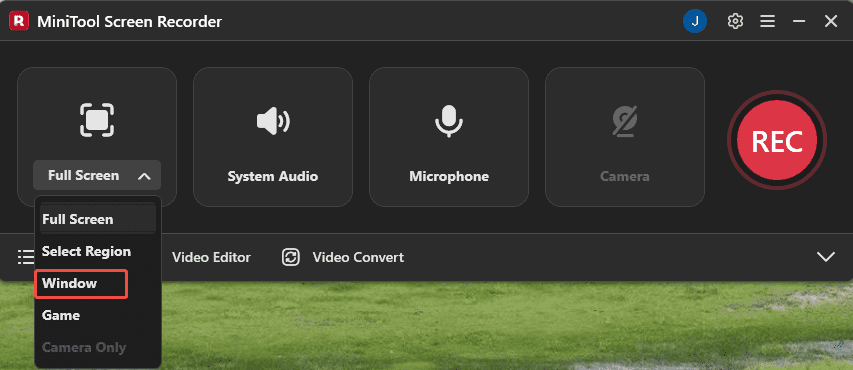
3. By default, the tool records the full screen by default. To record the Skype call, you can expand the Full Screen option, then choose the Window option.
4. In the new pop-up window, choose the target Skype call window. Then, on the floating bar, make sure the Microphone recording feature is enabled by default.
5. If there is a need to capture the webcam footage, click the Camera icon on the floating bar.

6. To start capturing the Skype call, click the REC button on the floating bar. When the 3-second countdown ends, start a call in Skype.
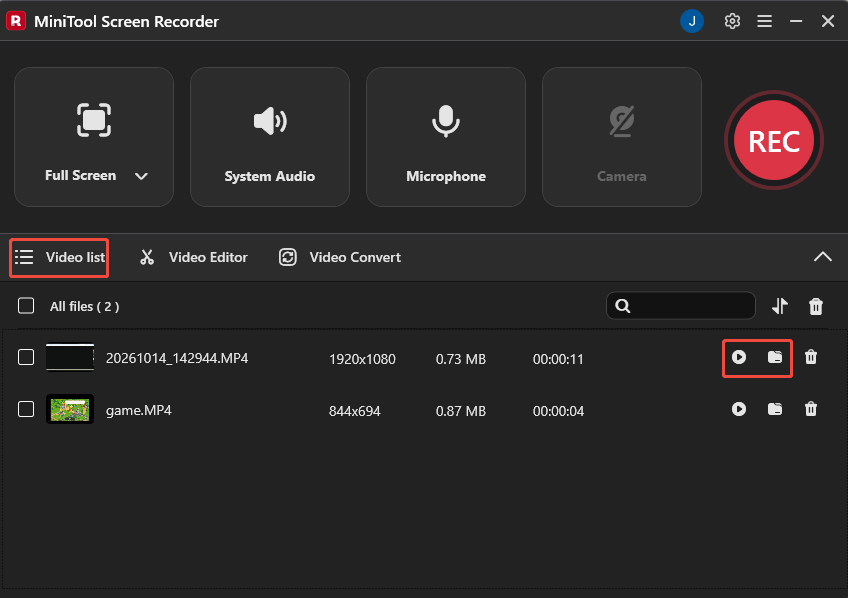
7. To end the recording process, click the F6 key. Then, the tool will automatically switch to the Video list section. You can click the Play icon to view the recorded Skype call, or click the Folder icon to locate it.

How to Save Skype Recordings in Skype
Skype’s servers will save the recording for 30 days. During the period, you can download the recording to save it for longer time. If you don’t save it within 30 days, it will disappear and you will be unable to watch it anymore.
You just need to open the chat window in which you post the recording and right-click the recording you want to download. Then select Save as... and select a location to save the Skype recording you need.
If you don’t need this recording anymore, you can select Remove for the recording in the chat.
Conclusion
This article provides 2 practical ways to handle Skype recording: use Skype’s built-in recording feature, or a third-party recording tool. Select the method that best suits the requirements, and follow the steps above to capture calls.
If you have any questions when using MiniTool Screen Recorder, send an email to support@minitool.com.