

When screen recording on your computer screen with audio, sudden knocks on the door, the sound of objects falling, or background chatter in the room can all cause annoying distractions. These situations can negatively impact the quality of your recording. How to screen record without background noise on Windows? The content below offers two effective methods. Read on.
How to Screen Record without Background Noise
To screen record without background noise, I recommend two professional screen recorders. Read on for more.
Method 1. Use MiniTool Screen Recorder
The first screen recorder I highly recommend is MiniTool Screen Recorder. I’ve used it for a long time, and it never disappoints me. Here’s a breakdown.
Perfect for Daily Use
- No watermarks and time limits: This is my favorite feature. The recorder leaves no watermarks in videos and has no recording limits. I’ve recorded videos up to an hour long for work, and they’ve all been saved to my computer in full, high-quality format.
- Super flexible recording: I can record the full screen for presentations, online courses, gameplay, and more. Also, I can pick a custom region to record with no extra clutter. Even more, MiniTool Screen Recorder can serve as a webcam recorder.
- Clear audio, easy recording: Audio quality is crucial. MiniTool Screen Recorder can record system audio and my microphone audio separately. If I’m just recording a video, I can turn off the microphone to screen record without background noise; if I’m recording narration, I can turn both on at the same time. Even when using regular headphones, there’s no background noise or audio dropouts.
- 4K resolution recording: If your computer meets the system requirements, MiniTool Screen Recorder can record video at up to 4K resolution. The gameplay footage is crisp and clear, and the tutorial steps are easy to follow.
More Practical Features
- Real-time screen annotations: While recording, I can draw arrows, add text, or highlight specific areas of the screen. This is perfect for pointing out steps in tutorials.
- Schedule recording: I can schedule the recording duration in advance and have it stop automatically. It’s perfect for recording movies and TV shows. That way, I don’t have to sit by the computer waiting for the recording to finish.
- Lightweight and streamlined: MiniTool Screen Recorder doesn’t use up much of your computer’s resources. The interface is clean and intuitive, with no confusing menus – all the tools you need are right there on the screen.
Here’s a step-by-step guide on how to screen record without background noise on Windows:
Step 1. Download and Install MiniTool Screen Recorder
Click the download button below to download this program. Next, follow the on-screen setup instructions to install it on your PC. Then, launch the program.
MiniTool Screen RecorderClick to Download100%Clean & Safe
Step 2. Set the Recording Settings
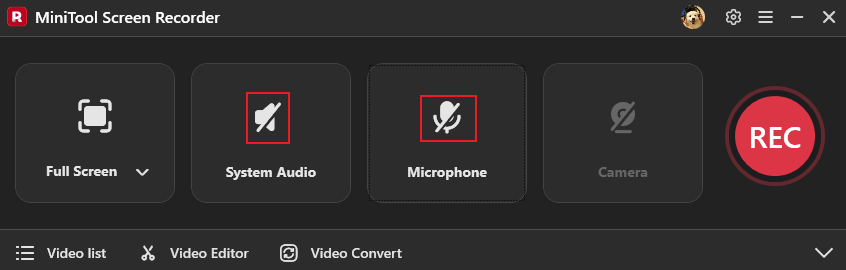
Adjust audio settings: The system audio and microphone sound are turned on by default. To screen record without background noise, turn off the microphone sound. Turn off the system audio as well if you want to record the screen only.
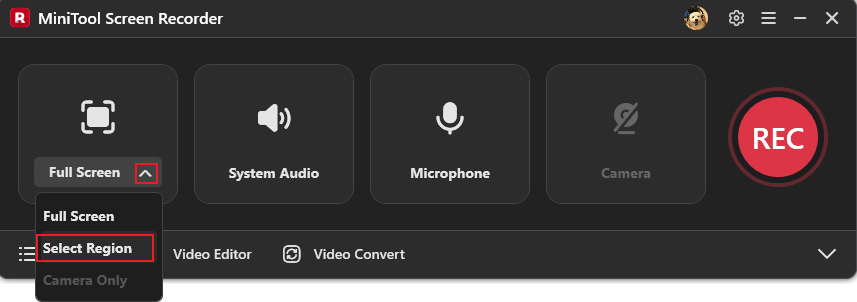
Choose the recording region: The software records the full screen by default. If you want to choose a specific recording area, expand the Full Screen option, choose Select Region, and then hold and drag the mouse cursor to choose the recording area you want.
Step 3. Start Screen Record without Background Noise
Click the REC button. You will have a three-second delay to switch to the target interface, then the recording will begin. During the recording, if you have other things to handle, press the F9 key to pause/resume the recording.
Step 4. Stop the Recording
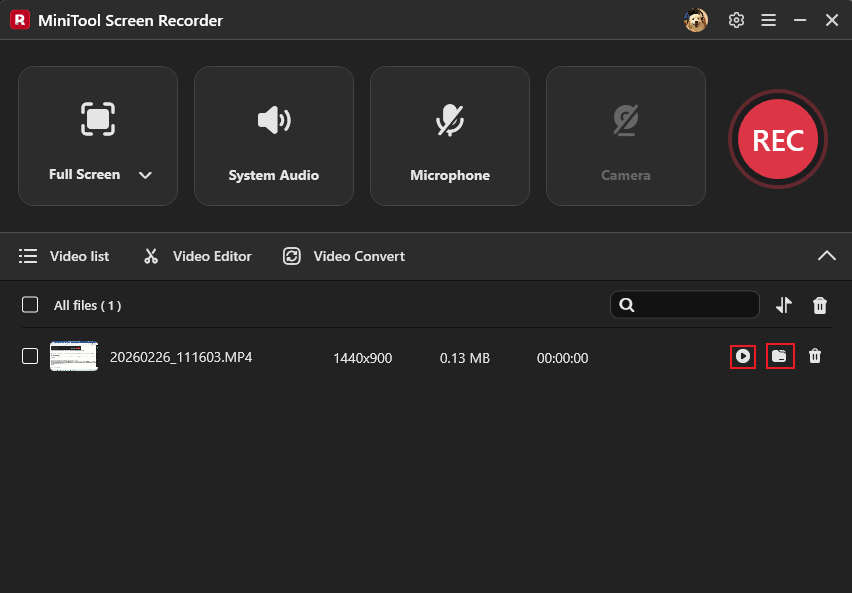
To end the recording, press the F6 key. Check the recording under the Video list section. To view the recording, click the Play icon; to locate it, click the Folder icon.
![9 Best Webcam Recorders for Windows [Beginners & Professionals]](https://images.minitool.com/recorder.minitool.com/images/uploads/2025/12/webcam-recorder-thumbnail.png)
Method 2. Use Microsoft Clipchamp
Microsoft Clipchamp is a versatile and reliable screen recorder that can screen record without background noise. First of all, it comes pre-installed with Windows 11, so you don’t have to go through the trouble of downloading and installing it. What I like best are its flexible recording options. I can record my entire screen, a single application window, or even just a browser tab – which is incredibly convenient when I only need to show a specific part of my work.
Even better, Clipchamp can record both my microphone sound and system audio at the same time, and I can mute either one individually if I don’t need it. Especially when I want to record without background noise, I can toggle the system audio or microphone off.
However, one limitation is that each recording session is limited to a maximum of 30 minutes. If I need longer video clips, I have to record them in segments, which isn't very convenient.
Now, follow the guide below to screen record without background noise with Clipchamp.
Step 1. Access Microsoft Clipchamp
Launch Clipchamp from the Start section. If you’re not on Windows 11, go to the Microsoft Store to download and install this program.
Step 2. Open Screen Recorder
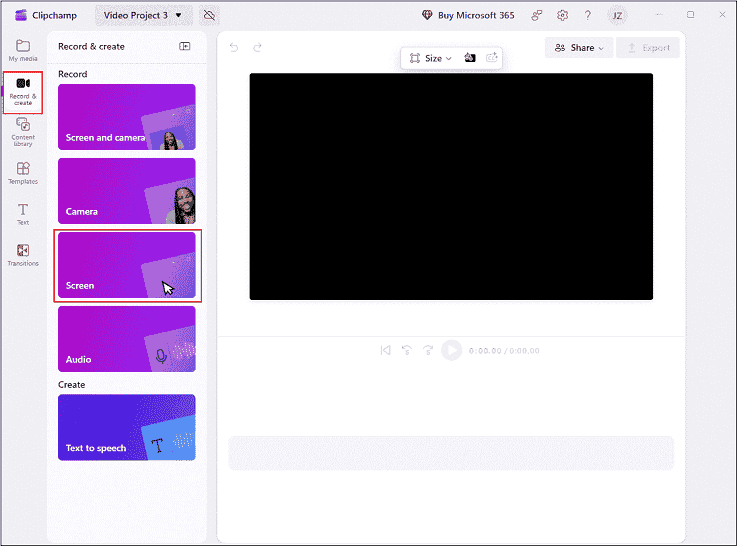
Click Create a new video to enter the main interface. Then, select the Record & create option and select Screen.
Step 3. Start Recording
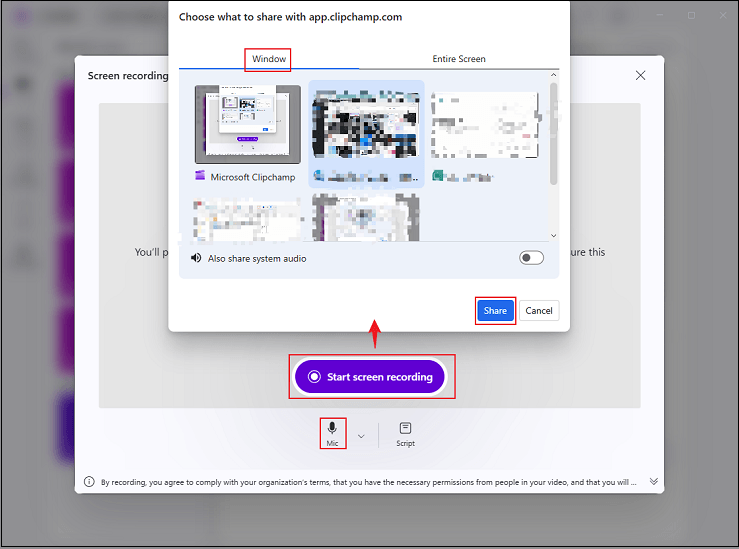
Open the target interface you want to record. If you only want to record the screen without any audio, turn off the microphone. If you want to record a voiceover, make sure you’re in a quiet environment and keep the microphone on. After the audio settings are completed, click the Start screen recording button, choose the target recording window, and click Share. After a three-second countdown, the recording will begin.
Step 4. Stop the Recording
Click the Stop and review button to stop the recording. Next, click Save and edit, click the Export option at the top right, and then select a resolution to export the recording.
Recommended Tips to Screen Record without Background Noise
Here are some tips you can use to avoid background noise when recording.
- Create a quiet environment: If you need to record audio through a microphone, a relatively quiet recording environment helps eliminate major sources of noise, thereby reducing microphone noise.
- Maintain an appropriate distance from the microphone: When recording your computer screen using a microphone, you should not be too close or too far from it. Additionally, using a pop filter can effectively reduce microphone vibrations and prevent plosive sounds.
- Choose a high-quality microphone: Noise usually comes from the microphone itself. Dynamic microphones are better than other types because they are less sensitive to ambient noise.

Final Words
How to screen record without background noise? This post offers two effective methods, including using MiniTool Screen Recorder and Microsoft Clipchamp. Feel free to choose the one you prefer. Hope you find this article helpful!
You can contact us via support@minitool.com if you encounter any questions about using MiniTool Screen Recorder or MiniTool MovieMaker. Alternatively, you can send me messages directly on X, and I’ll help you as soon as I can.