

A lot of users may receive some error messages like “there’s nothing to record play some more”. This article provides 7 ways to fix this issue, such as updating Graphics Card Drivers, running the game in fullscreen mode, using an alternative game recorder, like MiniTool Screen Recorder, and more.
In Windows 10, players can record their gameplay sessions with the help of Game Bar, Game DVR, or Xbox recorder. These features allow you to record gameplay on Windows 10 without using third-party software. Sometimes, however, you may encounter some error messages like “There’s nothing to record play some more and try again”.

Common Game Bar Recording Issues
When it comes to the Game Bar recording issues, you may encounter the following common ones. You can fix the issue based on specific situations.
- There’s nothing to record play some more. This error message often occurs whenever trying to record a game using the Windows Game Bar. You can the settings and make sure this feature is enabled.
- There’s nothing to record Windows 10 DVR. You may receive the message in Windows 10 DVR. It could be fixed by deleting the temporary files.
- There’s nothing to record Xbox app. When using the Xbox app to record gameplay, you may encounter this issue.
- Windows 10 recorder says there’s nothing to record. It is a common issue on Windows 10. You can try some of the following methods.
How to Fix There’s Nothing to Record Game Bar Issue
Before preceding to the following methods, make sure that your Windows PC is up to date.
Fix 1. Make Sure Game Bar Is Enabled
If you encounter the issue “there’s nothing to record play some more” in Windows 10, this first thing you should do is to check if Game Bar is enabled. Here’s how:
Step 1. Press Win + I keys to open the Settings window, and then click on Gaming.
Step 2. In the Game bar section, make sure the Record gaming clips, screenshots, and broadcast using Game bar option is Turn on.
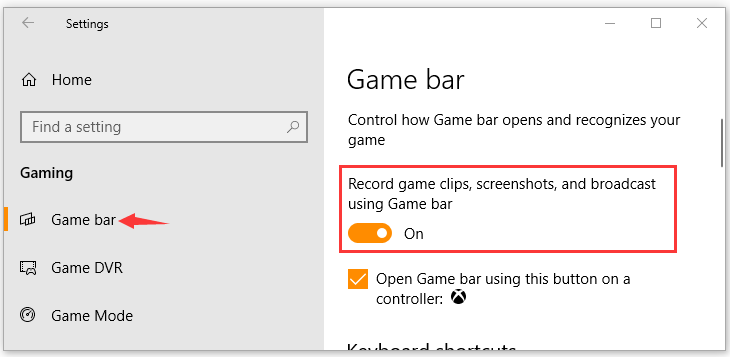
Now, you should record your game without the error “there’s nothing to record Game Bar”.
Fix 2. Update or Reinstall Your Graphics Card Drivers
- Open the Run dialog box.
- Enter the devmgmt.msc interface
- Find the Display adapters
- Update the Graphics Card Drivers
In addition, you need to make sure the graphics card drivers on your computer are up to date. Here are 2 options to get the latest graphics card drivers. One is to update it automatically, and the other is to reinstall graphics card drivers. For that:
Step 1. Press the Win + R key to open the Run dialog box, and then type devmgmt.msc in the box and hit Enter.
Step 2. In the Device Manager window, expand the Display adapters category, and then right-click the graphics card driver and select Update Driver.
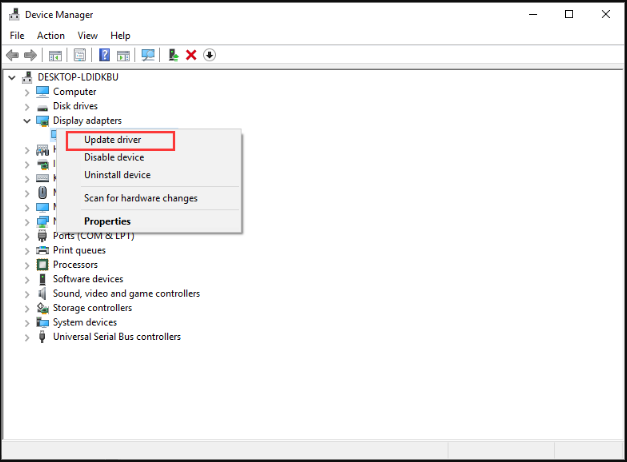
Step 3. Then select Search automatically for updated driver software option to update the driver automatically. After that, your Windows will automatically detect the latest graphics card driver and install it. Follow the on-screen prompts to complete this update.
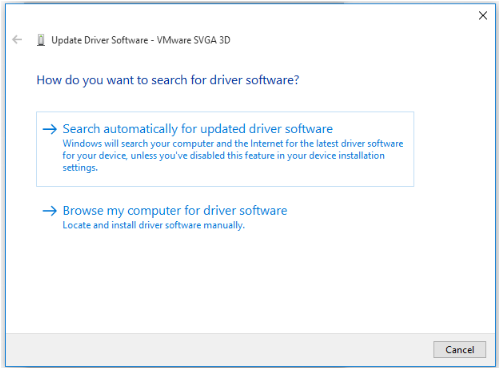
Alternatively, you can select the Uninstall device in step 2. Once the graphics card driver is uninstalled, you can download the latest version from the official website and install it manually. This option is suitable for those who have outdated or corrupt graphics card drivers.
Fix 3. Run This Game in Fullscreen Mode
In some cases, the game bar will pop up the error “there’s nothing to record Game Bar” if you set Steam game in windowed mode. Out of some unknown reasons, the windowed mode may not be recognized by the Game bar.
Thus, we recommended that you set your game in fullscreen mode.
Fix 4. Delete the Temporary Files
If you encounter the error when using Windows 10 DVR, you can try deleting temporary files. For that, you can follow this simple guide.
- Open the Run dialog box
- Go to the temp interface
- Open the Run dialog box again
- Press Ctrl + A to select all files, then press Shift + Delete.
- Repeat the process by typing prefetch in the Run dialog and pressing Enter.
- Select all files in the Prefetch folder and press Shift + Delete
Step 1. Press Win + R keys to open the Run dialog box, and then type temp in the box and hit Enter.
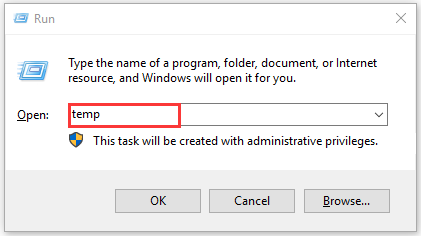
Step 2. In the Temp folder, press Ctrl + A to select all temporary files and press Shift + Del keys to permanently delete temporary files.
Step 3. Again open the Run dialog box, and then type %temp% in the box and hit Enter.
Step 4. Press Ctrl + A to select all temporary files and press Shift + Del keys to permanently these files.
Step 5. At last, type prefetch in the Run dialog box and hit Enter.
Step 6. Select all the files and press Shift + Del keys.
Now, check if the error “there’s nothing to record Windows 10 DVR” is fixed or not.
Fix 5. Use Windows Shortcut Keys
Using shortcut keys is an effective way to record gameplay. If you have encountered Windows 10 recorder says there’s nothing to record error message, you can try pressing Win + G keys to start recording. If Win + G keys is not working for you, you can try using Win + Alt + R keys instead.
Fix 6. Reinstall Xbox App
- Open PowerShell as an administrator.
- Run the command to uninstall the Xbox app.
- Reinstall the Xbox app from Microsoft Store.
If there’s nothing to record Xbox app error still persists, you may consider reinstalling the Xbox app. To do so, follow the steps below.
Step 1. Right-click the Start menu and select Windows PowerShell (Admin) option from the context menu.
Step 2. Type the following commands in the PowerShell window and hit Enter.
Get-AppxPackage *xboxapp* | Remove-AppxPackage
Step 3. Once the Xbox app is removed from your computer. You can download the latest Xbox app from Microsoft Store.
After the Xbox app is reinstalled, check if you can record gameplay without any problems.
Fix 7. Use an Alternative Game Recorder
The 6 solutions above may, to some extent, resolve issues where the Game Bar fails to record. If these methods prove ineffective, the most convenient approach is to simply use an alternative tool.
MiniTool Screen Recorder is an excellent substitute for the Game Bar; beyond capturing gameplay, it also offers desktop and webcam recording features, capabilities not provided by the Game Bar. Furthermore, this tool includes built-in, easy-to-use annotation features, making it ideal for creating gaming tutorials.
Fast Track Steps:
- Launch MiniTool Screen Recorder
- Select a recording area
- Manage the audio and webcam recording features
- Start recording
- Play the target game
- End the recording process
- Check the recorded game video
MiniTool Screen RecorderClick to Download100%Clean & Safe
Step 1. Click the button above to download and install MiniTool Screen Recorder, then launch it on the PC.
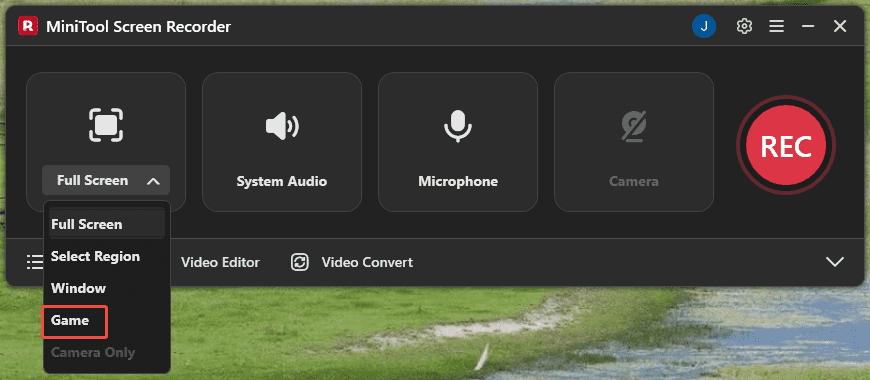
Step 2. By default, the tool records the entire screen. You can expand the Full Screen option and choose the Game option to record gameplay.
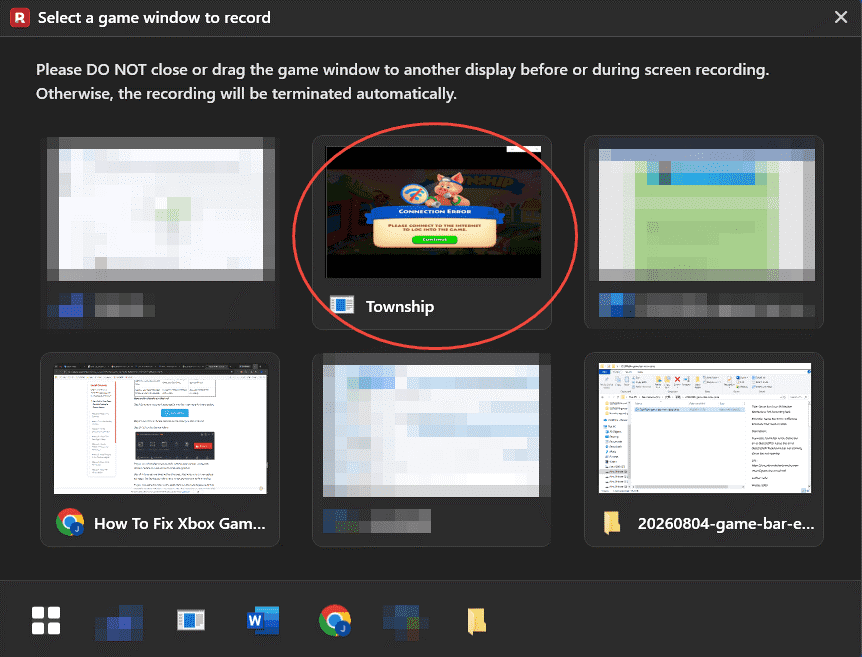
Step 3. Then, choose the target game window in the new pop-up window.
Step 4. Both system audio and microphone recording are enabled by default. Click the corresponding icon on the floating toolbar to turn either one off.

Step 5. Click the Camera icon on the floating bar to turn on webcam recording if needed.
Step 6. Then, you can click the REC button on the floating bar to start the recording process. After a 3-second countdown, play the target game.
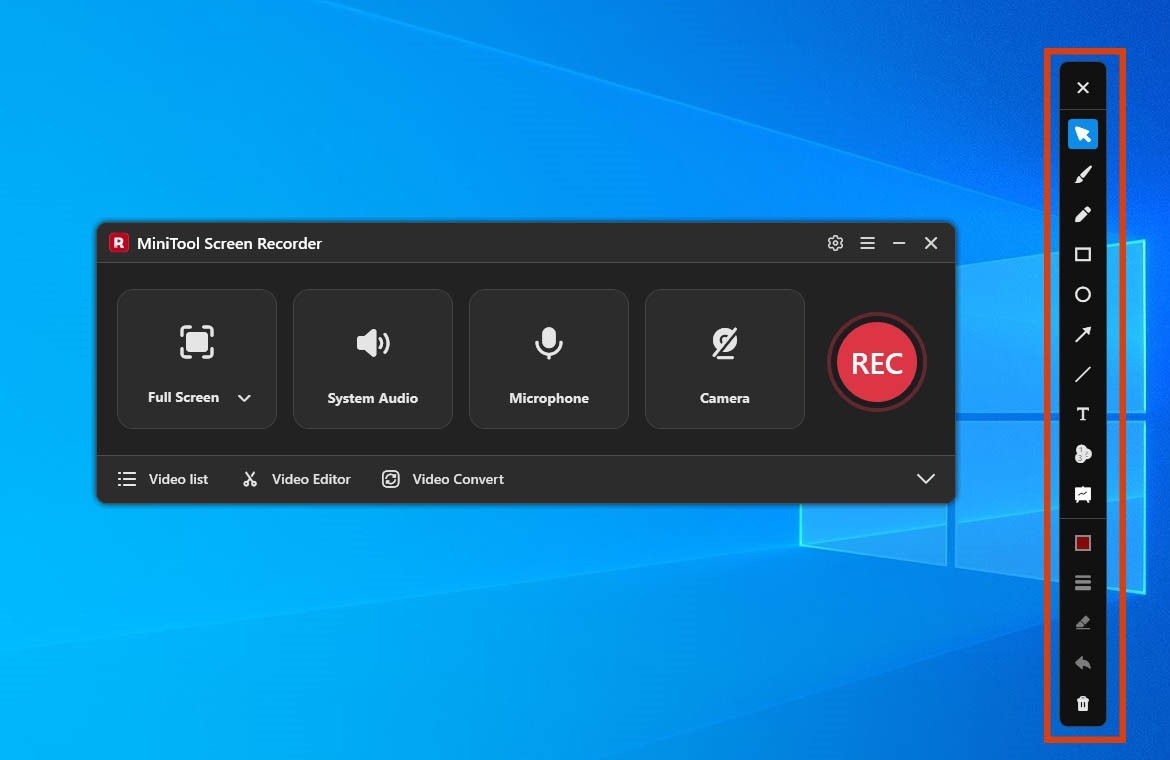
Step 7. If there is a need to annotate the screen, select the tools from the annotation toolbar.
Step 8. To end the game recording process, press the F6 key. Then, the tool will automatically switch to the Video list section. Next, you can click the Play icon to view the recorded video and click the Folder icon to find the file save location.
Conclusion
The error "there’s nothing to record play some more" can prevent users from recording their gameplay using Xbox Game Bar. This guide outlines several solutions, including adjusting recording settings, updating graphics drivers, clearing temporary files, using alternative tools, and more.
If you have any questions when using MiniTool Screen Recorder, send an email to support@minitool.com.
People Also Ask
1. Open Windows Settings and go to the Gaming section.
2. In the Captures tab, check the box Record in the background while I’m playing a game.
3. Expand the Record the last option.
4. Then, choose the 5 minutes option, and you can record the