

Want to record WAV file? This article shows how to do it with the robust audio recorder: MiniTool Screen Recorder. It also reminds you of things to consider after recording audio and provides solutions to common problems.
How to Record WAV File
Are you still looking for a WAV recorder? I recently used a practical tool called MiniTool Screen Recorder. It can record WAV file with great sound quality. As I used this application more frequently, I found that it meets my recording needs very well. Firstly, MiniTool Screen Recorder supports controlling dual audio, system audio and microphone audio, separately or simultaneously, which allows you to add real-time voiceover to WAV recordings.
Secondly, MiniTool Screen Recorder has no recording duration limit or recording frequency limit. Thirdly, it has no vexing built-in ads or bundles, giving you a pleasant recording experience. Does it have any more convenient features? Of course! MiniTool Screen Recorder allows you to preset the recording duration before starting, which means you don’t have to stay in front of your computer to click on the stop button.
Now, let’s focus on how to record a WAV file on Windows using MiniTool Screen Recorder.
Step 1. Download and Set Up MiniTool Screen Recorder
Click on the download button below to download MiniTool Screen Recorder. Then, follow the instructions to complete the installation step by step.
MiniTool Screen RecorderClick to Download100%Clean & Safe
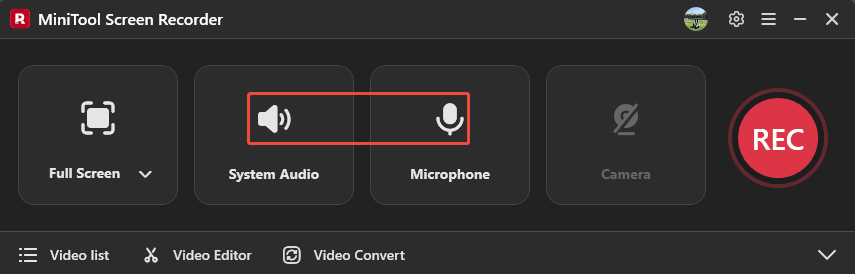
Step 2. Control the Audio
Launch MiniTool Screen Recorder and log in to it. Click on the System Audio icon and the Microphone icon to decide whether to enable them.
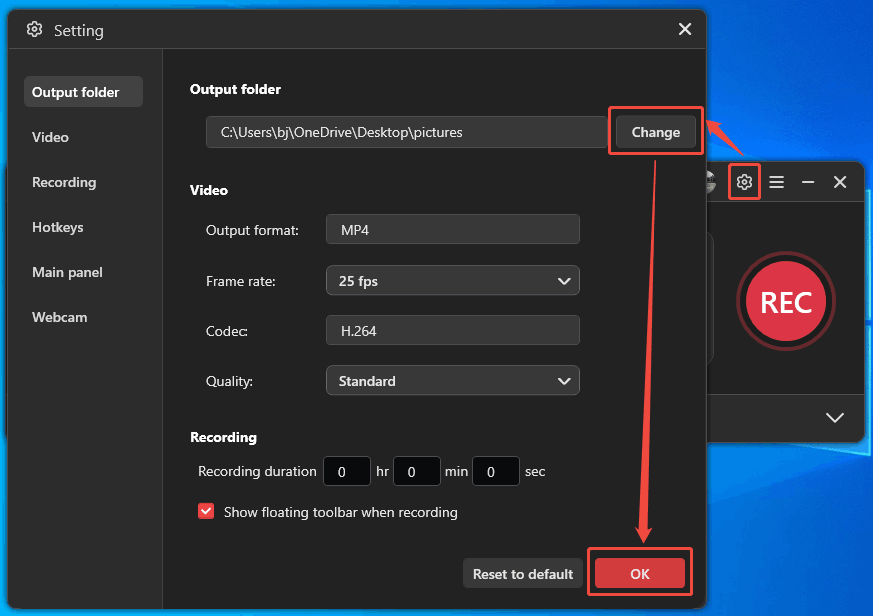
Step 3. Set a Storage Location
Click on the Gear icon on the upper-right of the main interface to open the Setting window. There, click on the Change button to choose a save folder for your audio recordings. Then, click on the OK button to save this change.
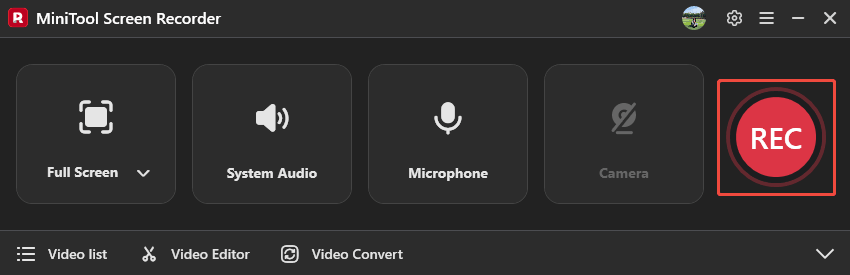
Step 4. Start/Stop the Audio Recording
After completing the save settings, this recorder will return to the main interface. Here, click on the REC button to start recording. There is a 3-second countdown. After that, you can open the WAV audio file you want to record. Then, play your WAV file. To pause or resume the audio recording, press the F9 key. If you want to end it, press the F6 key.
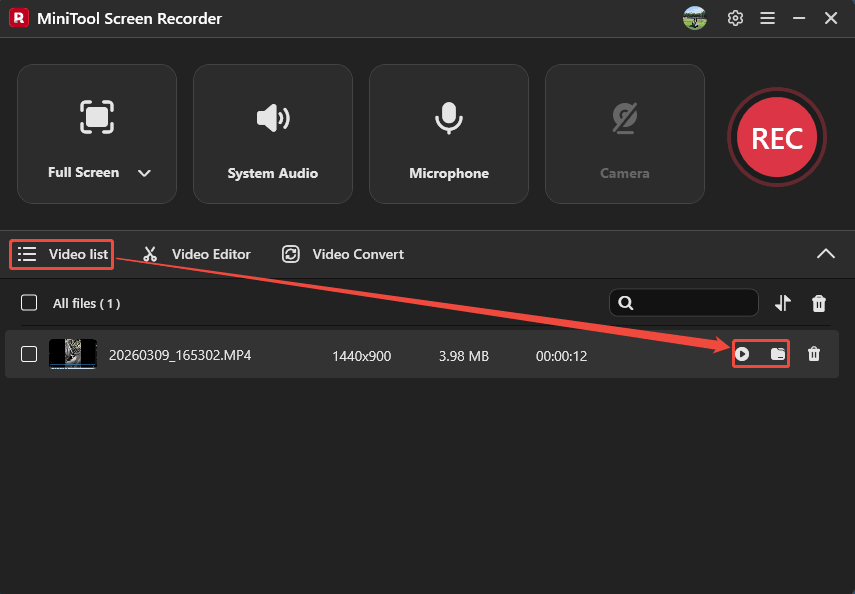
Step 5. Check and Locate the Recorded Audio
Once the recording finishes, the recorded audio will appear in the Video list tab. Here, click on the Play icon to listen to it. Or click on the Folder icon to locate the recorded audio on your PC.
MiniTool Screen Recorder helps you record WMV file smoothly and quickly. It can reproduce the original audio quality to the greatest extent.
Considerations After Recording WAV
When the audio recording finishes, what should you do first? Here are 3 suggestions you can refer to.
1. Check the Integrity of the Audio Recording
After recording the WAV file, you should check if the audio recording is complete. If you don't check it in time after recording and later find that the recorded audio is incomplete during playback or editing, it will affect the progress of your work. Therefore, please preview the WAV recording first to ensure it is complete and the content meets your requirements.
2. Check for Infringing Content
Furthermore, it’s important to consider whether the recording contains copyright infringement. If your recorded WAV file isn’t your original work and contains music or voices of others, you may only use this audio recording for personal purposes. Commercial use or public distribution requires authorization from the copyright holder. Otherwise, you may face legal risks.
3. Back up the Audio Recording
Develop a good habit of backing up your files. After completing the recording, I suggest you back up important WAV recordings promptly. You can choose local storage or cloud storage to avoid accidental deletion or corruption that may result in file loss.
Common Issues and Solutions About the Recorded Audio
After recording the WAV file, you may encounter various issues with the recorded audio. The following are 2 common problems and solutions.
1. Audio Corruption
Recorded WAV files may fail to play due to the file being unopenable, playback being accompanied by static/noise, or system errors indicating a file format problem. These issues may be caused by audio corruption, which can be due to various reasons, such as incompatible audio codecs, insufficient computer storage space, or a crashed recording tool.
To resolve these problems, try changing the codec and player, ensuring sufficient storage space is available before recording, adjusting recording settings, and more.
2. Audio Latency or Shuttering
There may be sound delays or stuttering when playing recorded WAV audio. This may not be the problem with the recorded audio, but it may be insufficient processing power or RAM on your computer. Try clearing background processes to reduce CPU and RAM usage by other applications. After that, audio playback should be normal.
Wrap Things Up
This article tells how to record WAV file without losing much audio quality of the original audio using MiniTool Screen Recorder. Also, it offers suggestions after recording and gives solutions for common issues about the recorded audio.
If you want to learn more about MiniTool Screen Recorder, please feel free to contact us via email at support@minitool.com. Or you can directly send me a message on X. I will reply to you as soon as possible.